
Sales Documents (Google Drive)
Includes: Customer Credit, Wire Transfer Info, Net-30 Credit Application
Misc. Gage Information (Google Drive)
How To Edit FAQ:
Log into BigCommerce -> Click on Storefront in the sidebar -> Web Pages -> Sales Team FAQ
Table of Contents (Click to jump to section):
Purchase Orders from Direct Customers
Other Messages from eBay, Amazon, & BigCommerce
Order Status Update / Tracking Request
Failed Gages / Return Requests
Customer Did Not Receive Certs with Order
Customer Making an Offer on a Listed Item
Invoices, Acknowledgements, and Payment Methods
Vendor Acknowledgements & Invoices
Other Invoices / Account Statements
Electronic Payment Notifications
Credit Terms / Net-30 Requests
Customer Wants to Pay via Wire Transfer
SureDone Results Messages (Upload Complete / Export Done)
Stamps.com Messages (Purchase Confirmation)
Offers to Sell Us Gages / Tooling
Certificate of Insurance Request
Message Undeliverable / Failed to Send
"Are Your Gages Certified / Calibrated?"
Failed Gages / Damaged Items / Return Requests
"Do You Buy Used Gages / Tooling?"
Attaching a Quote to an eBay Message
"Is This Gage Calibrated / Certified?"
"Do You Know the Specs on this Gage?"
Customer Requests Additional Pictures
"Can I Buy a Single Item from this Lot?"
Combined Shipping on Multiple Items
Shipping Method Change / Can You Overnight This?
eBay International Shipping Program Info
Shipping Not Available to Other Countries
Lost Package ("Item Not Received")
Offers to Sell Us Gages / Tooling
You Successfully Canceled an Order
Update Your Listings to Keep Them Compliant
Finding Repeat Customers' Phone Numbers
Pricing Gages Without SKU or Manufacturer Quote
Thread Callouts / Naming Conventions
Calibration-Only Quotes (Customer Sends in Gages)
Requesting Quotes from Manufacturers / Vendors
Michigan Drill (Taps, Drills, Inserts, & More)
Insize (Micrometers, Calipers, Other Inspection Tools)
Loc-Line (Coolant Hoses & Nozzles)
Techniks (CAT, BT, & HSK Tool Holders)
PAC Tools (Long Projection Tool Holders)
Edward Andrews (Lathe Bushings)
D.B. Roberts (Spiralock Gages & Taps)
Western Pegasus (Spline Gages)
Western Gage Corporation (Air Gages)
UCA Group (Scully-Jones Products)
S.G. Prittie (Square Thread Gages)
Steiner Technologies / JBO (Thread Gages)
Willrich (Torx Gages, Depth Gages, & More)
Custom Tool & Gage (Deltronic Pins)
Customer-Specific Quote Considerations
"Normal" Orders (No Calibration / Distribution / Engraving)
Receiving Calibration (True Line)
Receiving Calibration (Other Labs)
Distributing Follow-Up Procedure
AFTER 4PM: Entering Orders Directly Into ShipStation
Credit Card Receipts for Past Orders
True Line Calibration Certs for Past Orders
Cabinets / Large Items Purchased on eBay
Awaiting Payment Follow-Up (eBay)
Customer Requests Cancellation
How to Void a Shipping Label
All emails must receive a response within two hours of being received! This can be a generic "We have received your request / order" message if applicable, such as the example messages below. If there are emails which are about to hit the two hour mark without any response, alert the sales team ASAP for assistance!
Quotes:
"Good Morning / Afternoon,
Thank you for this opportunity! We have received your request and will get back to you with a quote as soon as possible.
Regards,"
***You should also include a REF# in this email as described here, so that we do not have to reply again if we end up needing to reach out to a manfuacturer to complete the quote.
Orders:
"Good Morning / Afternoon,
Thank you for the order! We appreciate your business and will follow up with a formal acknowledgement soon.
Regards,"
General Sales Inbox Procedures
Oldest First - Always address emails in the order that we received them, with ONE exception: Upset Customers Take Priority Over All Other Emails
- Check the Junk Folder and "Other" Tab occasionally - most of what you'll find in here does not need addressed and can be deleted, but every once in a while an actual important email will end up in one of these places so make sure they're being checked regularly.
- Try to keep the inbox from getting too cluttered by moving messages to an appropriate folder once they have been addressed - or deleting messages that we do not need to keep.
- If you are addressing an email, always move it to your folder so that someone else does not also start working on it
- When moving an email to a specific person's folder, always notify them via Discord with a message & snip of the email
- Similarly, notify the sales team via the "email filtering" channel in Discord whenever moving an email to either the "Orders (Need Entered)" or "Purchasing" folders, so that the person(s) designated to address them will be aware. Use "@" to tag the relevant person in the message.
- Emails in the "Waiting for Response" folder should be followed up on twice per day, once in the morning and again in the afternoon
- To make this easier, you can attach the other email that we are waiting on by doing the following:
1. Find the corresponding email chain (for example, an RFQ to a manufacturer that we haven't gotten a response on yet) and in the toolbar at the top of Outlook click File -> Save As
2. Go to the email in "Waiting for Response" and draft a reply.
- This reply MUST be addressed to sales@mjtoolingllc.com ONLY! Do not send it to the customer / other party!
- Attach the email you saved, which works just like any other file
- Send the reply TO SALES@MJTOOLINGLLC ONLY
3. Now you can simply open the attachment in this reply to quickly return to the other email chain the next time that you need to follow up on it without needing to search for it.
- If you are not sure where to put an email, or who should address it, just ask!
- If a customer responds to an email that was sent by someone else, reach out to that person on discord with a snip of the customer reply and ask if they would like you to take over replying to the customer
- Refer to the Quotes section for more information
- Standard Quote Message:
"(Good Morning / Good Afternoon),
Please see the attached quote. Let us know if you have any questions, and we appreciate the opportunity!
Regards,"
Note that you will sometimes need to add more information to this message if there are any specific considerations that we want to point out to the customer - for example, "I have included both new and refurbished options" or "I have quoted this as class 6H, let us know if you need this re-quoted with a different class". Any such additional information should be included before the "Let us know if you have any questions" line.
- Not Enough Info
If you receive a quote request from a customer, but it does not have enough information for us to quote (no class, doesn't specify plug vs. rings, etc):
- Things that are okay to assume:
- Customer doesn't specify plug vs. ring, but includes a class - You can assume the type of gage based on the class (2B/3B/6H = plug, 2A/3A/6g = ring) unless there is something else in their message that leads you to believe this might be incorrect. This could cause some issues with set plugs, but it is pretty uncommon for a customer not to specify if that is what they are looking for.
- STI and Spiralock gages only exist as plugs and not rings. If a customer requests, for example, "#2 - 56 STI", you can safely assume that it is a plug gage, however in this case we would need clarify if they are looking for class 2B or 3B (or, if we have both in stock, we can always just quote both). Spiralock gages, meanwhile, do not have different classes, so if a customer requests "1/4 - 28 Spiralock gages", in this case we have all of the information that we need.
- No class given for a metric size - You can assume class 6H for plug gages and 6g for rings / set plugs. This will be correct for a very large majority of metric gages, and in the event that it is not we can always re-quote. The exception to this is Metric STI gages - these should be assumed class 4H5H if not specified, as that is the most common option for STI gages. In this case be sure to also mention in your email message that if class 6H STI is needed, we will need to know the pitch diameters.
- Otherwise, we will need to reply asking for more information - see below for an example message:
"(Good Morning / Good Afternoon),
Thank you for reaching out.
Are these plug gages or ring gages that you are looking for? And is there a particular class you need (such as 2A/2B or 3A/3B)? Let us know and we will get you a quote right away.
Regards,"
Purchase Orders from Direct Customers
Whenever a purchase order is received, it should be moved to the "Orders (Need Entered)" folder in Outlook, and the primary order entry person should be notified with a message in the "email filtering" channel in Discord with a snip of the PO/email. Use "@" to tag this person in the message as well to make sure they are aware of it.
For order entry, refer to the Orders section for more information.
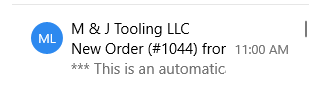
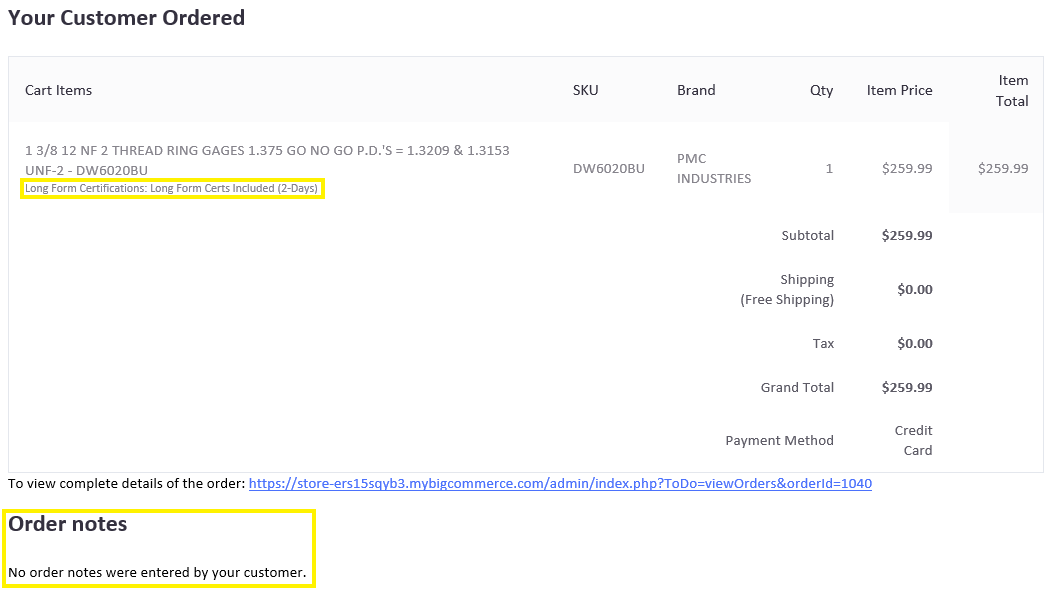
Check every website order that comes through the sales inbox!
There are two things that MUST be checked and addressed on ALL website orders before moving the email to the "Website Orders" folder:
- Calibration Requests
- If the customer has requested certs, there will be a line under the item title that says "Long Form Certifications: Long Form Certs Included (2-Days)" as shown in the picture above. As soon as you see this, the following steps must be taken:
1. Check the shipping method. If it is UPS Next Day Air or UPS 2nd Day Air:
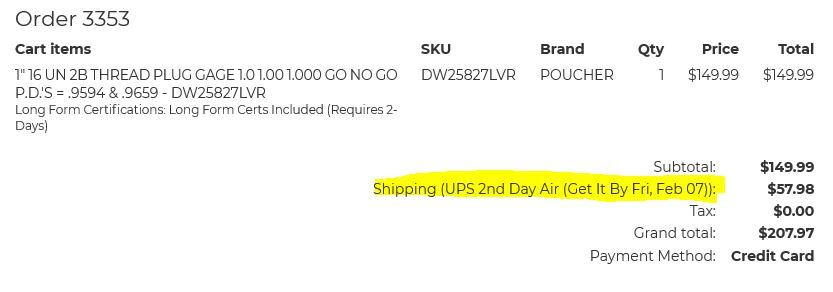
a. If the total price of the gages being calibrated is $150.00 or greater, we will provide same-day calibration for no additional cost. The calibration lab should be alerted that it is due same-day via a message & snip of the email in the "Engraving / Calibration Orders" group on Discord.
b. If the total price of the gages being calibrated is less than $150.00, we will reach out to the customer (via email or phone call, or ideally both) and let them know that there is a 2-day lead time on the calibration, but that if they need it to ship today, we can upgrade to a same-day calibration for an additional cost. Check the True Line Orders sheet for pricing (subtract the normal 2-day price from the same-day price to get the difference that we would be billing the customer). The calibration lab should be notified via Discord whether the order needs to be calibrated same-day, or if it is a standard 2-day lead time.
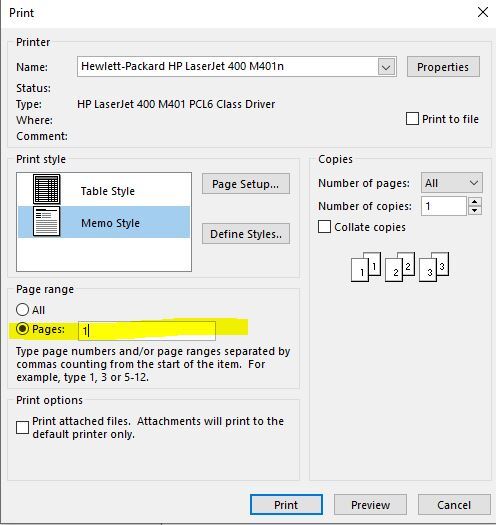
2. Print a copy of the email to the calibration lab printer:
a. In upper left corner of Outlook: click File --> Print
b. In the Printer dropdown menu, select TrueLine Calibration Printer
c. Click "Print Options" (directly below the Printer dropdown). Change the page range from "All" to "Pages:" and type in "1", then click Print. This will send the printed email directly to True Line.
3. Update the True Line Orders spreadsheet with the date, company name, gage calibrated, and amount for the calibration order (separate into multiple lines if more than one gage)
4. Move the email to the "Website Orders" folder.
- Order Notes
Any order notes should be posted in the Shipping Group discord. Most website orders do not have any notes, but customers will occasionally use this space to make requests such as adding a PO# to the shipping label, or a local customer wanting to pick up the order rather than having it shipped. Once these notes have been addressed, move the email to the "Website Orders" folder.
Note: If a customer has chosen to provide a UPS shipping account (you will see "Customer Provided UPS Account" in the shipping section), the account number will be given in the order notes. This does not need to be alerted to the shipping department, as it is automatically updated by the order in ShipStation.
Procedure for pickup orders:
1. Notify the shipping department immediately that the order is not being shipped, and put the order on hold in ShipStation.
2. Contact the customer via phone or email (or ideally, both), letting them know that we received the order and are preparing it for pickup. Ask if they have an estimated time that they will be here - any time between 8AM - 4:30PM is fine, but we ask that they give us at least 20 minutes to make sure the order is ready for them when they arrive.
3. The order will then need to be picked and prepped for the pickup. Refer to the Customer Pickup section for more information.
4. Always remember to mark the order as shipped once it has been picked up!
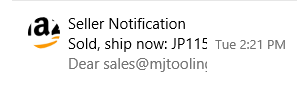
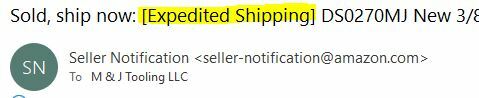
Whenever we receive an Amazon order notification (from "Seller Notification"), check if the subject line says [Expedited Shipping] like in the image above.
If it does not say expedited shipping, move the email to the "Amazon" folder. You do not need to take any further action.
If it does say expedited shipping, take a snip of the order in ShipStation and post it in the "shipping method changes" channel of the Shipping Server in Discord chat along with a message stating that the order is to be shipped via the ship method described below:
Total ITEM Value (not including tax / shipping) is Over $224.99: Ship via UPS 2nd Day Air
Total ITEM Value (not including tax / shipping) is $224.99 or Less: Ship via USPS Priority Mail Express
Once this is done, the email can be moved to the "Amazon" inbox folder.
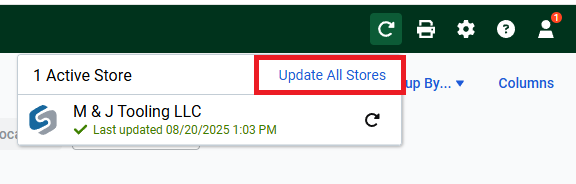
If the order does not appear in ShipStation, try refreshing the list:
1. Hover over the refresh icon in the upper-right corner of ShipStation and click "Update All Stores"
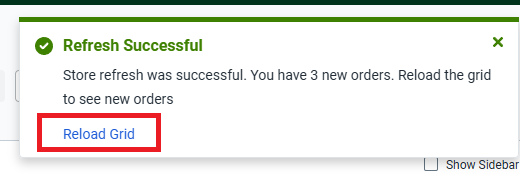
2. The "Refresh Successful" notice should pop up after a few seconds. Click "Reload Grid" to refresh the page, which will add any new orders to the list.
If the order still does not appear, it probably just hasn't come through from Amazon yet. Wait a few minutes and then try updating ShipStation again.
Other eBay/Amazon/BigCommerce Messages
Amazon Return Authorization Notification: Refer to the Return Procedures FAQ
Amazon "Refund Initiated" Notice: Move to the Amazon folder; no further action needed
Amazon Warnings ("Action Required", "Listings Deactivated", "Detail Pages Temporarily Removed", etc.): Move to Matthew's folder and alert him via Discord
***Anything mentioning Intellectual Poperty Violations, Food and Product Safety Issues, or Restricted Product Policy Violations MUST be address ASAP. If we receive one of these and Matthew is not here, alert Josh / another supervisor instead
We will occasionally receive other messages from our storefronts which may or may not be directly related to orders. Some of these will require a response / action to be taken, such as messages from customers about their orders, and others will not. Always read through these messages to determine whether or not they need to be addressed, and contact your trainer if you are not sure what needs to be done with a particular message.
Order Status Update / Tracking Request
When a customer asks for an update on an open order:
- If it's a distributing order:
1. Find our PO# for the order - this can be done by searching the customer's company name in the "Placed POs" folder of the Entered Orders Google Drive (you will want to use advanced search to make sure you are only searching within the Placed POs folder and not the entire drive - otherwise you will likely get many results which are not what you are looking for). If there are several results, check each PO to find the correct one based on the items or the customer's PO number (if there is one).
2. Search our PO# in the inbox.
- If we have received an invoice for the order, it has been completed and shipped. Check the invoice for the ship date and tracking number and relay this information to the customer.
- If we have not received an invoice:
- Find the order acknowledgement and check the due date given to us by the manufacturer.
- If we are not at the due date yet:
- Let the customer know the expected ship date and tell them that we will reach out to production to make sure we're on track to hit the due date
- Contact the manufacturer (either by phone or email) and ask for an update on the order (give them our PO#)
- If they tell us that the order has been delayed, follow up with the customer relaying the message
- Example message:
"Production has informed us that there has been a delay, and they have given us an updated ship date of [date]. We will let you know if anything changes. Thank you for your patience and please let us know if there is anything else we can help you with."
- Follow up with the manufacturer on the new due date to make sure the order has not been delayed again
- If we are on the due date:
- Contact the manufacturer (either by phone or email) and ask for confirmation that the order will be shipping today.
- If they tell us that the order has been delayed, follow up with the customer relaying the message
- Example message:
"Production has informed us that there has been a delay, and they have given us an updated ship date of [date]. We will let you know if anything changes. Thank you for your patience and please let us know if there is anything else we can help you with."
- Follow up with the manufacturer on the new due date to make sure the order has not been delayed again
- If we are past the due date:
- Contact the manufacturer (either by phone or email) and ask for an update on the order (give them our PO#)
-They will give us an updated ship date which needs to be relayed to the customer
- Example message:
"Production has informed us that there has been a delay, and they have given us an updated ship date of [date]. We will let you know if anything changes. Thank you for your patience and please let us know if there is anything else we can help you with."
- Follow up with the manufacturer on the new due date to make sure the order has not been delayed again
- If it's an order receiving calibration:
- Find the calibration request paperwork in the"Calibration Requests" folder of the Entered Orders Google Drive and check the due date. If we are not at the due date yet, let the customer know when the order is due, and that we will get them tracking information when it ships.
- If we are past the due date, contact the calibration lab for a status update. If the gages have been shipped, get the ship date and tracking number and relay this information to the customer. If the gages have not been shipped yet, get an updated due date from the calibration lab and relay this information to the customer.
- If it's a direct-to-customer-order from our stock:
- Find the order in ShipStation; Get the ship date and tracking number (located on the right side of the order details) and relay this information to the customer. You can also check the tracking and give them the current status as well (example: "This was shipped on [date] and the tracking number is [#]. According to the tracking, you should be receiving this today.")
Failed Gages / Return Requests
Messages about failed gages, damaged items, or anything related to returns / refunds:
Check the date that the order was delivered to the customer. Our officially stated return window is:
- Direct orders or orders on our website (BigCommerce): 7 Days Since Delivery
- eBay and Amazon orders: 30 Days Since Delivery (sitewide policy for both platforms)
- If the order is past the return window:
- We will not give any refund or pay for return shipping
- For thread gages only: If we made a mistake / customer has failed certs and we have a suitable replacement, we may offer an exchange as long as the customer covers the shipping costs. If we do not have any replacement options in stock in these cases, we will provide a quote for a new replacement instead
Example Messages:
Example 1: We are offering a replacement
Good Morning,
This order falls outside of our return window. Even with that, here is what we can do to help:
If you send the failed Go Member Only back we would be happy to get you a replacement. You can ship it to the address below:
ATTN: Exchanges
M & J Tooling LLC
420 Davis Ave
Dayton, OH 45403
For future reference, we do offer the option of having gages calibrated by a third-party lab here in Dayton prior to shipping. Turnaround time is just 2 days (and they can usually provide 1-day or same-day service for an extra fee if needed) and any gage that fails calibration would be replaced with a passing gage before being shipped to you.
Let me know if you have any questions.
Regards,
Example 2: We do not have a replacement
Good Morning,
This order falls outside of our return window. I would be happy to offer a replacement if we had one available, but we do not have any options in stock at this time.
We are, however, able to provide a brand new gage directly from a manufacturer, which I have attached a quote for. If you are interested in purchasing this new gage as a replacement please let us know and we will begin processing an order right away.
Let me know if you have any questions.
Regards,
Example 3: We are not offering a replacement (mainly used for tooling)
Good Morning,
It has been [X] days since this item was delivered, putting it outside of our [Y]-day return window. Because of this, we are not able to accept a return as we cannot account for everything that may have happened to it during that time.
[If we have a replacement]: If you would like to purchase another one of these, I have included a link below for your convenience.
[link here if applicable]
Please let us konw if you have any questions.
Regards,
- If the order is still within the return window: ask the customer to provide a copy of the failed certs / readings (for failed gages) or a picture of the damaged / incorrect item if they have not already provided these in their message. From there, the message should be directed to your supervisor to make a decision about how we will proceed. Typically what will happen is:
a. The customer provides certs / proof that an item is wrong/bad:
As long as there is nothing unusual about the cert (does not give all the needed information, wrong tolerances were used, etc.), we will provide a return label and, ideally, a direct replacement from our stock. If no replacements are available, we will provide a quote for a new gage, which the customer would receive a credit toward in the amount that they paid for the failed gage.
In most cases, we will have two options for how this exchange will work:
1. The customer ships back the gage using the provided return label, and as soon as we receive it, we will ship out the replacement; or, if they need the gage ASAP:
2. The customer purchases the replacement for its full list price, we ship it out the same day, and then once the failed gage has been returned we will refund the purchase.
***In some cases we will just ship the replacement same-day without any money changing hands - this will be at the discretion of management
Example Messages:
Example 1: We have a replacement
Good Morning,
Thank you for reaching out about this, and for providing the cert. I have attached a return label for sending back the failed gage, and we have a replacement available that I am happy to send you. We have two options for how we can proceed, depending on how soon you need this:
1. We will ship the replacement as soon as we receive the return back in house; or,
2. You can purchase the replacement at the list price of [$X.XX], we will ship it right away today, and then as soon as we receive the return you will be refunded that same amount.
Please let me know how you would like to proceed, and we will get it taken care of right away. If you have any questions, please do not hesitate to reach out.
Regards,
Example 2: We do not have a replacement
Good Morning,
Thank you for reaching out about this, and for providing the cert. I have attached a return label for sending back the failed gage. I would be happy to offer a direct replacement if we had one available, but we do not have any options in stock at this time. We are, however, able to provide a brand new gage directly from a manufacturer, which I have attached a quote for. As noted on the quote, the amount of [$X.XX] that you had paid for this failed gage would be applied as a credit toward this purchase. If you would like to proceed with this plan, please let us know and we will bill you for the difference of [$Y.YY] and get it on order right away. Otherwise, we will provide a full refund in the amount of [$X.XX] as soon as we receive the returned gage.
Please let me know if you have any questions.
Regards,
b. The customer does not have certs:
We will want to get a second opinion from another calibration lab. If the gage fails, we will provide a replacement for no cost (or a full refund if no replacement is available - like in the other scenarios though, we will want to offer a new-from-manufacturer replacement option first). If the gage passes, we will bill the customer for the calibration cost and send the gage(s) back with certs. We may or may not provide a return shipping label, which will be decided by management based on factors such as our relationship with the customer and how upset they seem to be.
Example Message:
Good Morning,
Thank you for reaching out about this. We would like to get a second opinion from a third-party calibration lab. If they agree with your findings, we will provide a replacement at no cost. If the gage is found to be within tolerance, there will be a [$X.XX] calibration fee applied and we will return the gage to you along with long-form certs verifying the results. If you would like to move forward with this plan, please ship the gage to the address below:
ATTN: Calibration
M & J Tooling LLC
420 Davis Ave
Dayton, OH 45403
Let me know if you have any questions.
Regards,
c. There is nothing wrong with the gage / item, customer just made a mistake:
We will not provide a return label, and in most cases a restocking fee (typically 20%) will be applied. We may waive the restock fee in some situations, such as if the customer is purchasing a replacement item that is more expensive than the one they originally bought. This should always be confirmed with your supervisor.
Example Message:
Good Morning,
We will accept a return on this item, however it will be subject to a 20% restocking fee. If you would like to proceed please ship to the address below, and we will process a refund of [$X.XX] once it arrives:
ATTN: Returns
M & J Tooling LLC
420 Davis Ave
Dayton, OH 45403
Let me know if you have any questions.
Regards,
Customer Did Not Receive Certs with Order
1. Find the order and accompanying PO / email chain (if applicable) to determine if the customer had requested / purchased certs, and if the items are something that we are able to provide certs for.
a. Certs were purchased:
If the gage was calibrated at True Line Calibration: Follow the steps here
If the gage was calibrated at Tool Testing Lab: Reach out to katie.berbach@ttlcal.com and request a copy of the cert. Give as much information about the gage(s) as possible (size, date we shipped to them, etc.) to help them locate the order more quickly.
If the gage came from a manufacturer:
Find the email with the PO that we sent to the manufacturer. Reply to it with the following message:
"Hello,
Our customer received this order, but it did not include the long form calibration certs that were purchased on this PO. Can you send us a .pdf copy of the certs that we can provide to them?
Thank you,"
b. Certs were not purchased:
(Direct Orders / Website Orders)
"Hello,
It looks like long form certs were not included on this PO. If you would like to send the gage back in for certification, we can have it calibrated for $[cost] on a [x]-day lead time.
Regards,"
(eBay / Amazon Orders)
"Hello,
Our gages do not include certs unless specified in the listing. If you would like to send the gage back in for certification, we can have it calibrated for $[cost] on a [x]-day lead time.
If you ever need to add certs on a future gage purchase, please reach out to us after the order is placed and we can have them calibrated and shipped out with certs for you. Let us know if you have any questions!
Regards,"
2. We can provide short form certs for the following for no cost:
Our New Gages (SKU ending -MJ, -LZ, or -MSAF) - Refer to the Short Form Certs section for more information
Our stocked GF Gages (SKU ending -GFG) - These should always include a SF cert but Matthew has extra copies in his office that can be scanned & emailed to the customer if needed
Gages directly from manufacturers - Reply to the order acknowledgement we received requesting copies of the cert(s) which can then be emailed to the customer
If a customer asks for SF Cert for a used gage:
"Hello,
Unfortunately for most of our used gages we do not have the original manufacturer's cert or any other documentation. However if you would like to send the gage back in, we can have it calibrated for $[cost] and shipped back with long form certifications after a [x]-day lead time.
Regards,"
Customer Making an Offer on a Listed Item
If a customer sends us an email making an offer on an item from eBay/Amazon/our Website:
- Contact your supervisor, who will advise you on whether we will take the offer, or make a counteroffer. We are often willing to make a deal on an item if it is purchased directly since we will not lose money in fees to eBay/Amazon/BigCommerce.
Invoices, Acknowledgements, and Payment Methods
Vendor Acknowledgements / Invoices
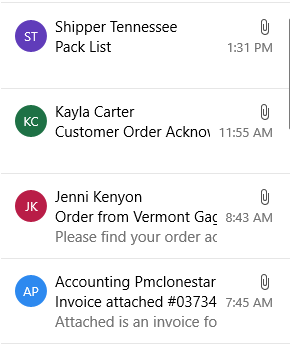
Possible subject lines include:
Sales Order from PMC
Order from Vermont Gage
Ack [####] for PO [####]
Order Confirmation: M&J TOOLING
INSIZE - Acknowledgement# [####]
Meyer Gage Company - Acknowledgement# [####]
Invoice attached
INSIZE - Invoice # [####]
Invoice [####] from Air Gaging LLC
Meyer Gage Company - Invoice# [####]
Original Invoice for a shipment on Purchase Order [####]
WIDELL INVOICE
Order acknowledgements / invoices from 4imprint, Uline, and Thomas Tape: Move the email to Liz's folder and notify her via Discord with a snip of the message.
Order acknowledgements / invoices from any other vendor / manufacturer (PMC, Vermont Gage, Queller Wholesale, Insize, etc.): Move the email to the "Distr. PW Needs Logged" folder and notify Matthew via Discord with a snip of the message.
How to log this paperwork:
Acknowledgements: Check the acknowledgement to make sure everything lines up with the PO we sent (prices, lead times, shipping method & address). If there are any discrepancies, contact the manufacturer ASAP. Otherwise, find the order on the Distributing Orders spreadsheet and enter the Acknowledged Due Date. Once the orders sheet has been updated, the acknowledgment email can be moved to the "Distributing Paperwork - Done" folder.
Invoices: Compare the invoice with our original PO or the acknowledgement to see if the full order has been shipped. If yes, go to the Distributing Orders spreadsheet, find the corresponding order, and delete that entire row from the sheet. If no, find the order on the Open Orders sheet and add to the "Notes" column, "Partial Shipment on [date]". Next, go to the corresponding invoice tab (PMC, VTG, or Other) and enter the requested information for the invoice. The invoice email can then be moved to the "Distributing Paperwork" folder when finished.
Other Invoices / Account Statements
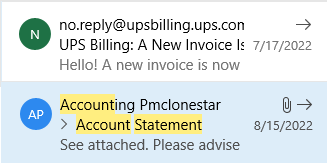
UPS Invoices should be moved to Josh's inbox folder, with a snip of the message sent to him on Discord notifying him of the email.
Any other invoices or payment notices/receipts (from ShipStation, LiveChat, BigCommerce, etc.) should be moved to the "Reports" inbox folder.
This does not include invoices for distributing orders (from PMC, GSG, VTG etc.), covered in the section above.
Account Statements from our distribution vendors such as PMC, GSG, Vermont, and Queller - Move to Liz's inbox folder
Electronic Payment Notifications
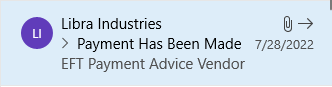
Some of our Net-30 account customers will pay invoices via electronic funds transfers. When we receive an email notification that a payment has been made, this should be delegated to the person in charge of tracking Net-30 accounts (currently Liz).
Credit Terms / Net-30 Requests
You will occasionally have customers ask about credit terms (Net-30), meaning they would pay us for orders within a certain timeframe of delivery instead of paying up front via credit card / PayPal.
The first thing we will need to do is check which state the customer is located in - specifically, if they are in Ohio or one of the surrounding states (Michigan, Indiana, Illinois, Wisconsin, Kentucky, West Virginia).
Next, check how much they have spent with us in total orders. Search the company name in ShipStation as well as the "Placed POs" Google drive folder (since distribution orders will not be in ShipStation) and add up the total amount. Note #1: ShipStation sometimes has a bug with multiple-item orders where it will only show a partial amount under "Order Total", so make sure to open the order details and find the full total for any order with more than one item. Note #2: You should also search the company's address in ShipStation to see if there are any previous orders placed on eBay / Amazon / our website which may not necessarily have had the company name attached.
If the customer is NOT from one of the states listed above and/or the total amount spent is less than $1,000.00:
Send the customer the following message:
"Thank you for your interest in terms. We will bring this up to management and provide a definite answer promptly. If you are looking to have an order processed immediately, we ask that payment is provided at the time an order is placed. Please let us know if you have any questions!"
This should then be brought to management to decide whether we want to move forward with an application. If we decide not to move forward, your supervisor will help you with drafting a message to send to the customer. If we do decide to send an application, refer to following section for this procedure.
If the customer is from one of the states listed above, AND the total amount spent is at least $1,000.00:
We will supply the customer with a credit application ("M__J_Credit_Application.pdf" which can be downloaded here) which will then be reviewed and accepted by management after at least three credit reference responses have been received. The accompanying email should look like:
"Thank you for your interest in Net-30 terms. Please see the attached credit application form and fill out at your earliest convenience. Once received we will review it and, if approved, we will follow up with additional details."
If the application is approved, there will be a credit limit set up at the beginning. Use the following message template:
"We are accepting Net-30 terms with your company. Once we receive an order, we will provide an order acknowledgement containing order information and expected ship date. Once this ships, we will provide an invoice with tracking to be paid within 30 days from the invoice date.
Payments can be made via ACH using the attached banking information, or via company check mailed to the address below:
ATTN: Accounts Receivable
M & J Tooling LLC
420 Davis Ave
Dayton, OH 45403
To start out, we will have a [$X] credit limit, which may be subject to change. Please let us know if you have any questions!"
Once we have received payments totaling $1,000, the limit will be increased by $500. The limit will continue to be increased by an additional $500 each time we receive payments totaling $500. Credit limits are subject to change on a case-by-case basis. Please reach out to supervision if a customer has requested an extension.
If we decide not to offer terms, we will reply with an explanation of why we are not approving terms (typically the reason will be poor credit history with their provided references). Ask a supervisor if you need help drafting this message.
Declined for no prior business:
"Thank you for your interest in terms, however we typically do not offer credit terms to first-time customers. Once we have more business, we would be happy to provide a credit application. In the meantime, we would ask that orders be paid up front via credit card, PayPal, or ACH.
Please let us know if you have any questions."
Credit Inquiry Template
"Hello,
We are looking to go on terms with [COMPANY] and they have listed you as a credit reference. I'd like to ask a few questions:
Is this company currently in good standing?
Is this company currently on or have they been on credit hold within the last 6 months?
What is the (approximate) average number of days it will take for them to pay an invoice?
What is your current credit limit with [COMPANY]?
What is your current balance with [COMPANY]?
Thank you for your help.
Regards,"
Our ACH info (which is the same banking information used for wire transfers, described below) can be found in the Sales Docs Google drive under the name "Wire_Transfer_Info"
Customer Wants to Pay via Wire Transfer
Some customers, especially those outside the US, may ask to pay via wire transfer. While we generally prefer credit card / PayPal for most orders since it's faster and easier for us, we can accept a wire transfer if it is the only option for the customer. HOWEVER, there are two important things to keep in mind:
- There is a $75 international transfer fee that must be added to any transfer coming from outside the US
- Transfers do not process immediately - it can take a few days (sometimes up to a week) for us to receive the payment, which will delay shipping the order
A document with our banking information (necessary for a wire transfer) can be found in the Sales Documents drive. The following message can be sent to the customer (edited as needed for US-based customers):
"(Good Morning / Good Afternoon),
I have attached a document with our banking information. Please note that there is a $75 international transfer fee that will have to be added to the order. Additionally, it can take a few days (sometimes up to a week) for us to receive the payment, which will delay the shipment of this order. Alternatively, we can accept payment by credit card or PayPal, which would not have additional fees and would allow the order to be processed immediately with no delays.
Please let us know if you have any questions!
Regards,"
Reports (ShipStation Weekly Digest, LiveChat Daily Summary, Spectrum Business Statements, etc.)
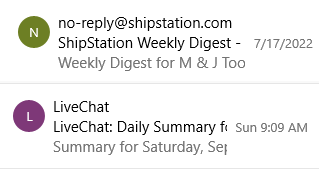
These messages should be moved to the "Reports" folder. No further action needs to be taken.
Messages from SureDone Support should be brought to the attention of whoever opened the Support Ticket (usually Josh) via Discord so that they can be addressed in a timely manner.
SureDone Results Messages (Upload Complete / Export Done)
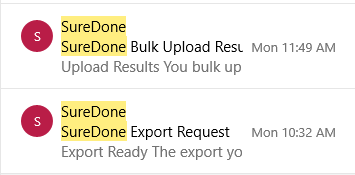
We receive an email notification whenever a SureDone upload or export is completed. These do not require any action to be taken and can be immediately deleted from the inbox.
Stamps.com Messages (Purchase Confirmation)
We receive these messages regularly throughout the day as items are shipped. They do not require any action to be taken and can be immediately deleted from the inbox. Stamps.com refund messages, however, should be put in the Reports folder.
Tool Testing Lab (one of the calibration labs we use) will send us an email confirmation when they receive or ship an item from us. These emails can be moved to the "Calibration Lab" folder with no further action needed.
Offers to Sell Us Gages / Tooling
Basic response template (edit accordingly if the initial message already includes pictures or pricing):
Would you be able to provide some pictures of the inventory? They do not need to be too detailed, just an overview. Also, if you had an asking price in mind, please let us know and we will consider it!
Once we have a response (or if they already provided both pictures & asking price in their message), snip the message in the Sales Team chat and @ the appropriate person:
Josh: All gaging / inspection equipment (thread gages, plain gages, air plugs, micrometers, bore gages, etc.)
Matthew: All tooling (tool holders, inserts, drill bits, end mills, reamers, etc.)
If a purchasing offer includes both gages and tooling: Send to Josh
Leave the email in the main inbox until it is addressed.
Message Undeliverable / Failed to Send
When an email fails to be sent / delivered we will receive an automatic reply from Outlook. There are two different error messages you'll see here:
- "(name) wasn't found at (address)": The email address does not exist - usually this is the result of a typo. Make sure the email address you've entered matches what we have on file, and if it is you will need to reach out to the customer by phone (or other means) to get the correct email address.
- "(name) suspects your message is spam and rejected it": This is caused by an error on SureDone's end - if you get this message, alert your supervisor and they will advise you on how to proceed.
Certificate of Insurance Request
Send an email to: steve@boordhenne.com
And also CC: roger@boordhenne.com
"Good Morning / Good Afternoon,
Could you please issue a Certificate of Insurance for M & J Tooling LLC, requested by our customer below:
Company Name: [ENTER COMPANY NAME HERE]
Address: [ENTER STREET ADDRESS HERE]
Email: [ENTER EMAIL ADDRESS HERE]
Thank you,"
If the customer sent us a written request, attach this to the email as well in case there any additional details in the request that might otherwise be missed.
Move the folder to Josh's folder and alert him via Discord.
Check if we have the item in stock by using the quote template or searching our store / backup inventory just like you would for an email quote.
If yes, give the customer prices for new and used options (if applicable). You can also offer certs at this time. Frequently this will lead to the customer placing an order.
If no, let the customer know that we don't currently have that size in stock, but we can get them a quote on a new gage from a manufacturer that we work with (don't specifically name them though) that we will send via email. Make sure to get an email address if it is not a regular customer whose email we have on file.
Once the call ends, you will send an email to ourselves (sales@mjtoolingllc.com) with the following information:
1. Customer (company) name
2. Email address to send the quote to
3. What they are looking for
4. A reference number to be used for the RFQ (refer to this section for more info)
From here, you can send the RFQ to a manufacturer and then treat this like a normal email quote.
"Are Your Gages Certified / Calibrated?"
- Unless specifically mentioned in the listing, no. BUT all of our gages come with a guarantee to calibrate, and we also offer calibration services ("and on this gage, the price and lead time would be...")
- "What do you mean by Guaranteed to Calibrate?"
- We guarantee that our gages will pass calibration at any accredited lab. In the event that they do fail, send us a copy of the failed certs and we will provide a replacement (if available) or a full refund for the failed gage(s).
- If they are ordering from a quote - pull up the quote using the quote # and confirm the item(s) / price on the quote
- If there are multiple items on the quote - are they ordering all items?
- If it's an item they found on eBay / our website:
- Get our SKU or the eBay item number so you can find the exact item they're looking at. You will frequently have to explain to the customer where to find this information:
- on eBay: Scroll down to where the pictures are in the description. Right above the first picture is our SKU.
- on our website: The SKU is located directly under the title (right above the price)
- on Amazon: Under "Specifications for this item", our SKU is listed as "Part Number"
- Note: If a customer is looking at a specific item online, we will want to send them that same item - even if it's a gage that we have in backup (which we would otherwise prefer to sell first)
- Make sure to get ALL of the following information:
- Payment Info: Credit Card # or PayPal account email address
- Company Name or Customer Name if no company
- Shipping Address: Searching the company name & zip code in Google should get you this information, but always verify that it is correct
- Shipping Method: A good way to ask this is "Is standard 2-3 day shipping okay for this, or do you need it expedited?" and from there you can get a UPS account or quote a pre-paid price if needed. Remember that distributing orders and orders receiving calibration at labs other than True Line MUST have a shipping account or pre-paid shipping.
- Email Address for sending the credit card receipt & tracking information
If this is a repeat customer (which you can verify by searching the company name in ShipStation), you will be able to get most or all of this information from their previous orders as long as it has not changed.
- Customer asks, "Can it ship today?"
- If before 3:00 PM: We can promise same-day shipping UNLESS:
- The order is estimated to weigh more than 40 pounds
- The order contains 10 or more taper shank tool holders
- The order contains 20 or more total items (of any type)
If the order falls under any of these categories, we want to give the shipping deparment an additional day. If the customer pushes for same day in this case, you may reach out to the shipping department to confirm if this is doable.
- If at or after 3:00 PM: "Let me put you on hold for a moment while I check with our shipping department."
Follow these guidelines:
Between 3:00 PM and 4:00 PM:
If the total value of the items on the order (NOT including any shipping costs) is $500.00 or more, and the order contains less than 5 items: Yes, we can ship same day.
If the total value of the items is less than $500.00 or the order contains 5 or more items:
"Our mail pickup has already happened for the day, but we can hire a courier to take the package, which will add a $43.75 fee. Otherwise, we would be happy to get it shipped out tomorrow morning."
Between 4:00 PM and 5:00 PM:
"Our mail pickup has already happened for the day, but we can hire a courier to take the package, which will add a $43.75 fee. Otherwise, we would be happy to get it shipped out tomorrow morning."
For any orders that are shipping after 3:00 PM:
Notify the shipping department of the order, including the shipping method and a brief description of the item(s) (including if they are gages come from backup). If the final pick has already occurred, you will likely be asked to pull the items yourself and bring them to the shipping deparment along with the packing slip.
Once the call is ended:
Fill out an order form (which can be downloaded from the Sales Docs drive - "Custom Order Form") with all of the relevant information, and bring it to the primary order entry person for processing.
For more information about how to enter the order, refer to the Order Entry section.
If a customer makes an offer on an item that is listed on eBay/Amazon/our website ("I see you have this on eBay for $X, would you take $Y for it?"):
- "I'll have to run that by my supervisor since he's the one that makes the final decision about offers. Can I put you on hold for a moment while I check?"
- Your supervisor will then advise you on how to proceed with either taking the offer or making a counteroffer.
Failed Gages / Damaged Items / Return Requests:
- The main thing here is to try to get them to send us an email with all the information. When the order was placed, name on the order, a description of what is wrong with the item.
- Failed gages: ask them to send us a copy of the failed certs / readings
- Damaged item: ask them to send us pictures of the damage
- Incorrect item: ask for pictures of the item (including labeling if there is any) so we can check it against the listed item (in order to determine if it was listed wrong, or if we actually sent a different item from the listing)
- Assure them that once our returns department has seen the pictures / certs they will get in touch ASAP with more information about how we will proceed. Don't promise a return label or refund at this time.
"Do You Buy Used Gages / Tooling?"
- Yes! Please send an email to sales@mjtoolingllc.com with pictures / description of the items you're looking to sell and someone from our purchasing department will get back to you.
- USPS / UPS / FedEx deliveries and pickups: The shipping department should be notified by radio. Be sure to specify which mail carrier, and whether it is a pickup or a delivery.
- Deliveries from Thomas Tape: Always ask if a forklift is needed. If yes, notify Chandler by radio. If forklift is not required, you can treat this as a normal mail delivery and notify the the shipping department.
- Deliveries or pickups from Central Transport or other freight companies: These will always require the use of a forklift, so notify Chandler by radio.
Every morning (first thing), the voice mail inbox should be checked for any messages that may have been left overnight while we were closed. To access:
1. Tap the "Menu" button at the bottom of your phone screen (if it does not appear, tap "More")
2. Tap the "Message" button
3. Tap "View Voice Mail" and check for new messages
https://my.livechatinc.com/chats
- Due to the more urgent nature of LiveChat, you may at any point respond with "Please allow me a moment and I will get right back to you on that."
- If a discord check is not answered or being responded to in 1 minute, please use the above line.
- If an answer has not been given by your primary trainer within 5 minutes, please use your backup option.
- Try to find what the customer is looking for - typically they say right away
- Check if we have the item in stock - if yes, link them to the listing on our website (since they're already there)
- If we do not have the item in stock, and it's a gage or another item that we can quote new, let them know that we can get them a quote sent to their email address (usually provided when they open the ticket - if not, be sure to get an email address from them)
- From here, treat this just like any other quote.
All eBay messages should use the following signature format:
"Regards,
[YOUR FIRST NAME] / M & J Tooling LLC"
Attaching a Quote to an eBay Message:
eBay only supports .jpeg files for message attachments, so you will have to convert the PDF. The simplest method is:

1. Open the Snipping Tool (icon shown above) and click "New"
2. Click & drag to create a box around the quote (it does not have to encompass the entire page - you can leave out the white space & footer at the bottom)
3. Click File -> Save As and save the snip as a .JPEG file, setting the file name as the quote number (Ex.: Quote 2209191604)
This file can now be attached to an eBay message by simply clicking & dragging the file into your message / reply.
If an eBay customer wants to place an order for something that we do not have in stock (quoted from a manufacturer / another eBay seller / etc.), we MUST get in contact with them outside of eBay in order to continue. DO NOT UNDER ANY CIRCUMSTANCES ALLUDE TO THE FACT THAT WE ARE DOING BUSINESS OUTSIDE OF EBAY IN AN EBAY MESSAGE. This is a direct violation of eBay's terms of service and can result in, at worst, the termination of our seller account.
If the customer has bought from us on eBay previously, you can use these steps to find their phone number in order to contact them directly. If not, the easiest solution is usually to ask "What is the name of the company we would be shipping this to?", which will hopefully lead you to a phone number or email address online.
"Is This Gage Calibrated / Certified?" or "Can You Calibrate This?"
Unless specified in the listing, no. BUT all of our gages come with a guarantee to calibrate, and we can offer calibration services if certs are needed.
You can send the customer this link for eBay certs: https://www.ebay.com/itm/135305113678
You will also want to specify which option they should choose for the gage they are requesting. See the example message below:
"Hello,
This gage is not currently certified - however, all of our gages come with a guarantee to calibrate, and if you are needing certs for this gage we can offer calibration for $35.00, which can be done today before it ships. I have included the link below for adding certs. Please select "Go & No Go Thread Plug Gage" from the dropdown menu and add to your cart along with the gage:
https://www.ebay.com/itm/135305113678
Please let us know if you have any questions.
Regards,"
"Do You Know the Specs on this Gage?"
"We don't have any documentation for this gage, so we do not know the specs beyond what is printed on the gage itself. If you are needing a detailed breakdown of the full specs, we can provide long form certification for this gage for $[cost] on a [x]-day lead time. Please reach out to us after purchase if you would like to add certs."
Customer Requests Additional Pictures
If there is not currently an offer on the item:
- Take the necessary pictures and add them to the listing (see the Editing Listings section for more information). Then reply to the customer and let them know that the listing has been updated with additional pictures.
If there is currently an offer on the item:
- Listings cannot be updated while an offer is active, so send the pictures directly to the customer by attaching them to your eBay message reply. Then, if the offer is declined (or if the offer is accepted but we have stock remaining), update the listing with the additional pictures so that we will not have to re-take them if a future customer has the same questions.
"Can I Buy a Single Item from this Lot?"
Send the following reply:
"Thank you for reaching out. Please make us an offer using the "Make Offer" button in the item listing.
Please specify in the offer message which specific item you are offering on.
Our eBay sales department will reply in a timely manner."
If a customer makes an offer through a normal message instead of eBay's "Make Offer" process:
- Send the following reply:
"Thank you for reaching out. Please make us an offer using the "Make Offer" button in the item listing(s), and our eBay sales department will reply in a timely manner."
- Begin and end the message with the usual "Good Morning / Good Afternoon" and "Regards, ..."
- Delete the message
All tooling-related questions should be moved to Russell's folder. Notify him via Discord along with a snip of the message.
We have a cut-off time of 3PM EST for orders that must ship same-day.
If it is before 3PM (at least 1 hour before):
"Hello,
We can definitely ship this today if the order is placed and paid for before 3PM Eastern Time. Let us know if you need any overnight / express shipping options and we will be happy to help you with that.
Regards,"
If we are coming up on the 3PM deadline (< 1 hour):
"Hello,
We are approaching our shipping deadline for today, but if the order is placed and paid for in the near future we will certainly try to get it shipped out today. If we are not able to ship today, it will be shipped first thing tomorrow morning [Monday morning if today is Friday].
Regards,"
If it is past 3PM:
"Hello,
We are currently past our shipping deadline for today, but if the order is placed and paid for in the near future we will certainly try to get it shipped out today. If we are not able to ship today, it will be shipped first thing tomorrow morning [Monday morning if today is Friday].
Regards,"
Combined Shipping on Multiple Items
If a customer wants to buy multiple items that all have shipping charges:
- If we have already sent counteroffers:
"Please accept offers on the items you want, and do not pay for them yet. We will then follow up with an invoice that has combined the shipping."
- If no offers have been made:
We will advise them to make offers, and then we will accept (or counter if their offers were too low, in which case we are back in the first situation), then send them an invoice.
Shipping Method Change / Can You Overnight This?
UPS shipping options including Next Day Air and Second Day Air are offered to customers when they check out. If a customer did not select UPS shipping, but wants to add it after the fact:
- We can ship on a provided UPS account #, or we can add a pre-paid shipping charge using our own account #
- Pre-paid shipping can be processed via credit card or PayPal - we cannot add extra shipping through eBay. Once the order is placed we will have access to the customer's phone number so we can reach out directly for CC info if needed
- Once the shipping has been paid, alert the shipping group that it's clear to send and which method (ex.: "Clear to ship UPS Next Day Air (our account) - shipping has been paid")
- For more information about pre-paid shipping charges, refer to the Shipping Quotes section
- If the customer is looking for overnight (Next Day Air / UPS Red) shipping, keep in mind the time of day. If we are nearing or past the 3:00PM "Must Ship Today" cut-off, and we have access to the customer's phone number (either because the order has already been placed or it is a repeat customer), you should call the customer rather than replying to an eBay message so that we can get the account # / payment info in time to ship the item.
If a customer wants to change shipping info after purchase:
- Snip the message and put it in the Shipping Group Discord, along with a message including the new address
- Reply to the eBay message confirming to the customer that we have updated the address
- Delete the eBay message
eBay International Shipping Program Info
eBay has a dedicated international shipping program which we use for all eBay orders placed outside the US. Under this setup, when an international customer places an order, eBay will prompt us to ship the package to a hub in Illinois, and from there eBay handles all of the shipping to the destination country. Some things to know about this program:
- When the package ships, the customer will receive a shipment notification from eBay which shows the IL address as the destination. Customers are sometimes confused by this, and may reach out to us wanting to know why we shipped to the "wrong" address. In these cases, explain the eBay international shipping process as outlined above and assure them that the package will be shipped directly to their address once it arrives at eBay's hub.
- Once the package arrives at the hub, eBay is 100% responsible for the package from that point on. This means that if there are any issues with the shipment after this point, the customer will need to reach out to eBay directly as we no longer have any control over it.
- eBay does not give us any information about what service / method they use for international shipments using this program. If a customer asks for these details, you will have to direct them to contact eBay about it as we do not have this info.
Shipping Not Available to Other Countries
There will ocassionally be issues with eBay not displaying shipping options to certain countries, most commonly the UK. When this happens:
1. Confirm that we are willing to ship this item overseas - for most items the answer is yes, but for large items such as cabinets we will not ship outside the US due to cost/risk
2. If this is an item that should be available for international shipping - usually the issue is that the specific item category it was listed under has been blocked by the receiving country, in which case changing the category to one that is not blocked will fix the issue and allow the international customer to purchase the item. To do so:
a. Search the SKU in SureDone, then click on the SKU in the results to go to the details page
b. Navigate to the eBay section and find the Category ID which will be a 5-digit number
c. Change the Category ID to 26261 ("Other Business & Industrial")
d. Click "Update" in the bottom-right corner of the page
e. Go to the eBay page and under "Shipping" click "See Details" and confirm that the country in question appears on the list. If it does not, you will need to try another category ID. You can find a full list of eBay's category ID's here.
f. Once shipping has been made available to the country in question, let the customer know that we have updated the listing and they should now be able to select shipping options for their country.
If a customer needs a freight quote for a large item such as a cabinet or tool holder rack:
- Refer to the Freight Quotes section for more info
If a customer asks about picking up an item (usually large items such as cabinets):
"(Good Morning / Good Afternoon),
This item is available for local pickup. We are open Monday - Friday 8 am - 4:30 pm. Please give us a projected ETA for pickup at least day in advance so we can make sure it's ready when you arrive.
Regards,"
- If it has been more than 30-days since delivery:
"Hello,
It looks like this was purchased on (date). We honor a 30-day return policy for gages accompanied with certifications showing them to be out of spec.
In this case, it has been about (timeframe) that they have been out of our hands and we cannot account for all that may have happened to the gages in that time. We would be happy to provide you with a quote for a replacement set, and we can offer certifications if needed upon purchase.
Regards,"
(Modify as needed for items other than gages)
- Otherwise, notify Josh of the message via Discord and move the message to his folder.
If an order has been stuck in transit (no tracking updates for over 24hrs):
- Refer to the Mail Claims section for more info
If a customer asks about making any sort of alteration to a purchased item:
- This has implications for return eligibility, so Josh will handle it. Move the message to his folder and give him a heads-up about the message through Discord
Offers to Sell Us Gages / Tooling
Ask for pictures if they have not sent some already ("These do not have to be too detailed, just a general overview so we can get an idea of what's included and the condition"). Then:
Gaging (incl. plain gages, micrometers, etc): Notify Josh
Tooling: Notify Matthew
Refer to the procedure outlined in this section.
eBay: You Successfully Canceled an Order
These messages can be deleted with no further action needed.
Notify the person in charge of handling returns. If you are asked to process the refund yourself, click the "Issue Refund" button in the message and follow the prompts. Be sure to confirm with your supervisor if we are applying a restocking fee to the return, and if so, make sure to subtract this amount from the refund total. Once the refund has been submitted, add it to the Money Credited spreadsheet.
These messages can be deleted with no further action needed.
eBay: Update Your Listings to Keep Them Compliant
Move the message to Josh's folder and send him a snip of the message through Discord
Move the message to Josh's folder
Move the message to Josh's folder and send him a snip of the message through Discord
Finding Repeat Customers' Phone Numbers
1. Record the eBay user id (ex. toolyouup) or eBay item # from previous purchase.
2. Go to SureDone, hover over “Products”, select “Export “.
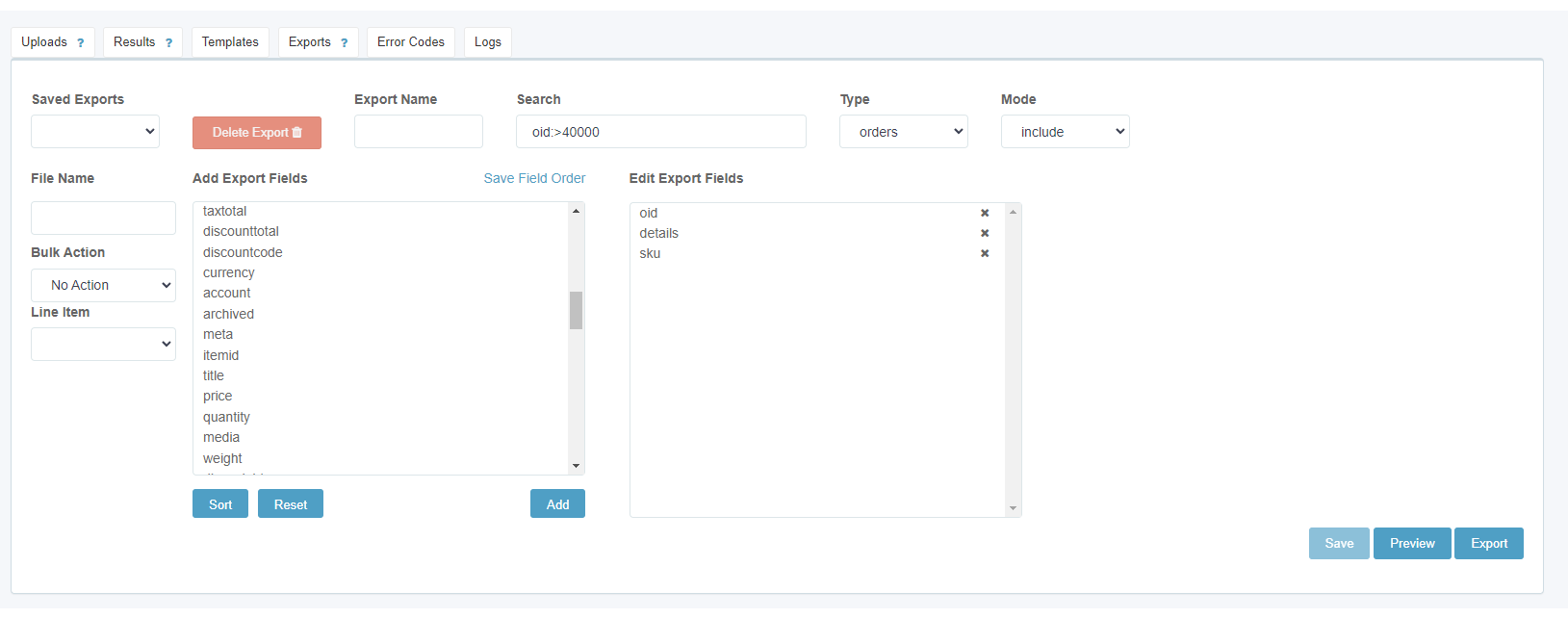
3. Change the “Type” dropdown to “orders”.
4. Select on the left table named “Add Export Fields” the “oid”, “details”, & “sku” and select “Add”
5. Type in the “Search” “oid:>40000” to limit your exported orders. If you believe the order may be from even earlier, you can remove this search or lower it to bring back more orders.
6. Your screen should look something like this:
7. Select “Export” on the bottom right.
8. Below there will be an option to “Download” an excel file after a brief time while SureDone prepares it. Do this and open the file.
9. Once the excel file is open, press Ctrl+F and search either the eBay user id or eBay item number and select “Find”
10. When you have matched to an order, copy either the SKU or oid:=(your oid here) into the SureDone Orders search block to find the order.
11. Verify that this is your customer and the phone # should be found within that SureDone order.
ALL Amazon messages MUST be addressed with either a direct reply or "no response needed"!
You can reply directly to the email in the inbox, or log into Amazon Seller Central and use Amazon's messenger client.
If the message does not require a response, always click the "No Response Needed" button before deleting the email.
1. Open a new "Quote & Order Entry" sheet and fill out all applicable information in the top section. Company Contact, Customer Phone #, and Customer Email Address can be left blank if we do not have this information. If you are not sure what payment method a customer will use, choose Credit Card / PayPal as a default option.
2. Click the "Add Gage Size" button, and the following window will open:
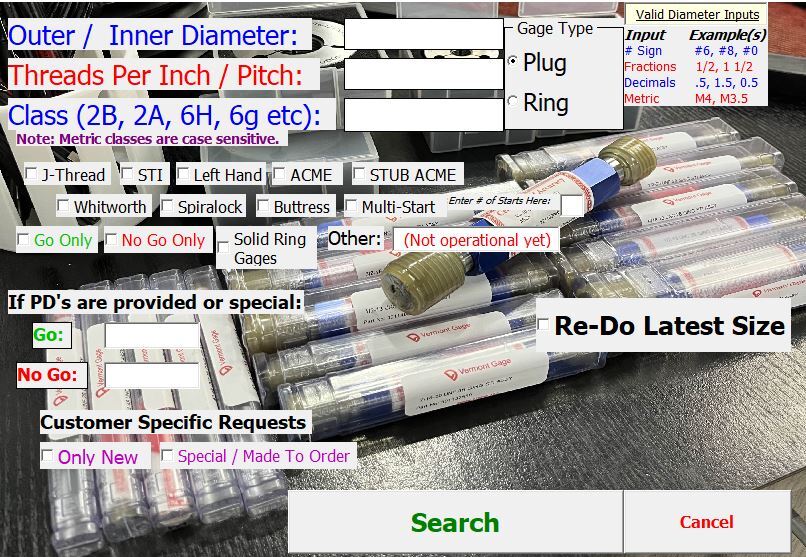
3. Enter the information for the gage you are looking for:
Outer / Inner Diameter: For inch sizes, this can be entered as a fraction or decimal. Number sizes should always include the "#" sign (otherwise it will assume that 2 = 2", 4 = 4", etc.). Metric sizes should be entered like the normal callout with M in front (M4, M3.5, etc.) rather than 4mm, 3.5mm, etc.
Threads Per Inch / Pitch: Enter just the number, no dash or X.
For pipe gages, it is not uncommon for customers to leave out the TPI, since there is only ever one option for each diameter size:
NPT / NPS Gages (including ANPT, NPTF, NPSM, etc.):
1/16, 1/8: 27 TPI
1/4, 3/8: 18 TPI
1/2, 3/4: 14 TPI
1", 1 1/4, 1 1/2, 2": 11 1/2 TPI
2 1/2" and above: 8 TPI
BSPP / BSPT Gages:
1/16, 1/8: 28 TPI
1/4, 3/8: 19 TPI
1/2, 5/8, 3/4, 7/8: 14 TPI
1" and above: 11 TPI
Class:
UN Gages: The series (UNF, UNC, etc.) is optional; only the class (2A, 2B, 3A, etc.) is required.
Metric Gages: The class is case-sensitive - using the wrong capitalization (such as 6h vs. 6H) can cause you to receive incorrect results.
Pipe Gages: "NPT", "ANPT", and "NPTF" will default to L1 if nothing else is entered. For L2/L3/6-Step gages, enter with spaces in between such as "NPTF L2" or "ANPT 6 Step" (NOT 6-Step with a dash). All other pipe gages require only the thread series (NPSM, BSPP, BSPT, etc.).
Gage Type: Choose whether searching for a plug gage or ring gage. If you enter a ring gage class such as 2A or 3A but have Plug selected for the type, the program will give you results for set plugs insted of rings, so be sure that the correct type is selected.
Specialties:
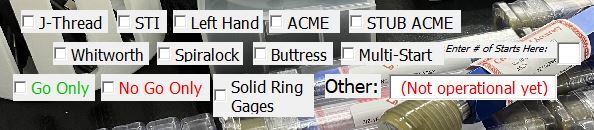
Select all options that apply to the gage you are searching for (can be more than one).
IMPORTANT NOTE: The following specialties are not currently functional. Gages of these types will need to be searched for manually until these are added in a future update: ACME, STUB ACME, Whitworth, Spiralock, Buttress, Multi-Start, Other
P.D.'s: Not required, will default to standard if nothing is entered.
Customer Specific Requests:
Only New: Will not return refurbished gage options if selected.
Special / Made to Order: Will not return any stock options. Use this if you just want a pre-formatted description to send to a manufacturer in an RFQ. Always double check that the description is accurate to the customer request, as some specialties / requests may not format properly.
Re-Do Latest Size: If you have already run a search at least once, selecting this option will cause the next results to replace the most recent search results. Use this if you have made a mistake in your previous search and need to run the size again.
4. Once all necessary information has been entered, click Search.
TROUBLESHOOTING:
- It may take 30-60 seconds for the search to finish. You will see periodic status notifications such as "Searching Both PDs" - you may see the same status multiple times; this is normal as the program sometimes needs to do multiple checks.
- If you get a pop-up saying "No results found after [x] tries, would you like to try again?", this usually means that the program failed to connect to the server. Click "Yes" and let the program continue to run. If it is still getting no results after 5 tries, click "No" on the pop-up and search for the gage manually instead.
- If you get the error below:
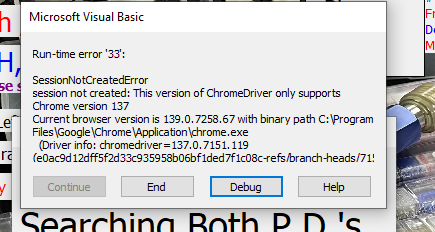
Find "chromedriverupdater" on your desktop (icon below):
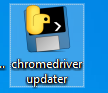
Double click to run this program. When finished it will close automatically, and you can proceed with your quote as normal.
5. Understanding the search results:
- Unless "Only New" was selected, the search will bring back both new and refurbished results if available in our stock.
- If the program finds multiple options for a refurbished gage, it will typically prioritize the one with the lowest price. Be wary of any result that says "BUDGET" or "SHOP MADE"; these are usually very low-quality gages that we do not want to quote to customers so in these cases you should do a manual search for alternative options. If there are no other options, we can quote a budget gage BUT you must also quote a new option as well as provide a link to the gage on our website to the customer can see the condition in the pictures.
- If there is a partial match (for example, customer wants a Go & No Go gage and we ahve the Go member but not the No Go), it will give you the single member along with a suggestion to get a manufacturer quote on both a Go & No Go set as well as whichever single member we do not have in stock. This way, we can offer the customer two different options: A brand new Go & No Go gage, OR a half new / half used set consisting of one member coming from our stock and the other coming from a manufacturer. This is worth offering since the half new / half used option will sometimes be better for a customer's budget.
- For any search result coming from our stock, there will be a direct link to the eBay page off to the right of the modifiers and "Needs Laser Engraving" box. Always check the listing to make sure that everything lines up correctly with the customer request, and that there is no damage / modification / other quality concerns that may cause us to not want to quote the gage to a customer. If the gage is not suitable, perform a manual search for other options.
6. For any gages that return a "MFG Quote" result:
a. Do a manual search of our store to confirm that we do not have any stock options (including dial-in options for ring gages).
b. Once you have confirmed that we have no stock, search all of eBay for gages from other sellers that we may be able to purchase and re-sell. You can do so by clicking on the links that appear to the right of the modifiers & "Needs Laser Engraving" box (the same place where the eBay link for stock gages will be). There will be two links: one searches based on the PDs, and the other searches based on the size only. Be sure to check both as other sellers will not consistent titles / descriptions so a result may come back on one search but not the other. If you find a result from another seller:
i. Verify that everything matches the customer request and that the gage is in good condition based on the pictures.
ii. Find our list price by using the thread gage template, and compare this price with the price on the eBay listing to determine how much profit we would be making. The minimum profit margin that we need to make in order for it to be a viable option can vary, so confirm this with a supervisor before continuting.
iii. If the gage is approved:
1. Copy the eBay URL (leaving out everything starting with the first "?" - this is all trackers / metadata that is not necessary for the link to function) and paste it into the SKU cell for this line on the quote
2. Enter the price determined in step ii above
3. Lead time:
Items coming from within the US: Typically 3-5 days, but check the estimated delivery on the listing to confirm as it could be longer in some cases
Items from China: 2-3 weeks
c. If there are no viable options on eBay, proceed with requesting a quote from a manufacturer. Once we receive the manufacturer quote, you can proceed with finishing our quote for the customer.
7. Entering MFG Quote info:
a. Replace "MFG Quote" in the SKU column with the name of the manufacturer we are quoting from (PMC, VTG, Gage Assembly, etc.).
b. Enter the price and lead time as quoted by the manufacturer. Be sure to include calibration fees / lead times if applicable. ***In some cases (such as when we do not receive a resale discount for an item), we will mark up the manufacturer's list price. In these cases, include the true list price after the MFG name in the "SKU" cell, such as: Gage Assembly (List $381)
c. If the customer provided specs or a print for a special gage, add "per Provided Specs" or "Per Provided Print" to the end of the description, so they know that the quoted gage matches their requirements.
d. Enter the quote's REF# (found in the email subject line) in any blank description line. This will not show up on the final quote that our customer receives, but will be useful for us to reference when converting the quote into an order. Similarly, if the manufacturer (ESPECIALLY Vermont Gage) gave us a quote number, include it as well (can be in the same line, for example "REF# AB08181524 VTG Quote # E00013844").
8. Final Steps:
a. Enter the quantity for each line, which will also make the price appear for any stock items. Next, you will make some selections which may change from quote to quote:
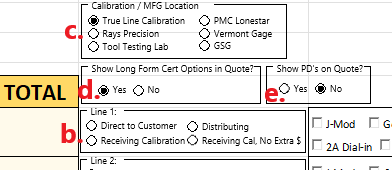
b. Select the appropriate destination (Direct to Customer, Distributing, Receiving Calibration, or Receiving Cal, No Extra $) from the box next to the total for each line:
Direct to Customer: Any item that is not being calibrated or coming from a manufacturer
Distributing: Any item that has been quoted from a manufacturer
Receiving Calibration: Any stock item that is being calibrated / certified. When selected, this will adjust the price and lead time. Select Receiving Cal, No Extra $ instead if you do not want the price / lead to be altered (this will sometimes be the case for dial-in ring gages or other niche scenarios)
c. Select the appropriate Calibration Location for the quote. This should be done even when not specifically quoting with certs, as it changes the cert options and pricing shown at the bottom of the quote. In most cases, this will be left on the default option of True Line Calibration. Refer to the Calibration Options / Pricing section for more information.
d. If we are quoting gages with certs, set "Show Long Form Cert Options in Quote?" to No in order to prevent confusion about whether the cert prices have been included in the line item pricing.
e. If the customer included P.D.'s in their request, it is good practice to include them on the quote in order to confirm that what we have quoted matches their needs. Selecting "Yes" for "Show PDs on Quote?" will do this automatically for any stock items (MFG Quote lines will need to have the PDs added manually).
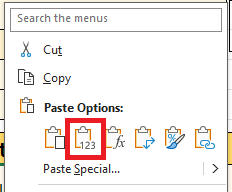
f. Confirm that all descriptions, prices, and lead times are accurate. If you need to edit an auto-filled description for any reason:
i. Highlight the cell
ii. Copy the cell using control+v
iii. Right-click on the cell and select "Paste as Values". This will convert the formula into plain text and allow for editing.
g. Once you have made any necessary changes and verified that all information is correct, click the green Save to Desktop button at the top of the page if you have not already done so, and then click the Save Quote PDF button on the left side of the page.
h. Verify that everything on the PDF is correct. If any changes are needed, you can click the "Save Quote PDF" button again when finished to overwrite the file.
i. Send the quote PDF (NOT THE EXCEL FILE) to the customer, along with a simple message such as:
Good [Morning / Afternoon],
Please see the attached quote. Let us know if you have any questions, and we appreciate the opportunity!
Regards,
[Signature]
You may alter this message as needed with additional information, such as addressing a direct question in the customer's original email or relaying information from the manufacturer about a special gage.
j. Upload the quote Excel file (not the PDF) to the Quotes Google Drive in the current week's folder.
- ALWAYS check backup first when quoting refurbished gages. We want to use backup gages (rather than listed gages) for direct orders whenever possible.
- Select the appropriate tab at the bottom (Plug or Ring), then use CTRL+F to search for the size you are looking for. You can also search by pitch diameter if you have that information.
- Minimum Pricing: We should always charge at least $25 for go/no go sets and $15 for single members, even if the sheet gives a lower price - this is to ensure that we are not losing money on shipping / labor costs for smaller gages Tooling / Plain Gages: $20 minimum
- If you are quoting just a single member, suggested price is 50% of the listed set price
- If we would have to break up a set (no single members in backup or listed), suggested price is 60% of listed set price
- If we have to break up a J-thread set, the Go member should be quoted at 70% of listed set price
- Make sure to edit the title and price in the quote sheet - the autofill will assume it's a go/no go set
- The best way to find most gages is to search the size (as a decimal if in inches), pitch, and class - for example, if looking for a 1 1/4 - 12 UNF 2B plug gage, searching "1.25 12 2B" should bring back the correct results.
- Watch out for anything that implies the gage is non-standard, such as "Special", "Pre-Plate" (or "Before Plate"), "Oversize", "Undersize" - these should not be quoted unless they specifically match the pitch diameters that the customer is looking for (and even then it may not be a correct match, so always check with a supervisor in these cases)
- Shop-Made or Budget / Damaged gages should only be quoted if they are our only option. Make sure this condition is specified in the quote, and also point it out in your email message, as well as attaching pictures or including a link to the gage's listing on our website (NOT eBay or Amazon). Include a New From Manufacturer option in the quote as well.
- Solid Ring Gages: Make sure the quote includes "Solid" in the item description. If we have both solid and split-adjustable options in stock, it's generally a good idea to include both options (and in this case, add "Split Adjustable" to the title for the adjustable rings to further differentiate the two)
- Including other relevant terms can help narrow down the search, for example:
- If searching specifically for new gages, add "new" to the search to eliminate used results
- Add "set" for set plugs to eliminate ring gage results
- Single members: add "only" to the search to eliminate go / no go sets from results
- For "number" sizes (#6, #8, #10 etc.) using the decimal equivalent helps to eliminate extra search results. Refer to the sizes below:
#0 - .060 #5 - .125
#1 - .073 #6 - .138
#2 - .086 #8 - .164
#3 - .099 #10 - .190
#4 - .112 #12 - .216
- Pipe gages can be found similarly to regular thread gages, but you will want to include either "plug" or "ring" since they can share classes - for example, "1/4 18 L1 Ring".
- For 6-Step (also called Crest Check) pipe gages, you can use "6" in place of the class for your search - for example, "3/8 18 6 Plug".
- NPT and ANPT gages 2" diameter and below are identical and can be substituted for each other if we only have one or the other in stock (but should be relabeled to match what the customer is expecting)
- Other pipe gages are NOT interchangeable. NPT and NPTF are not the same; NPSM, NPSF, NPSL etc. are not the same, and so on.
- Plain gages (pin plug gages / plain bore ring gages) can be searched by the O.D.(s) / I.D. along with "pin" (for plug gages) or "bore" (for ring gages). Search the size(s) out to four decimal places for best results (ex., .3700 instead of .37). If we do not have a specific size that a customer is looking for, but you want to find a close size to offer as a possible substitute, try searching for the nearest "on-size" decimal, since most plain gages will have this in their title - for example, if trying to find a close size to .3700, try searching for .3750 (3/8") to find other gages around that size.
- Do NOT quote a "Frankenstein" gage (Go member from one listing and No Go from another) if the size is under 3/4" (19mm). At these sizes, the amount of labor required to pick, assemble, and re-engrave the gages is not worth the low prices they sell for - if we do not have a gage ready to go on the shelf that matches the customer request, quote a new one from a manufacturer instead.
- If we are breaking up a set of plain plug gages (3/4" and up only): Quote the single member at 70% of the listed price for the go / no go set - the remaining member will be significantly less valuable by itself, which is why we quote at such a high percentage of the set price. In some cases, we might even just leave the other member on as a bonus to the customer because it's not worth the time to remove and re-list.
- When sending an RFQ to a manufacturer for plain gages, always include a class and direction of tolerance:
Class: If the customer does not specify, go with Class ZZ as this will typically be the cheapest & shortest lead time which is usually the main thing customers care about.
Direction of Tolerance: This essentially means whether it is a Go or No Go gage, and can also be referred to by plus or minus. There are also "master" (or "bilateral") gages which are +/- tolerance. If a customer does not specify, go with Master. See below for each possible direction of tolerance:
Go Plug Gage: +
No Go Plug Gage: -
Master Plug Gage: +/-
Go Ring Gage: -
No Go Ring Gage: +
Master Ring Gage: +/-
- If you get no search results...
- Try searching using the fractional size instead of decimal - some older listings did not have decimals included
- If you are able to find the pitch diameters (see the Using Thread Disk section for more info), try searching those since we may have the gage listed with a slightly different class than what you searched (as long as the diameter, TPI, and P.D.'s match it should work - and we can always re-label the gage to match what the customer is expecting)
- Dial-In Ring Gages: For ring gages, we can sometimes "dial-in" a close size to match what the customer needs. Note that dialing in is only an option for Split Adjustable ring gages. Solid ring gages CANNOT be adjusted.
The rules for dialing in ring gages are:
- The diameter and TPI must match
- The hand of the thread must match (i.e., you can't turn a left-hand thread into a right-hand thread)
- The thread form must match (i.e., you can't use an ACME gage for a dial-in for a standard UN thread)
- Go gages cannot be dialed-in to become No Go gages, and vice-versa
- J-Thread Go rings cannot be used as dial-ins for non-J Thread gages and vice-versa
- The gage will have to be re-labeled with the new size and pitch diameters it is being dialed to (see here for more info)
- Dial-ins are done at a calibration lab, and include normal long-form certification as part of this process. Therefore the calibration cost (see here for pricing) must be included in the price we quote to the customer.
DIAL-IN REQUIREMENTS:
- If M & J Tooling has a matching set plug (meaning P.D.'s are 100% identical to what we are trying to set the rings to), the dial-in can be done at True Line Note: If we have a set plug that is close to the target PDs but not exact (like within a few .0001's), or if the rings only need to be adjusted by a very small amount, we may be able to dial-in at True Line. Check with Josh / Chandler to confirm.
- If M & J Tooling does not have a matching set plug, the dial-in can be done at Tool Testing Lab, IF it falls under the following requirements:
- Diameter cannot be smaller than 9/16" (14.5mm) or larger than 12" (305mm)
- Pitch cannot be finer than 32 TPI (.75mm) or coarser than 5.5 TPI (4.5mm)
- In all other circumstances, we will not be able to dial in ring gages.
- Pricing for dial-in gages should always be based on the list price of the gage we are dialing it into, not the original pre-dial gage. See this section for more details on how to calculate gage prices.
- If you still don't find anything, the final step before sending an RFQ to a manufacturer is to search all of eBay for gages from other sellers that we might be able to buy and re-sell to our customer:
1. Find the P.D.'s (if possible) using Thread Disk.
2. Search the P.D.'s one at a time in eBay, making sure to select "Include Description" (see picture below) since not all sellers include this information in the title.

3. If there are no results, try searching the size like we do in our store (ex: 1/2 20 2A). For sizes over 1", it can be helpful to put quotes around like diameter ("1 3/4", for example) for better results.
4. If there are search results:
- Verify that the gage matches the customer request and the gage is in good condition based on the pictures.
- Determine the price that we would sell this gage for using the Thread Gage Template (click here for more info) and compare this price with the price on the eBay listing to determine how much profit we will be making. The minimum profit margin that we need to make for it to be a viable option may vary, so confirm with your supervisor before continuing.
- If you proceed with quoting the gage to our customer, make sure the lead time lines up with the estimated delivery on the eBay listing (typically 3-5 days for shipments within the US, and 2-3 weeks for shipments coming from China - but always check in case it's longer). The eBay URL should be copy + pasted into the "SKU" cell for this line (you can leave out everything starting with the first "?", as anything past this point is just trackers / metadata that is not necessary for the link to function).
Pricing Gages Without SKU or Manufacturer Quote
You may run into a situation where you need to quote a gage that we do not have a direct price reference for - for example, when quoting a gage that we are re-selling from another eBay seller, or a set of dial-in ring gages. In this situation, the best option is to use the Thread Gage Template.
- Select the appropriate type from the drop down list (Working Plug, Pipe Plug, Set Plug, Thread Rings, Pipe Rings)
- Enter the O.D./I.D., TPI, and Class as they appear on the gage in question.
- Enter Go / No Go P.D.'s (if applicable - pipe gages may not have P.D.'s). These do not actually need to be accurate - just enter any number. If Go Only / No Go Only - only enter a number in the appropriate cell, and leave the other blank.
- Specialties: These are things like Left Hand, Pre-Plate, Double Lead, etc. Leave blank if N/A.
- Brand: Only Vermont has an effect on the price, so for any other brand you can leave this blank.
- Finally, choose a condition (Excellent, Good, Average, Poor, Budget) or, if the gage is new, change the condition from "Used" to "New" (in the white cells at the bottom).
- This will give you a suggested price. The template can make mistakes though, so always check with your supervisor before sending the quote.
Thread Callouts / Naming Conventions
The standard naming convention used for thread gages is:
Imperial: [Diameter] - [Pitch] [Thread Series] [Class] [Specialties (if any)] [Type of Gage]
Metric: [Diameter] x [Pitch] [Class] [Specialties (if any)] [Type of Gage]
When entering a gage in a quote or order, always include either "NEW" or "Refurbished" at the beginning. You should also include "Go Only", "No Go Only", or "Go & No Go" (adding "+ Handle" for plug gages if applicable), in parentheses at the end - except for tapered pipe gages (NPT, NPTF, ANPT, etc.) which do not need this specification since they always have just a single member.
Some Examples:
NEW 1 1/2 - 12 UNF 2B Thread Plug Gage (Go & No Go + Handle)
Refurbished M12 x 1.75 6g Thread Ring Gages (Go & No Go)
Refurbished 8 - 32 UNC 2B Left Hand Thread Plug Gage (Go Only + Handle)
NEW 1/8 - 27 NPT L1 Pipe Thread Plug Gage
The Type of Gage will always be one of the following:
Thread Plug Gage
Thread Ring Gage ("Thread Ring Gages" if Go & No Go)
Set Thread Plug Gage
Pipe Thread Plug Gage
Pipe Thread Ring Gage ("Thread Ring Gages" if Go & No Go, such as BSPP)
*If you believe a gage does not fall into one of these categories, contact your supervisor
The standard classes for thread gages are:
- (Imperial) Work Plugs: 2B, 3B
- (Imperial) Rings, Set Plugs: 2A, 3A
- (Metric) Work Plugs: 6H
- (Metric) Rings, Set Plugs: 6g
If a customer is looking for a standard size, they will probably want one of these classes - it's always best to confirm with the customer though, since there are other less common classes that they may be looking for instead.
For special sizes (non-standard Pitch Diameters / Majors / Minors) we don't want to assume/add a class to what the customer has requested. If we need to request a quote from a manufacturer we don't necessarily need a class as long as we have P.D.'s.
Other notes about classes:
- Imperial J-threads will most commonly be class 3A / 3B - if a customer needs a J-thread but doesn't know the class, we can suggest that they probably want 3A/3B (but it's always best for them to double check on their end that this is correct)
- Metric STI gages will most commonly be class 4H5H - again it's always best for the customer to confirm but this can be suggested if they're not sure
- If quoting a metric STI gage from a manufacturer that is any other class, we will need the customer to supply pitch diameters since these classes are actually non-standard for STI
- Thread callouts for imperial sizes usually include the Thread Series as well (UN, UNF, UNC, etc.). Each size belongs to a specific series (as long as the pitch diameters are standard) - so for example, 3/4 - 16 is always UNF, and #10 - 24 is always UNC. Special sizes (non-standard P.D.'s or size/pitch combinations for example) will generally be UNS.
- It's not uncommon for customers to get the thread series wrong. If for example we get an RFQ for "3/4 - 16 UNC 2B" - we should quote this as 3/4 - 16 UNF 2B since that is what the customer will actually be receiving, but be prepared to explain the difference if the customer asks - we can always provide P.D.'s so that the customer will know that what we've quoted is in fact what they need.
Pipe Gages:
Tapered Pipe Gages (NPT, NPTF, ANPT):
- Plugs: L1, L3, 6-Step
- Rings: L1, L2, 6-Step
Straight Pipe Gages (NPS_):
These are often not labeled with specific classes, but the "default" is 2A (rings) / 2B (plugs). "NPS" gages should always have a fourth letter, which describes the specific type of thread as shown below:
NPSC: National Pipe Straight Coupling
NPSF: National Pipe Straight Fuel (Dryseal)
NPSH: National Pipe Straight Hose
NPSI: National Pipe Straight Intermediate (Dryseal)
NPSL: National Pipe Straight Loose
NPSM: National Pipe Straight Mechanical
Gages that are just "NPS" without a fourth letter can sometimes also be manufactured if the customer is able to supply the pitch diameters.
There may be cases where a customer is looking for a specific class which we do not have in stock, but they are in a rush and can't wait several weeks to have a new gage manufactured. In these cases, we may offer them a different class which we do have in stock, along with a brief explanation of the differences. See below for these explanations, which can be copy & pasted into your email message as needed.
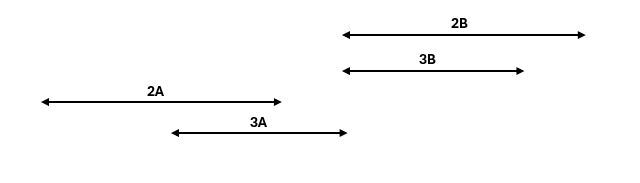
Going from 2B to 3B:
The Go member is exactly the same, and the No Go is a tighter tolerance which falls within the 2B tolerance. This means you may fail parts that could pass to a 2B, but you will never pass a bad 2B part. (provide PD’s if needed)
Going from 3B to 2B:
The Go member is exactly the same. The No Go member will be a looser tolerance, which may fall outside of the 3B limit, however it may be able to get you out of a pinch given the better price & lead time. (provide PD’s if needed)
Going from 2A to 3A:
3A is a tighter tolerance, which does not have the allowance that a 2A has. This means the actual fit of the threads may be tighter, and you may fail parts on the no go limit that could pass to a 2A, but you will never pass a bad 2A part. (provide PD’s if needed)
Going from 3A to 2A:
The No Go member will be a looser tolerance, which may fall outside of the 3A limit, however it may be able to get you out of a pinch given the better price & lead time. (provide PD’s if needed)
You will sometimes encounter gages that have a "J" as part of the class - UNJ, UNJF, UNJC, etc. These are thread classes used primarily in aerospace applications and are (in some cases) different from their non-J counterparts (UN, UNF, UNC, etc.). When quoting J-thread gages, keep in mind the following rules:
- For Plug Gages (including Set Plugs), J-threads and non-J Threads are identical. We can always relabel a non-J thread plug gage and sell it as a J-thread. That being said, if a customer requests a J-thread plug gage, we need to quote a J-thread gage - so make sure you edit your quote to say the correct class.
- For Ring Gages, J-threads and non-J Threads are identical for the NO GO ring ONLY. If we have a J-thread GO ring, a non-J thread NO GO ring can be relabeled in order to make a set - but NOT the other way around. Manufacturers such as PMC and Vermont are able to modify stock non-J rings into J-thread rings in around 8-10 days, so common sizes are usually relatively easy to quote when we don't have them in stock ourselves.
How to explain the difference between J and non-J to customers:
- J-threads are mainly used in aerospace applications, since they are designed to have increased resistance to wear and vibration compared to non-J threads
- For an external J-thread (which is checked using ring gages), the root of the thread (meaning the "bottom" or the lowest point of the external thread form) is more rounded than on a non-J thread. The Go ring gage which is used to check this thread is truncated (chopped off at the top) to allow for this rounded root.
- An internal J-thread (which is checked using a plug gage) has a slightly larger minor diameter in order to accommodate the rounded root of the mating external thread

Thread Disk is a very useful piece of software that can give us a lot of detailed information about threads. Most commonly you will use this to check pitch diameters. To use Thread Disk:
- Open "TDWIN" (icon shown above)
- Select "Calculate Dimensions with ASME Tables" and click "OK"
- From here, enter the required information:
- Thread Type: There are many options here but you will most often be using UN, UNJ, or M
- Thread Class: (UN / UNJ) 1 = 1A/1B, 2 = 2A/2B, 3 = 3A/3B
- Nominal Diameter: Should be entered as a decimal (imperial sizes) or in mm (metric sizes)
- Threads per Inch / Thread Pitch: Enter as a decimal if not a round number
- Number of Starts: Should be left as 1 (unless specifically looking for a multi-start gage)
- Metric Grades & Tols: Defaults to 6H/6g (which is standard), if a different class is needed you can click on this button to make changes
- Once all information is entered, click "Calculate"
- Once calculated, use the tabs at the bottom to find the specific type of gage you are looking for information on (Ring Gage, Set Plug, Plug Gage). This will give you information about pitch diameters, majors, minors, thread series, and more.
- If you need to find another thread, you can click file -> new at the top to create a new window, or use the "Parameters" tab to re-calculate a different size
We have a few different options for calibration labs, each with different capabilities and pricing. It's important that the appropriate calibration option is selected when making a quote so that we are not offering certs at an incorrect price or lead time.
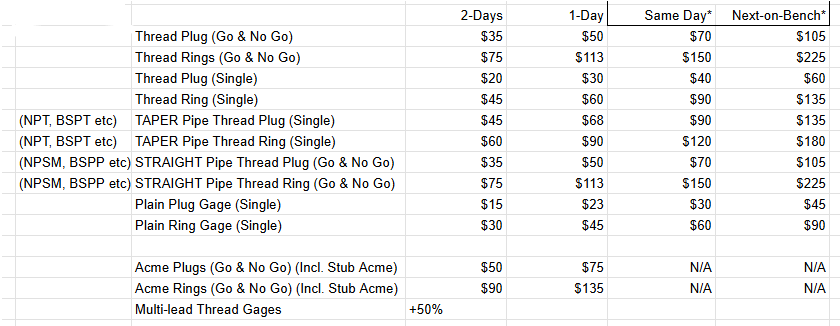
The majority of our calibration will be done at True Line. Gages CANNOT be calibrated at True Line if they fall under any of the following criteria:
- Buttress Threads (Rings & Plugs)
- Plug Gages over 7" Diameter
- Spiralock gages (click here for info on Spiralock calibration)
GAGES FOR THE FOLLOWING COMPANIES CANNOT BE CALIBRATED AT TRUE LINE:
- Preferred Machine Works
- S & S Tool
- Astro Machine Works
- Any customer that specifically needs ISO17025 accredited certs
Additional considerations:
- Budget & Shop-Made gages are certifiable on a case-by-case basis - check with a supervisor before quoting calibration
- Any unusual sounding threads, such as API Line Pipe, should also be confirmed with a supervisor before quoting
Same-Day Calibration Rules
Order Placed / Gages Received Before 2:30 PM: Same-day calibration is always available, unless:
a. The order consists of 5 or more (calibrated) gages
b. The order includes more than 2 dial-in ring gage calibrations
In either of these cases, same-day service must be approved by management before it can be promised to the customer (even if it is before 2:30 PM).
For pickup orders, we only guarantee that same-day calibration will be completed by 4:30 PM. If a customer wants to have a same-day calibration finished sooner, it can be upgraded to a "Next-on-Bench" calibration on a case-by-case basis which must be approved by management before it can be promised to the customer. This means that the gage(s) will be next in line to be calibrated after any currently in-progress orders are finished. Pricing for "Next-on-Bench" calibration is increased to 3x the standard 2-day cost as shown in the chart at the top of this section.
Order Placed / Gages Received After 2:30 PM: Same-day calibration is available on a case-by-case basis which must be approved by management before it can be promised to the customer. Additionally, calibration pricing will be increased to the "Next-on-Bench" pricing, which is 3x the standard 2-day cost.
Phone: (502) 535-0015
Email: rpr2@mindspring.com
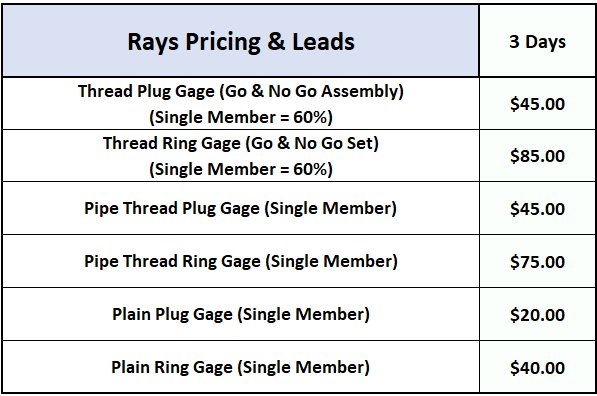
The following gages should be calibrated at Rays:
- Pipe Threads (NPT, NPTF, PTF, NPSM, ANPT, A&N, BSPT, etc.) that are under 2" Diameter
- Plug Gages over 7" Diameter
- Plain Ring Gages
Rays will dropship the gages to our customer after calibration, so we will need a UPS account number for all Rays calibrations. If the customer does not have an account #, we will need to charge them a pre-paid shipping cost (refer to the Shipping Quotes section for more info) and ship using our UPS account (0F1R97).
Note that the quote sheet will also include a 2-Day option for Rays. These prices are actually for calibration at Tool Testing Lab, and are included as an expedited option. If the customer wants 2-Day certs on gages that we quoting as going to Rays, we will actually be sending them to TTL instead.
Phone: (937) 898-5696
Email: katie.berbach@ttlcal.com
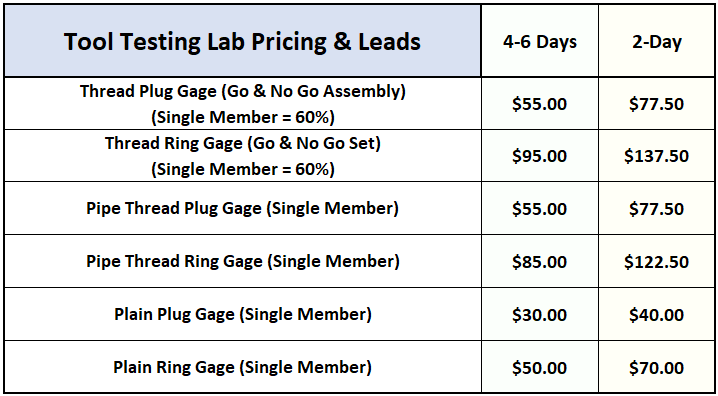
Pricing for additional items can be found on the True Line Orders sheet. Items not listed can be RFQ'd to katie.berbach@ttlcal.com, but prices must be marked up 25% and should then be added to the list on the True Line sheet for future reference.
TTL is an ISO17025 accredited lab, so they should be used for any customer who specifically requests accredited certs. They have all of the same capabilities as True Line, as well as being able to calibrate:
- Buttress Threads (Rings & Plugs) - Always confirm price & lead as these may not be the same as standard gages
- Plug Gages over 7" Diameter
- Dial-in Ring Gages without matching set plug IF it falls under the following criteria:
1. Diameter cannot be smaller than 9/16" (14.5mm) or larger than 12" (305mm)
2. Pitch cannot be finer than 32 TPI (.75mm) or coarser than 5.5 TPI (4.5mm)
TTL can ONLY calibrate ring gages (dial-in or otherwise) below 9/16" diameter if they have the set plug. You can call TTL to check if they have a particular set plug - for common sizes there is a good chance they will have it; special sizes (and thread forms like ACME) are less likely but still worth checking just in case.
TTL sends a truck on Thursday mornings to deliver finished gages and pick up any new orders that we have for them. If we need a gage more quickly we can also request that they ship it back to us via UPS (on our account) as soon as it's finished, or in some rare cases for same-day service we may send a driver ourselves. We can also ship gages to TTL via UPS Ground (on our account) rather than waiting for the next Thursday truck. This will depend on the day the order was received / processed:
Monday: Ship to TTL and request that they ship back to us
Tuesday, Wednesday, Early Thursday: Send on Thursday pickup, receive on following Thursday pickup
Thursday (after pickup), Friday: Ship to TTL, receive on following Thursday pickup
If a customer requests calibration on a gage that cannot be calibrated at True Line, Rays, or TTL, our remaining options are PMC and GSG, two manufacturers that we distribute for who also offer calibration services. Pricing and lead times will vary, and there are some gages that even these companies will not be able to calibrate, so we will need to get a calibration quote before we can offer anything to our customer.
Like with Rays, these companies will dropship the gage to our customer so we will need either a customer UPS / FedEx account or a pre-paid shipping charge. Also take into consideration our shipping cost for shipping the gage to PMC / GSG; the price we quote our customer should be adjusted accordingly to cover that cost.
***New Spiralock gages come with long form certs included, you do not need to add any additional price / lead time if a customer wants certs with SPL gages that we are quoting***
If a customer asks about calibrating Spiralock gages that they already own:
Spiralock gages can only be calibrated by Stanley, the company that produces Spiralock products. We can have this done through DB Roberts (our local Spiralock distributor):
Standard Certs: $57 per member (Our price! Quote to customer as $74 per member)
ISO17025 Accredited Certs: $70 per member (Our price! Quote to customer as $91 per member)
Lead Time (either option): 8-9 Weeks
Ship Gages To:
DB Roberts
ATTN: Gage Department
54 Jonspin Rd
Wilmington, MA 01887
DBR Contact:
Ishira Morse
imorse@dbroberts.com
*Our PO must include the calibration cycle
The gages will be dropshipped back to our customer once calibration is complete, so we must have a UPS account # or prepaid shipping.
Calibration-Only Quotes (Customer Sends in Gages)
Customers will occasionally request to send in gages they already own for calibration. Pricing and lead times are the same as a normal quote, although we may choose to increase the standard lead time if they will be sending in a large number of gages (ask your supervisor if you are not sure). The formatting of a calibration-only quote may vary depending on how much information the customer gives us at the time of the request - if they give us a list of specific sizes, we will list each size individually on the quote; if the request is more generic such as simply a number of each type of gage, we will send a more generic quote. See below for two examples:
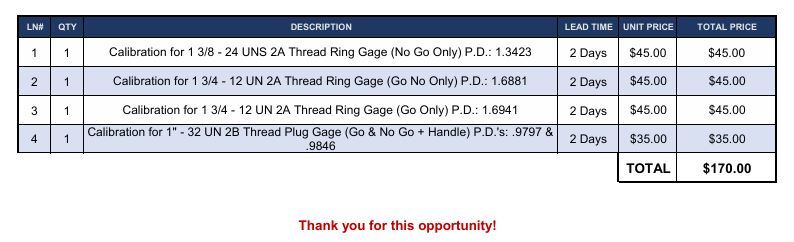
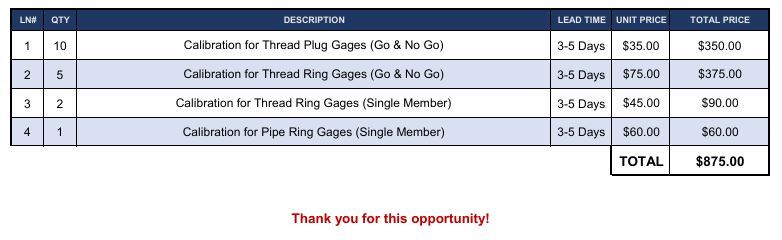
When making the quote, you can use an abbreviation of the lab name for the "SKU" (such as TLC for True Line Calibration or TTL for Tool Testing Lab), and mark each line as Receiving Calibration.
When you email the quote to the customer, you will also need to attach the Customer Calibration Request pdf form which can be downloaded from the Sales Docs Google Drive. This form is where the customer can make special requests regarding the length of the calibration cycle and specific gage ID numbers that they would like to have included on the certs. You will also want to give them our address for sending the gages to. See below for an example message:
(Good Morning / Good Afternoon),
Please see the attached calibration quote. If you would like to proceed, please fill out the attached Customer Calibration Request form which can be returned to us by email or included in the box with the gages as a hard copy. Gages can be shipped to the address below:
ATTN: Calibration
M & J Tooling LLC
420 Davis Ave
Dayton, OH 45403
Please let us know if you have any questions!
Regards,
Once a customer confirms that they will be sending in their gages for calibration, you must add this information to the Receiving Inventory spreadsheet so that the receiving department will know where to bring the gages when they arrive.
When gages arrive for calibration, they will prepped just like any other calibration order (gages cleaned, any wax / old calibration stickers removed, etc.) and an order should be entered like normal. Make sure that any requests from the Customer Calibration Request form are passed on to the lab - if calibrating at TLC, you can simply include this form with the gages and normal calibration paperwork; if we are sending the gages to TTL you will need to clearly spell out the request(s) on the calibration paperwork.
Requesting Quotes from Manufacturers / Vendors
If we do not have a particular gage in stock, we can quote a new gage from one of the manufacturers that we distribute for. Some manufacturers keep more common sizes in stock, but often there will be a lead time of anywhere from 2-8 weeks for the gage to be made.
Requests for quotes can be made via email or phone. If the customer is in a rush, calling a manufacturer is better since we can get the information we need right way, rather than having to wait potentially several hours for a response. However if there is a large amount of specific information that needs to be shared, such as a print with special dimensions that production will need to see, we will want to RFQ via email, including any attachments or other info.
If you are requesting a quote from a manufacturer via email, you MUST do the following:
1. Reply to our customer's RFQ using the template shown below. The message will contain an internal reference number for the quote which will be used to keep track of the RFQ(s) we send. The format for the reference number is: [First two letters of the company name][Today's date, in MMDD format][The time of the reply, in 24hr format]. For example, if we reply to an RFQ from Whitworth Tool on 10/29 at 1:18 PM, the reference number would be WH10291318.
[Good Morning / Good Afternoon],
Thank you for this opportunity. We have passed this along to production and will follow up with a quote as soon as possible!
Regards,
The reference number should then be put below the email signature, as shown below:
2. Any RFQ we send in relation to this quote must include this reference number in the subject line (ex. RFQ WH10291318) and you should also ask the manufacturer to reference it in the body of the message ("Please reference request # WH10291318").
This is important because searching a reference number in the inbox will then allow anyone on the sales team to see the full breakdown of what we have done on this quote, including the original customer request, which manufacturers we sent RFQ's to, and what responses we have received / which ones need followed up on.
Note about phone RFQ's: If you send a message to the sales inbox about a phone call that needs followed up on, always include a reference number so that it can be tracked the same way as email RFQ's.
Something to keep in mind with distribution orders is that we must have a shipping account number. If the customer does not have a UPS or FedEx account, we will have to include a pre-paid shipping charge (see the Shipping Quotes section for more info) and use our UPS account (0F1R97). If you are quoting for a customer that you know does not have an account #, you can calculate the shipping ahead of time and include it on their quote.
- International Distributing Orders will always have to be sent us, and from there we will ship it to the customer. This means that your quote needs to include a shipping charge that covers both the international shipping AND the cost of having the gages shipped to us from the manufacturer.
- If quoting a distributing order which has a list price of < $30, add $20 if we will be shipping on our account, or $5 if we have a UPS account for the customer
Below is a breakdown of the recommended manufacturers for each item type (click the company name for more detailed info):
THREAD GAGES
PMC Lonestar - #1 choice for most thread gages (standard or special), also a good source for API gages. Cannot make sizes smaller than #2 (.086"). May not be the best choice for large or very special rings.
Vermont Gage - Stocks a large number of standard sizes including left hands; not a good choice for specials (always 6-8 weeks for anything not in their catalog).
Gage Assembly - Can make very large / small / special gages that PMC struggles with; however we get a relatively low discount and their lead times are unreliable.
GSG - Another option for specials, particularly rings. Also one of the only options for setting thread rings. More reliable than GA on leads but historically slow to respond to requests.
Pennoyer Dodge - Can sometimes provide very fast lead times for a heavily increased price; we have not used them in a while though so their capabilities may have changed.
Hemco - Another option for API gages; basically a "last resort only" on anything else as we usually have a better option somewhere else.
R.L. Schmitt - Only option for carbide thread plug gages; don't use them for anything else.
S.G. Prittie - Manufacturer of square thread gages; located in Australia so shipping costs and lead times will be very high. Don't use for anything else.
Steiner Technologies / JBO - Located in Germany, can make gages per DIN (European) standard which our domestic options may not be able to do. Not recommended for anything else.
D.B. Roberts - Our only option for Spiralock gages, which cannot be made by other manufacturers. Don't use for anything else.
PLAIN GAGES
Vermont Gage - Often the best choice for plug gages, lead times as low as 1 day for ZZ pins under 1". Rings are often much longer lead time.
Meyer Gage - A close second to Vermont for plug gages; we prefer VTG for the better discount but worth checking if VTG doesn't have stock on something a customer needs ASAP.
PMC - May have better price / lead on larger plug gages than VTG. Usually not a great choice for smaller sizes which VTG will win on.
GSG - One of the better options for plain rings, lead time is usually 4-5 weeks vs. 6-8 (or more) form Vermont / PMC.
Custom Tool & Gage - Distributor for Deltronic Pin Gages, which customers will sometimes request specifically. Not worth using for anything else.
OTHER/SPECIALTY GAGES AND INSPECTION EQUIPMENT
Air Gaging LLC - Our best source for air gages, they have a good knowledge of different machines and can also provide setting rings and accessories such as hose fittings.
Edmunds Gages - Another manufacturer of air gages, although they are very expensive so not recommended unless Air Gaging no quotes something.
Western Gage Corporation - Another air gage manufacturer, they also sell readout machines & probes so could be a good source for those.
Western Pegasus - One of our only reliable sources for spline gages and some other specialty gages.
Broach Masters - Another possible source for spline gages. We have very little experience with them so hard to say when they would be a better option than Western Pegasus.
Vermont Gage - Also sells hex gages, hole location gages, and master setting discs
Willrich Precision - A source for some specialty gages such as torx gages and Leitech depth plug gages
PMC - Best source for thread measuring wires
Insize - Manufacturer of many types of inspection tools including calipers, micrometers, dial indicators, height gages, bore gages, gage blocks, gage balls, and more.
Queller Wholesale - Distributor for brands including Mitutoyo, Starrett, Fowler, and Mahr. Mostly the same stuff we can get from Insize (at a worse discount), but customers sometimes specifically want these brands.
TOOLING
Taps & Dies
Michigan Drill - They stock a large number of standard sizes and can provide special sizes as well. Usually has the best tap prices of any of our options.
Widell - Often much more expensive than MI Drill but can produce very special taps that MI can't do such as Buttress, Trapezoidal, or Multi-Start, as well as J-thread dies.
D.B. Roberts - Our only option for Spiralock taps, which other manufacturers cannot make. Requires a special request form to be filled out by the customer.
Reamers
Michigan Drill - Distributes for L&I which is our best source for reamers of all types (chucking, hand, expansion, taper shank, shell, etc.)
Twist Drill Bits
Michigan Drill - Stocks a large number of standard sizes in all types (jobber, taper, screw machine, aircraft, extra length, taper shank, coolant thru, etc.) in HSS, Cobalt, and Carbide.
Queller Wholesale - Distributes for Precision Twist Drill which carries generally the same selection as MI Drill. They may be able to quote very large drills that MI can't.
End Mills
Michigan Drill - Stocks mostly square and ball nose end mills in standard sizes, available in HSS, cobalt, and carbide. Also sells double-ended, corner rounding, and a small selection of roughing end mills.
Queller Wholesale - They distribute for YG-1 which is a pretty good source for most end mills, particularly corner radius end mills which MI Drill does not sell. MI prices are usually better on ones they do have though.
Inserts
Tool-Flo - Good source for threading and grooving inserts, in both laydown and "top notch" styles
Michigan Drill - Relatively small selection of turning inserts; mostly "C", "S", and "T" shapes
Queller Wholesale - They distribute for Tungaloy which offers a pretty wide selection of turning and milling inserts, as well as YG1-brand spade drill inserts
Re-selling from eBay is often a good option for inserts
Indexable Tools
Tool-Flo - Good source for turning tool holders and boring bars for threading / grooving specifically
Michigan Drill - Has a relatively small selection of indexable end mills, boring bars, and turning tool holders
Queller Wholesale - They distribute for Tungaloy which offers a pretty wide selection of Indexable Drills, Indexable End Mills, Face Mills, Boring Bars, and Turning Tool Holders
Taper Shank Tool Holders
Techniks - CAT, BT, & HSK tool holders in just about any style (solid end mill, collet chuck, Morse taper, shrink fit, hydraulic, etc.). They are also a distributor for Parlec.
Fitz-Rite - CAT40 & CAT50 Tool Holders in most common styles (solid end mill, collet chuck, face mill, Morse taper, Jacobs taper, etc.)
PAC Tools - They stock many different types & styles of tool holders in much longer projections than most other manufacturers (up to 13")
Other Tooling
Michigan Drill - They also sell other cutting tools such as countersinks, counterbores, and side milling cutters as well as collets, bushings, drill chucks, lathe chucks, and more.
Queller Wholesale - In addition to all the same types of cutting tools that MI Drill sells, they also have hand tools, files, Jacobs chucks & arbors, tool holders, tapping heads, and more.
Techniks - They also sell collets, boring heads, tapping chucks, retention knobs, setup equipment, and static BMT tool holders.
Fitz-Rite - They also sell collet chuck extensions, TG and ER collets and nuts, retention knobs, and chamfer tools.
TJ Davies - Specializes in all types and styles of retention knobs; also sells socket adapters to fit knobs
Edward Andrews - Primarily sells lathe bushings / boring bar sleeves, but also other items such as chuck jaws and VDI tool holders
Loc-Line - Supplier of coolant line hoses & nozzles
UCA Group - Currently the only(?) source in the world for Scully-Jones products which include tap drivers and Morse taper adapters
Centaur Tools - Source for collets of almost any type
This text is here because bigcommerce is dumb and makes it hard to do line breaks. If you found it, good job!
PMC Lonestar (Van Keuren / GF Gage)
Email: gage.service@pmclonestar.com
Discount: 25%
Long Form Certs:
(Non-Pipe) Thread Plugs: $20/member
(Non-Pipe) Thread Rings: $25/member
Pipe Thread Plugs/Rings: $35/member
Plain Plugs/Rings: $15/member
1 Day added to lead time (all)
A2LA Certs:
(Non-Pipe) Thread Plugs: $30/member
(Non-Pipe) Thread Rings: $45/member
2 weeks added to lead time (all)
Send them RFQ's for:
- Most Thread Plug & Ring Gages
- Includes Special Thread Gages (Before Plate, Special P.D.'s, Double Lead, etc.)
- Cannot make gages smaller than #2 (.086") diameter
- Pipe Gages (NPT, NPTF, BSPT, etc.)
- Plain Gages
- API Gages
- Parts / Accessories: Handles, Taperlock Extensions, Ring Gage Holders, etc.
Our go-to for most gages. They have some of the best pricing and lead times in the market for plug gages, and we also get a higher resale discount from them than most other manufacturers so they will often be our preferred choice.
They're pretty good all around for rings, although for large / special rings they will often have to make the set plug as well, requiring the customer to either purchase the set plug or pay an up-charge to cover the production cost of the set plug (typically 40%). We have found that customers usually will just pay the upcharge rather than adding the set plug to their order, so it is okay to only quote this option and not mention the set plug at all. If you do want to offer both options, you will need to include two separate lines for the ring gages and make it clear in your line descriptions that the lower price is only if the set plug is also purchased. See below for an example:
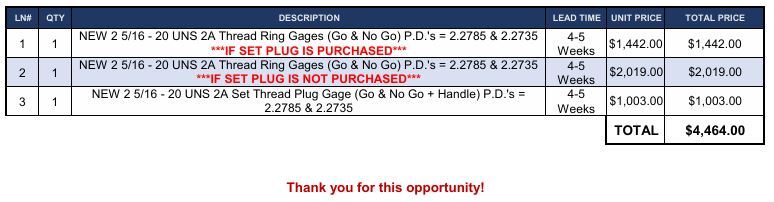
This can be done directly on the "Quote" tab in the Excel sheet by copying the cells and then using "Paste as Values" (from the right-click menu) to convert the formulas into plain text which can then be edited.
Notably, PMC also specializes in API gages and even stocks many API sizes. They also make plain gages, however lead times on these can vary and in most cases Vermont will be a better choice for plain plugs.
If PMC does not have a gage in stock, it should always be quoted with Vermont as well unless it falls under one of the categories listed in the next section below.
a
Email: sales@vermontgage.com
Discount Tier: 5
Discount: 20-40%, Depends on Specific Item *15% for Certs - Check the "VTG Discounts" pdf in the Sales Docs drive for a specific discount breakdown
Long Form Certs:
(Non-Pipe) Thread Plugs: $20/member
(Non-Pipe) Thread Rings: $22/member
Pipe Thread Plugs/Rings: $40/member
Plain Plugs/Rings: $15/member
1 Week added to Lead Time (all)
Send them RFQ's for:
- Thread Gages that PMC does not have in stock
- UNLESS they fall under the criteria outlined below
- Plain Gages - especially smaller sizes
- Master Setting Discs
Specializes in smaller plain gages (pin & bore rings) and will often stock more than anyone else in thread gages. If PMC does not have a gage in stock, you should always check with VTG unless it falls under the following criteria:
- Thread gages smaller than #0 (.06")
- Thread gages larger than 3 1/4"
- Thread gages larger than 1 1/2" with TPI that is not 8 or 12
- Metric thread gages smaller than M1.6
- Metric thread gages larger than M39
- ACME thread gages
- Double Lead thread gages
- Buttress thread gages
- Pre-plate / Before Plate / Before Anodize etc.
- Special Major, Minor, or P.D.'s
You can also check Vermont's catalog, available online here. If a gage size does not appear in their list of Standard Thread Gages (which begins on p.37), it should be quoted with someone else as VTG will typically have a very long lead time (6-8 weeks).
Important Note About Ordering Long Form Certs from Vermont:
- Vermont requires that certs be referred to as "Certificate of Calibration" on the P.O. and NOT "Long Form Cert".
- We only receive a 15% Discount on certs, NOT the full 20-30% that we get on gages. This will need to be manually changed on the P.O. as there is not currently a way to set two different discounts for the same P.O.
a
Email: sales@GSGage.com
Discount: 20% *Contact PGRonback@gsgage.com about larger discounts on orders over $5,000
Long Form Certs:
(Non-Pipe) Thread Plugs: $20/member
(Non-Pipe) Thread Rings: $30/member
Pipe Thread Plugs: $35/member
Pipe Thread Rings: $48/member
Plain Plugs/Rings: $37/member
1 Day added to lead time (all)
Send them RFQ's for:
- Special Thread Forms (ACME, Buttress, Trapezoidal)
- Thread Ring Gages that PMC requires a set plug for (special sizes, very large or very small sizes)
- Large Thread Plug Gages (> 4")
- Master Setting Rings
- Special Taper Gages (such as Morse Taper)
- Plain Ring Gages
Specializes in ring gages; unlike PMC they can make larger and more complicated rings without needing a set plug and as a result will often have better pricing and lead time on rings. They sometimes have better leads on large plugs (> 4") and are our go-to for ACME, Buttress, or Trapezoidal thread gages. They are also generally the all-around best choice for plain rings, with better lead times than Vermont and PMC in most cases.
GSG does also stock some gages, but their pricing is usually higher than PMC and Vermont so we will typically not go to them for more common sizes.
a
Email: pdbob@sbcglobal.net
Discount: 20%
Long Form Certs: Included for Free - no impact on lead time
Send them RFQ's for:
- Thread Gages that a customer needs very quickly (if lead times from other manufacturers are too long)
Can make just about any gage; often able to offer expedited production with lead times as low as 3-days. They charge a ton but may be the only option if the customer really needs it fast - otherwise, we typically will not quote from them.
a
Email: insidesales@meyergage.com
Discount: 20%
Long Form Certs:
- Pin Gages: $15 per member, 2-3 week lead time
*In 99% of cases we will prefer to have gages shipped to us to be calibrated at True Line due to lead time
Send them RFQ's for:
- Plain Plug (Pin) Gages
- Master Setting Discs
Note: $20.00 minimum order requirement
Specializes in pin gages and may often have better prices and lead times than PMC or Vermont. They also produce plain rings and thread gages, but will usually not be our best option for those.
a
Email: sales@hemcogages.com
Discount: 15%
Long Form Certs: TBD
Send them RFQ's for:
- API Gages
- Various inspection tools such as micrometers, depth gages, gage blocks, etc.
Another option for API gages, although they may not have as wide of a stock selection as PMC. They also sell many other types of inspection tools, and while they do produce standard thread and plain gages we will typically not quote these from HEMCO due to the relatively low discount compared to PMC, VTG, and GSG.
a
Email: sales@rlschmitt.com
Discount: 15%
Long Form Certs: Varies, they will include it in the quote
Send them RFQ's for:
- Carbide Plug Gages (only) - They do not manufacture steel gages
a
Email: sales@queller.com
Discount: Varies by Item
Send Them RFQ's for:
- Cutting tools such as end mills, drill bits, countersinks, etc - Try Michigan Drill first though if it's something they also carry
- Turning & Milling inserts; indexable tooling such as drills, end mills, face mills, boring bars, turning tool holders
- Air gages (Mahr)
- Various other tooling including drill chucks, tap holders, collets, and bushings
- They also sell inspection tools such as micrometers, calipers, dial gages, gage blocks, etc., however we are a direct distributor for Insize (another manufacturer of these items) so we should avoid using Queller for these items unless a customer requires a specific brand such as Mitutotyo, Starrett, or Fowler (all of which Queller carries)
A large distributor for many notable brands including YG1, Precision Twist Drill, Jacobs, Command, Tungaloy, and more. For most categories they are often not our best option, but can be a good "last resort" check for items that are no quoted by other manufacturers. For large requests they prefer us to use their web portal rather than email an RFQ, however while the website shows pricing (including our discount) and whether or not it is in stock, if quoting an out-of-stock item you will still need to send them an email requesting the lead time.
a
Email: john.stankrauff@michigandrill.com / sales@lavallee-ide.com
Discount: Varies by Item
Send Them RFQ's for:
- Taps: They stock more sizes than anyone else in the country and can provide a large number of special sizes
- Reamers: They distribute for Lavalee & Ide (L&I), our best source for reamers of all types
- Other cutting tools such as drill bits, end mills, countersinks, counterbores, etc. - they usually have the best prices of any of our options
- Turning inserts, boring bars, and turning tool holders - relatively small selection of these
- Various other tools including collets, drill chucks, bushings, and more
Their full catalog can be viewed here. They don't do special/custom items so anything not in their catalog will be a no quote, however for anything that they do carry they are generally our best option on both price and lead time. RFQs / orders for reamers can be sent directly to L&I rather than going through MI Drill.
a
Email: sales@insizeus.com
Discount: 37.5% for "A" items and 30% for "B" items (Quotes should specify, but you can also check which category an item falls under in the Insize Master Price List)
Send Them RFQ's for:
- Any and all inspection tools: Micrometers, calipers, bore gages, depth gages, height gages, dial indicators, gage blocks, gage balls, & more
- Set-up tools such as V-blocks, parallels, 1-2-3 blocks, gage stands, etc.
- They also sell plain and thread gages but will probably never be the best option for those
Full catalog can be viewed here. They typically have much better pricing than the equivalent items from brands such as Mitutoyo or Starrett. They do sometimes quote custom / special-made items but it can take a long time for them to get back to us on these.
a
Email: chrisk@widell.com
Discount: 20-30% (Quotes should specify)
Send Them RFQ's for:
- Special taps such as Buttress, Trapezoidal, multi-start, etc.
- Very large taps (>4")
- J-thread dies
- Any tap or die size that Michigan Drill does not carry
A good source for taps and one of the only die manufacturers in the US, although they tend to be more expensive to Michigan Drill is usually better for any size that they carry.
a
Email: sales@loc-line.com
Discount: Unknown, quotes should specify
Send Them RFQ's for:
- Anything in their catalog
Widely considered to be the industry standard when it comes to coolant hoses and nozzles. We stock most of their line but they can be RFQ'd directly for anything we don't have.
a
Email: sales@fitzrite.com
Discount: Unknown, quotes should specify
Send Them RFQ's for:
- CAT40 & CAT50 Tool Holders (Solid End Mill, Collet Chuck, Face Mill, Morse Taper, Jacobs Taper)
- Collet chuck extensions
- TG and ER collets and nuts
- Retention knobs
Smaller selection than Techniks but potentially better on price/lead for the things they do have. They also sell a line of indexable chamfer tools.
a
Email: info@techniksusa.com
Discount: Varies, quotes should specify
Send Them RFQ's for:
- CAT, BT, & HSK tool holders in just about any style (solid end mill, collet chuck, Morse taper, shrink fit, hydraulitc etc.)
They also sell collets, retention knobs, and BMT lathe tool holders. They are also a distributor for Parlec, which is another large tool holder manufacturer.
a
Email: sales@pactoolsusa.com
Discount: Unknown, possibly none
Send them RFQ's for:
- Long projection tool holders
They stock many different types & styles of tool holders in much longer projections than most other manufacturers (up to 13").
a
Email: sales@tjdavies.com
Discount: Varies, quotes should specify
Send Them RFQ's for:
- Any and all styles of retention knobs
- Socket adapters for retention knobs
Manufacturer of retention knobs for tool holders. Can send them tool holder part #'s / descriptions and what machine it is being used with and they will be able to tell us what knob is needed.
a
Email: sales@toolflo.com
Discount: Varies, quotes should specify
Send Them RFQ's for:
- Threading and Grooving inserts (laydown or "top notch" style)
- Boring bars and turning tool holders for threading/grooving inserts
Our main source for threading and grooving tools and inserts. They used to also make turning and milling inserts but those lines have been discontinued.
a
Email: sales@edwardandrews.com
Discount: Varies, quotes should specify
Send Them RFQ's for:
- Lathe bushings / boring bar sleeves in all styles
Primarily sells lathe bushings / boring bar sleeves, but also other items such as chuck jaws and VDI tool holders.
a
Email: imorse@dbroberts.com
Discount: None; list prices must be marked up for our quote
Send Them RFQ's for:
- Anything Spiralock
Distributor for Spiralock gages and taps, which are proprietary and cannot be produced by our other manufacturers. For taps, we must have the customer fill out a Tooling Request Form (can be downloaded from the Sales Docs drive) and include it with the RFQ. No resale discount - all quotes will need to have prices marked up. ***Long form certs are always included even when not specified (no additional price / lead time required)
a
Email: inquiry@westpeg.com
Discount: Unknown; possibly none
Send Them RFQ's for:
- Spline Gages
One of our only reliable sources for Spline Gages and some other specialty gages. When sending an RFQ include as much info as possible; ideally we will want a print from the end customer since we do not know as much about this type of gage.
a
Email: info@broachmasters.com
Discount: Unknown
Send Them RFQ's for:
- Spline Gages
Another source for spline gages; we have not had much experience with them yet so full capabilities are unknown
a
Email: info@edmundsgages.com
Discount: Unknown
Send Them RFQ's for:
- Air Gages
Manufacturer of air gages, although they are very expensive. Try Air Gaging first.
a
Email: info@airgaging.com
Discount: 15%
Send Them RFQ's for:
- Air gages
- Accessories such as hose fittings
Currently our main source for air gages; they are a distributor similar to us but are more knowledgeable about air gaging so can be a good source for information such as what types of air gages are used with different types of machines. Can provide master setting rings along with air plugs as well as probes and accessories.
a
Email: sales@westerngage.com
Discount: Unknown
Send Them RFQ's for:
-Air gages
Another potential air gage source, they can manufacture custom air gages and also sell readout machines & probes. We have not had much experience with them yet so full capabilities are unknown
a
Email: amanda@ucagroup.com
Discount: Unknown, possibly none
Send Them RFQ's for:
- Scully-Jones products
Currently the only(?) source in the world for Scully-Jones products such as tap drivers and Morse taper adapters; only use if a customer specifically needs a certain S-J tool that they have a part number for.
a
Email: sales@prittie.com.au
Discount: Unknown
Long Form Certs: Unknown
Send Them RFQ's for:
- Square thread gages
One of the only manufacturers of square thread gages that we know of. They are located in Australia so make sure to account for that in shipping costs / lead times. Not recommended to be used for anything else.
a
Email: sales@gageassembly.com
Discount: 15%
Long Form Certs: $19 per member (both plugs and rings)
Send Them RFQ's for:
- Very large or very small gages that PMC cannot produce
- Special thread forms such as Buttress, ACME, Multi-Start, etc.
Can be a good option for very small or very large gages, special thread forms, etc - particularly on ring gages which they will usually not require a set plug for like PMC does. They almost never quote at less than 5-6 week leads so not a good choice if the customer is looking for something ASAP. Sort of a last resort in many cases since we do not get a very good resale discount; they also have a history of failing to meet lead times so it is strongly recommended to add at least 2 weeks to their lead times on our quotes.
a
Email: sales@steinertechnologies.com
Discount: Unknown
Long Form Certs: Unknown
Send Them RFQ's for:
- Special Gages
- Requests for short lead times
- DIN standard gages
Thread gage manufacturer; more expensive than our other options but may be able to expedite special gages that would be 8+ weeks at PMC/GSG/VTG. Gages are manufactured in Germany so shipping cost/time should be taken into account. Able to make gages per DIN (European) standards. ALL RING GAGES ARE SOLID!
a
Email: sales@willrich.com
Discount: Varies, sometimes none
Long Form Certs: Depends on the item; often comes included in the list price
Send Them RFQ's for:
- Torx Gages
- Leitech depth gages
- Other special / unusual gages
A distributor like us; can be a good source for unusual gages such as hexalobe (torx) gages and Leitech depth gages. We don't always get a resale discount so be prepared to mark up prices for our quote
a
Email: AltonC@CentaurTools.com
Discount: Unknown
Send Them RFQ's for:
- Collets, any and all types
We do not have much experience with them yet; full capabilites are unknown.
a
Email: sales@toolngage.com
Discount: 15%
Send Them RFQ's for:
- Deltronic Pin Gages
Distributor for Deltronic gages, which is the only thing we use them for. They also sell thread gages but would never be our best option due to the low resale discount. Note that Deltronic charges a $10 small order fee for orders under $80 which will need to be passed on to our customer
NO QUOTES SHOULD ALWAYS BE APPROVED BY MANAGEMENT BEFORE BEING SENT TO A CUSTOMER
Sometimes we will receive a request for an item that we are not able to provide a quote for. This happens most often with tooling, but on rare occasions there may be very special gages that we cannot quote either. In this case we will have to No Quote the item.
If we are no-quoting an entire RFQ, you can simply send the customer the following message:
"(Good Morning / Good Afternoon),
Thank you for this opportunity, but this will be a No Quote. Please let us know if there is anything else we can help you with!
Regards,"
For a partial No Quote (we can quote some items, but not others), make the quote as usual but include all no-quoted items at the bottom with " - NO QUOTE" at the end of the title. Enter "N/A" for the SKU and lead time, and $0 for the price, and make sure to select "Quoting / Invoicing Only" as the destination.
See example below:

USPS (Express Mail) *Mostly obsolete, we rarely use this anymore*
This will typically get to most parts of the country in 1-2 days for a significantly lower price than UPS Next Day / 2nd Day Air. Note: This is only applicable to orders that will fit in a flat-rate envelope. Larger items will have to ship UPS.
To get a USPS quote:
- Go to USPS.com and from the toolbar at the top of the page select Send -> Calculate a Price
- Enter 45403 as the Ship-From Zip Code, and the customer's zip code as the Ship-To Zip Code. You do not need to enter any other information beyond these two zip codes. Do not change any of the default information such as the date and time.
- Next, click "View Flat Rate Envelopes" at the bottom of the page
- Express options will be shown at the top of this page and will include the delivery time (1-Day, 2-Day, etc.) as well as the price. When quoting to a customer, this price should be marked up by 25%.
We can also quote standard (non-express) Priority Mail - This is relatively uncommon, but if an order would normally ship Ground Advantage and the wants it faster (but not necessarily next day), Priority Mail is an inexpensive option that typically ships faster than Ground Advantange.
- To get First Class / Priority quotes, follow the same procedure as Express quotes, but instead of "View Flat Rate Envelopes", click "Calculate price based on Shape and Size".
- Enter the approximate package weight (which should always be under 1lb. for First Class), then click "Package"
- This will show you all of the shipping method options, including First Class and Priority:
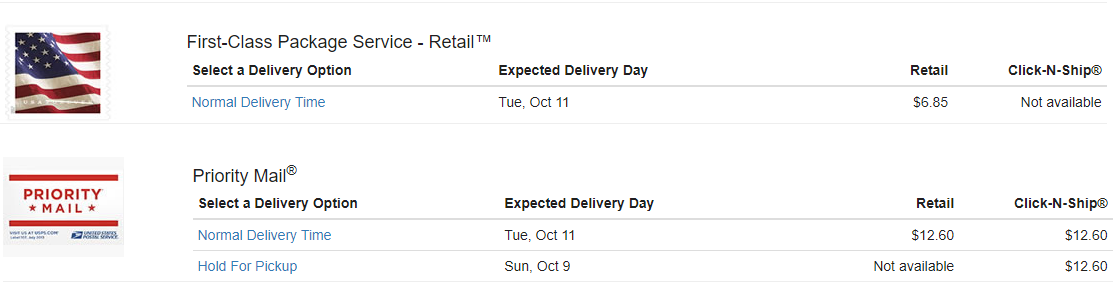
In this example, the delivery time for both options is the same, so there would be no point for the customer to pay for Priority - but if Priority is faster, we can quote it as an option for them (increasing the price by 25% like you would for Express mail).
If a customer wants an order to ship via UPS (or if it has to because of distributing / going to a calibration lab other than True Line) but does not have a UPS account # for us to use, we can calculate a pre-paid shipping charge using our UPS account instead.
To get a UPS quote:
1. Go to UPS.com and select Quote from the toolbar.
2. Enter the To and From information by entering the zip / postal code and selecting the correct option from the drop-down menu that appears (our zip code: 45403)
3. Enter the approximate package weight and dimensions. This does not need to be exact, but if you are not sure, err on the side of overestimating the weight / size. A common package size that you can use for quoting small / medium-sized items is 6x4x4.
a. To find the weight and dimensions for a listed item, search the SKU in SureDone and then click on the SKU on the left-hand side of the results page to open the product details. From here click on "Shipping" in the left-side menu and you will see the shipping dimensions which you can use for the UPS quote.
4. Once all information is entered, click "Get Quotes". From here you will see all shipping method options along with pricing. These prices do not include the discount we receive from using our UPS account, so these prices do not need to be marked up when quoting to the customer.
***IMPORTANT NOTE ABOUT DISTRIBUTING ORDERS***
Manufacturers (PMC, GSG, Vermont, etc.) always add additional insurance to every package they ship. Because of this, we must include this insurance cost in our quoted shipping price whenever we are using our UPS account to ship from a manufacturer (including if we are shipping to ourselves, such as for an international order).
UPS insurance is a flat rate based on the value of the package, as shown in the chart below. When quoting shipping for a distributing order, calculate this cost and add it to the shipping cost that UPS quoted us.
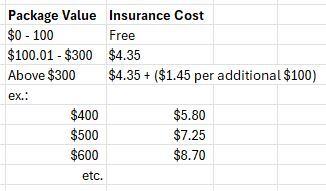
!!! Before quoting freight, you MUST know whether the address is business or residential, and if there is a forklift at the destination !!!
Use the message template below:
"(Good Morning / Good Afternoon),
Before we are able to provide a freight shipping quote, we will just need to know two things:
1. Is this a business or residential address?
2. Do you have a forklift or some other means of removing the items from the truck at the delivery location?
Thank you,"
***Customers can also arrange a freight pickup themselves - but we will charge a $75 Freight Preparation Fee***
1. Log in to My Central (ask your supervisor if you need the login info).
2. Click on "Rate Quote" in the top right of the page.
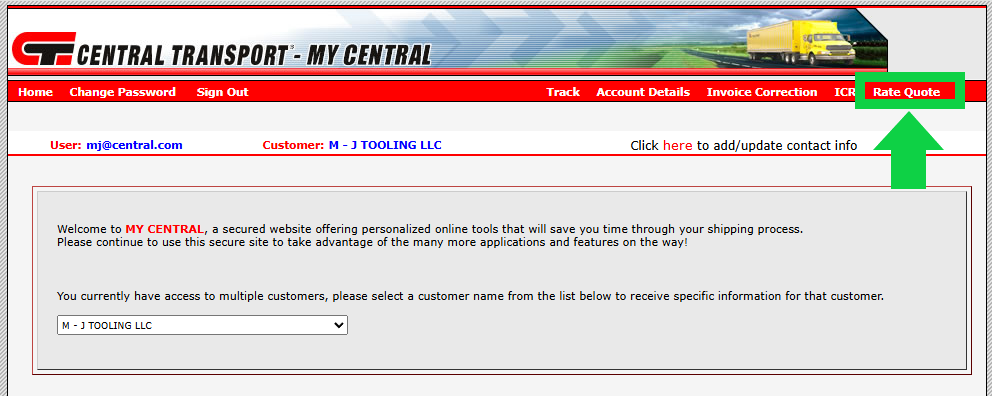
3. The Origin ZIP code will be 45403. The Dest ZIP code will be the customer's ZIP code.
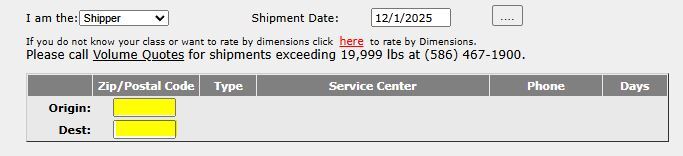
4. For each skid that will be on the shipment (which may consist of more than 1 item - ask your supervisor if you are not sure), you will need to enter the weight and class. The weight (and dimensions) can be found by searching the SKU in SureDone, clicking on the SKU in the results to go to the details page, and then navigating to the "Shipping" section. For the class, you will need to use the calculator linked directly below this form:
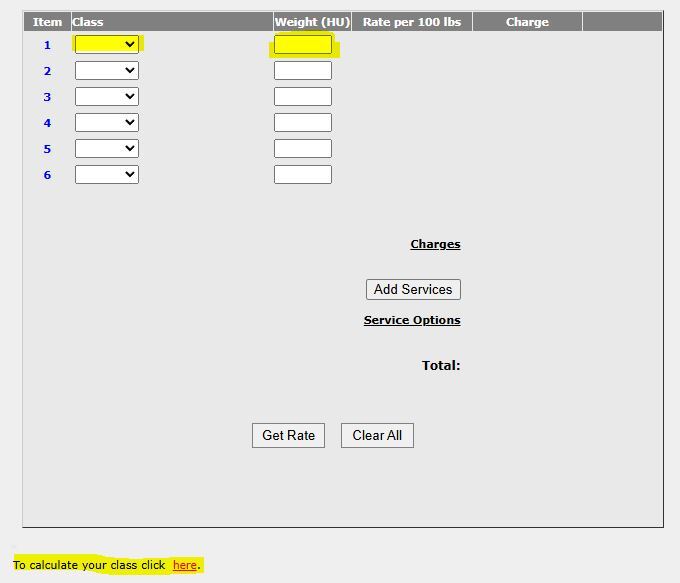
The class calculator will ask for the weight and dimensions of the the entire skid. Because of this, the length and width should be 48" X 48" (the size of a standard pallet), and you should add 4" to the height listed in SureDone to account for the height of the skid. Do not worry about adjusting the weight to account for the pallet, as this will generally not be enough additional weight to affect the final quote. Once you have the class, enter it into the quote form. Repeat as necessary for additional skids.
4. Add Services:
The only services we will ever need to select are Lift Gate (if the customer does not have a forklift or some other method of removing the items from the truck) and Residential Pickup/Delivery (if delivering to a residential address and not a commercial business address). You should always determine this information before you get a freight quote, but to be safe, include the following in your message to the customer whenever these extra services have NOT been included:
"This price assumes that we are delivering to a commercial address which has a forklift or some other method for unloading the item from the truck. If this is not correct, please let us know and we will re-quote accordingly."
5. Click Get Rate
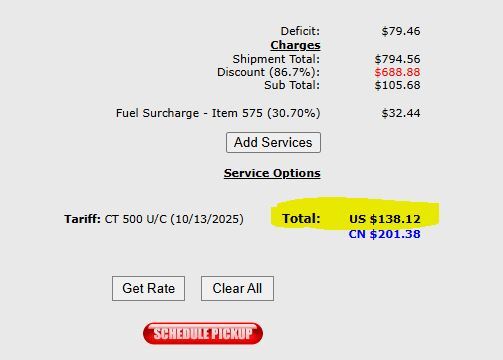
The Total should be increased by 50% (* 1.5) to get the final price that we quote to the customer (in this example, we would quote a price of $207.18). This is to cover the labor costs of prepping the shipment and give us a small profit margin on top of that.
If the transaction MUST be done through eBay, add an additional 25% to the freight cost to cover eBay's fees. When explaining this to a customer over the phone, also let them know that a direct payment would have sales tax removed, as an extra incentive for them to go direct.
International orders are shipped via UPS, and we do not offer free shipping regardless of order value. Shipping costs can be quoted by following the guidelines in the section above. Unlike domestic shipments, there will typically only be 1-2 shipping method options, and the displayed delivery times will not be guaranteed. If a customer is looking for the fastest possible shipping option for an international order, always be sure to stress that the delivery time is an estimate and cannot be guaranteed.
We CANNOT ship international orders by using the customer's UPS account. The ONLY exception to this rule is:
- Shipping to Canada ONLY, and the total shipping cost is less than $50
If an international customer in any other situation wants to ship using their own account, they can provide us with the shipping label themselves. In this case, we will need to supply them with the package weight and dimensions (the shipping department can help you with this) and if a label is provided for any shipping method other than UPS (such as FedEx or DHL), we also ask that they schedule a pickup time.
If an international order is coming from a manufacturer, it will have to be shipped to M & J Tooling first as the manufacturers will not ship overseas directly. Because of this, the quoted shipping cost must include both the shipping cost from the manufacturer to us AND from us to the end customer. Be sure to also take insurance fees into account, which are explained in the UPS Quotes section.
Customer-Specific Quote Considerations
Some Customers will have specific universal requests such as they only want new gages, certs must be ISO17025 accredited, etc. These will appear in red text next to the company name at the top of the quote sheet like in the image below:
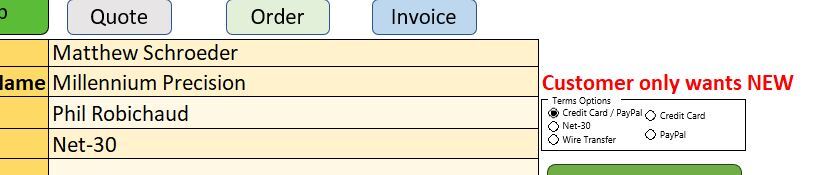
Discounts:
We offer resale discounts to select customers based on the amount of business they do with us each year. The amount of the discount will be different between new and refurbished gages. The new gage discount does apply to gages quoted from a manufacturer, however depending on our profit margins we may quote at a higher list price than what the manufacturer actually gives us so that we are still making a reasonable profit after the customer's discount is applied. Please confirm with your supervisor in each of these cases.
IMPORTANT: One condition of the discount program is that we will not offer free shipping on any orders these discounts are applied to. We must either have a customer UPS account number to ship on, or pre-paid shipping costs.
Resale discount pricing structure:
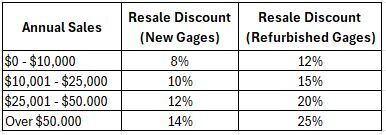
Customers currently receiving resale discounts:
Criterion Calibration: Tier 2 (10% new gages, 15% refurbished gages)
Rite Way Tool: Tier 1 (8% new gages, 12% refurbished gages)
When making a quote for one of these customers:
Enter the list price at the end of the description for each line and then adjust the unit total to the discounted amount. See below for an example:

Other customer discounts / considerations:
Tool Testing Lab receives 20% all stock gages except for SKU's ending in GFG, VTG, or GAC
Jamie Wilson (IND Tool): "Special" calibration pricing, listed below. Additionally, a 20% discount is applied to calibration only (they do NOT get a discount on gages that they purchase from us)
- (Non-Pipe) Thread Plug Gages, Go & No Go: $70 ($35 for single member)
- (Non-Pipe) Thread Ring Gages, Go & No Go:
- We have set plug: $90 ($45 for single member)
- We don't have set plug: $110 ($55 for single member)
- Pipe Thread Plug Gages (Single Member): $75
- Pipe Thread Ring Gages (Single Member): $90
- Micrometers: $50
Example of IND calibration quote:
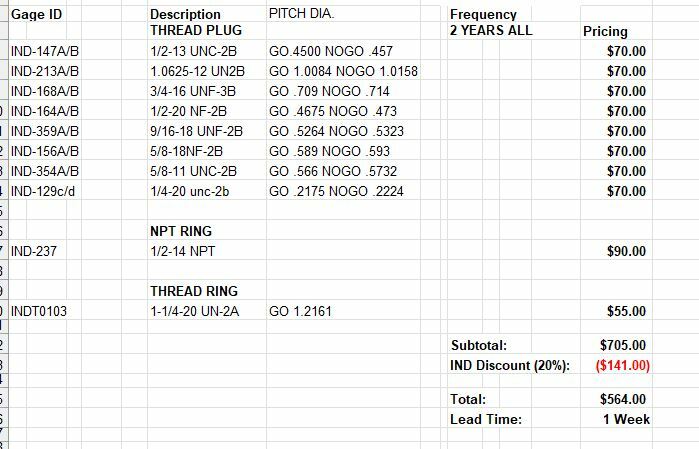
Quote Follow-Up Procedure *Paused until further notice*
Quotes that resulted in an order should be moved to the "Quotes We Won" folder. All remaining quotes from the previous week (or older) should be followed-up on with the email message below, and then moved to the "Quotes We Followed Up On" folder.
Quotes are eligible to be followed up on after 16 working hours (2 full work days) have passed. This means that, for example, a quote sent on Monday at 10:00 AM can have a follow up sent on Wednesday at 10:00 AM. A quote sent on Friday at 3:00 PM can be followed up on the following Tuesday at 3:00 PM.
When sending follow-up emails, start from the previous week's quotes (or current week if any are eligible) from oldest to most recent. Once those have all been followed up on, move on to quotes from two weeks ago, this time going from most recent to oldest. Do the same for three weeks, and so on, up to one month. Quotes that are more than 1 month old should not be followed up on, since it is very unlikely that it will result in a sale after that much time has passed.
- Before sending the follow-up, double-check that the quote did not result in an order by searching the quote number in the "Previous Orders" folder of the "Orders" Google Drive. If you find a matching order, move the quote to "Quotes We Won" and move on to the next quote.
Follow-Up Email Message:
"(Good Morning / Good Afternoon),
We wanted to reach out and see how we looked on this quote? It is important to us to get our customers' feedback, so that we can be sure to always provide the excellent service that this industry requires.
Let us know if you have any questions, comments, or concerns, or if you have any other product needs that we can help you with!
Here is a link to our website, which includes over 85,000+ IN-STOCK products:
https://mjtoolingllc.com/
Regards,"
***A note about orders that are awaiting inventory:
- If we are waiting to receive inventory from an outside source (typically items that were purchased from other sellers on eBay), upload the order like normal as described below, but immediately put it on hold once it appears in ShipStation. This will prevent any possible confusion for the shipping department, as they would not be able to find the item if it were to show up on their pick list.
- If we are waiting to receive inventory from the customer for a calibration order (meaning they are sending in their own gages for calibration), we will wait to bill & create the order until we have received the items from the customer. This is so that we can confirm that we have received all of the items being calibrated before any further steps are taken.
1. If creating an order from a quote, find the Quote Number (either from the customer PO, or a previous email message) and search this number in the Quotes Google Drive in order to download and open the quote. Otherwise, open a new "Quote & Order Entry" excel sheet.
2. Click the "Order" button at the top of the sheet to expand the order entry fields.
3. Enter all applicable information from "Company Name / Full Name" down through "Notes"
a. Rules for "Customer First Name / Last Name":
If there is a Customer PO#: First Name: "ATTN:", Last Name: "PO# [number]"
If there is both a PO# AND a customer name: Enter the customer's full name as "Customer First Name" and the PO# as "Customer Last Name", as in the picture below:

Otherwise,
If we don't have a specific customer name to address it to: Use the company name. There MUST be both a first and last name entered, so break up the company name into two parts - for example, if the company is "XYZ Manufacturing Co.", put "XYZ" as the first name and "Manufacturing Co." as the last name.
b. The following cells can be left blank if not applicable / unknown: Customer Contact, Shipping Account (ONLY if not shipping via UPS), Customer Phone #, Customer Email Address, Customer PO#, Notes
c. Shipping method rules:
USPS: Always choose Ground Advantage as the shipping method, unless the customer has specifically requested (and is paying for) another option such as Priority Mail Express. First Class Mail is also an option for orders weighing less than 1lb AND under $100 in value, however we generally do not use this shipping method as it is rarely cheaper than ground advantage (and usually slower as well).
Orders totaling $225 or more must be shipped via UPS for insurance purposes. If we are providing free shipping, the shipping method should always be Ground.
Our UPS Account Number - 0F1R97. Use whenever doing prepay & add, or if we are providing free UPS Ground on an order over $225
Very large items such as cabinets or tool holder carts: Shipping Carrier - Central Transport Shipping Method - Freight
Pickup orders (local customers): Select "Customer Pickup" for both Shipping Carrier and Shipping Method
4. Enter the items for the order (if not already entered from quote). Once you have entered the quantity and SKU (or backup location), the rest of the information should fill out automatically - if it does not (or if this is a distributing order), you will have to enter the Title, Lead, and Unit Total manually.
a. If the item information does auto-fill, always double-check that the information is correct. If you need to make any manual changes, copy the cell and then right-click and choose "Paste as Values" in order to remove the formula and allow for editing.
b. For distributing orders, enter the manufacturer (such as PMC or VTG) as the SKU.
c. For items coming from an outside location, you may make up a fake SKU or put something like "South Location" - the important thing here is that an order must not be uploaded with an eBay URL anywhere on it as this would then show up on the packing slip our customer receives.
d. If working from a quote, and the customer is not ordering every line:
***Make any selections such as Receiving Calibration, J-Mod, Dial-in, etc. before proceeding - descriptions & prices will no longer auto-update after you do the following steps***
i. Check the box in the "ORDERED?" column on the far left for each line that is being included on the order.
ii. Click "Finished Selecting Lines" just below the Shipping / Handling line on the left. This will remove any unchecked lines and leave you with just the lines being ordered.
e. If a customer is applying store credit to the order, include an additional line for the credit which will be entered as a negative amount in the price column. You can put "N/A" for the SKU, 1 for the QTY and "-" for the lead time. This line can be marked as Direct to Customer and should also include the amount of credit remaining in the description. See below for an example:

***If the full order has been paid for by credit, you will skip the upcoming billing step. If the credit being applied only covers part of the order, the remaining balance will be billed as normal.
5. Once all information has been entered, click the green "Save to Desktop" button at the top of the sheet.
6. Next, move on to billing:
Net-30: Refer to this section for more information. You will skip the billing step (assuming that the customer is not over their limit / on credit hold) and instead move on to Completing & Uploading Orders
1. For repeat customers, if credit card information is not provided: Find the date of their most recent order in ShipStation by searching the company name. Ask the primary sales person to pull CC info for that company on that date.
2. Chase Merchant Services website: Click Here
a. Login info should be saved - if it is not, ask your supervisor
b. Authentication step: Select the "By email" option which will send a code to the main sales@ inbox (can take a minute or two)
c. On the next screen after entering the code, click "Orbital Virtual Terminal - PROD" (the option on the right)
3. Enter the Card Number, Expiration Date, Card Verification #, Amount, Order ID, and Order Description. All other fields can be left blank.
a. Amount must include cents (ex. 100.00, not just 100)
b. Order ID should consist of the customer PO# (if available) and company name, and cannot include any special characters (letters and numbers only).
- This is limited to 22 characters, so you will frequently have to use abbreviations such as MFG for Manufacturing
- Blind Orders: Use the name of the company that placed the order, NOT the company that we are shipping the order to. For more information about blind orders: Blind Orders
c. Order Description is the full list of ordered items and can be copy/pasted from the excel sheet. There is no character limit but try to be concise when possible, for example if you have a very large order you might just put something like "10 Go / No Go Thread Plug and Ring Gages w/ Certs per PO#123XYZ" rather than listing each one separately
4. Once all information is entered, double-check that everything is correct and then click "Auth and Capture"
- If you get an error that says "checksum", the card information is incorrect. Verify that everything has been entered correctly and, if everything you've entered lines up with the information on file, we will need to reach out to the customer to get the correct information and try again.
5. From here you will see either Approved or Declined.
Approved:
a. Print the Merchant Copy receipt. This will be stapled to the PO / CC Info / any other documents related to the order and given to the primary sales person to file away.
b. Send the Customer Copy receipt to the customer's email address. NOTE: The receipt should be sent to the customer who placed the order, which will often be different from the customer who requested the quote. If working from a quote, do not assume that the email address on the quote is correct for the receipt.
c. From here you can continue the order by referring to the appropriate "Completing & Uploading Orders" section
Declined:
a. !!!!! DO NOT SEND A CUSTOMER RECEIPT !!!!!
b. Try running the card again - it's possible you have made a typo somewhere. If the card declines a second time:
- Check for a response message such as "CVV Does not Match" or "Insufficient Funds". This will give us a clue as to why the card was declined, which we may need to explain to the customer.
- We will have to call the customer to get the correct / different CC info and try again. Ideally this should be done as soon as possible so that the order can be completed.
1. Log in to PayPal - the password should NOT be saved to your browser. Ask your supervisor if you need the password, which will need to be manually entered each time you log in.
2. From the left sidebar, select Pay & Get Paid -> Create an Invoice.
3. Enter the customer's email address and all item information (Item Name, Quantity, & Price - description is optional)
4. If there is a shipping fee, this can be added on the right-hand side of the page by clicking "Add" next to "Shipping" (or you can add the shipping charge as a regular line item - either option is fine)
5. Once all information is entered, double-check that everything is correct and then click the arrow next to "Send" at the top-right of the page and then "Share Link to Invoice". Copy this link and send it to the customer via email.
6. Check back throughout the day to see if the invoice has been paid - if it has, you will see a new entry in the Recent Activity list on the homepage that says "Payment from (Customer / Company Name)". Click on this link to open the invoice summary and print the packing slip which will be brought to the primary salesperson for filing in place of a receipt.
You can then continue the order by referring to the appropriate "Completing & Uploading Orders" section.
THE FOLLOWING STEPS MUST BE TAKEN FOR ALL ORDERS:
In the order Excel sheet:
1. Needs to Ship Today?
There is a box on the left side of the order sheet that says "Needs to Ship Today?".
- If the order is uploaded before 3PM, it will automatically select "Yes" - the order in ShipStation will say "GO" and it will be shipped today.
- If the order is being uploaded after 3PM, you will need to check with the shipping department if they will be able to ship the order by the end of the day and select the appropriate "Ship Today" option.
2. Verify that all entered information is correct
3. Lower the quantity of all line items (you may skip this step if all items are distributing):
- Listed items (not from backup inventory):
1. Click the "Update SureDone Stock" button directly above "LEAD" and "UNIT TOTAL"
2. This will take a few seconds per line, and you will see a command prompt flash a few times - this is normal
3. A popup will notify you when the process is complete. If there are any issues (such as SKU not found, or insufficient stock), this will need to be addressed manually.
- To manually change stock in SureDone:
a. Find the item by searching the SKU using the search bar at the top of the page
b. Mouse over the SKU and a blue down-arrow will appear to the right. Click this to bring up a small drop-down menu and click the top option, Edit Inline
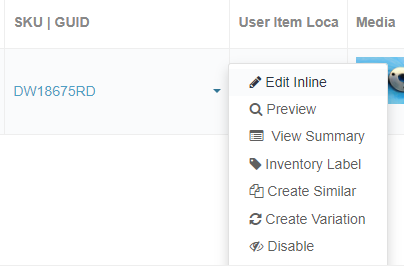
c. You will now be able to edit the listing information - lower the In Stock number by the amount that has been sold, then click the blue checkmark (where the down arrow was located previously) to save your changes
- If you get an "Insufficient Stock" message, you will need to go to the item's location and verify whether or not it is there in the needed quantity. If yes, you can ignore this error and continue as normal. If not, contact your supervisor for the next steps.
- Backup Inventory Items:
a. Find the item in the Thread Ring & Plug Inventory Google Doc (this can be done most easily by using control+F to search the location)
b. Lower the quantity in the appropriate column (Go & No Go, Go Only, or No Go Only) by the amount sold
4. Refer to the corresponding section below for the final steps for the order:
"Normal" Orders (No Calibration / Distribution / Engraving)
Receiving Calibration (True Line)
Receiving Calibration (Other Labs)
"Normal" Orders (No Calibration / Distribution / Engraving)
1. Select the "Direct to Customer" option for all line items, if not already selected
2. Click the green "Save to Desktop" button at the top of the sheet (if you have not already) to save the order file.
3. Click the "Acknowledgement PDF" button on the left-hand side to save a formal order acknowledgement which will be emailed to the customer.
4. Click the "Save .csv for Upload" button (left-hand side, right above where the line items begin) to create the upload file.
5. Go to SureDone and navigate to Products -> Bulk Uploads at the top of the page
- Under "Upload File", click Choose File and select the .csv file you just generated (it will end in " - UP"), then click the blue Upload button
6. MAKE SURE THAT THE FILE ACTUALLY UPLOADED - if you do not see the filename listed at or near the top of the "Bulk Results" list, SureDone has failed to upload it and you must upload it again the same way you did the first time
7. Final steps after uploading:
- Upload the order excel file (the .xlsm file, NOT the .csv that you uploaded) to the Entered Orders Google Drive in the "This Week Orders" folder
- Bring CC receipt / PayPal packing slip to the primary sales person
- Email the Order Acknowledgement to the customer
Receiving Calibration (True Line)
1. Enter the date that the order is due to ship in the "Due" field - for standard (non-expedited) calibration this will be two (2) business days from today's date unless noted otherwise
2. If there is any additional / special information about the order, enter it in the "Calibration Request (If Any)" field (this will often be left blank)
3. Select the "Receiving Calibration" option for all line items receiving calibration, if not already selected
a. If any items are NOT receiving calibration:
i. If the customer has specifically requested for the items to be shipped separately (because they need the non-calibrated one ASAP, for example), mark the lines not receiving calibration as Direct to Customer. This will cause the order to be split into two separate orders once it is uploaded.
ii. If not - mark these lines as Direct to Customer but then after you have generated the calibration request in Step 7, change these lines to Receiving Cal, No Extra $. This will keep the entire order together when it is uploaded and will not affect the prices/lead times for the non-calibration lines.
b. If any items are being distributed from a manufacturer, select "Distributing" for those lines and then refer to the Distributing section of this FAQ for further information
4. Make sure "True Line Calibration" is selected as the Calibration Location
5. Click the green "Save to Desktop" button at the top of the sheet (if you have not already) to save the order file.
6. Click the "Acknowledgement PDF" button on the left-hand side to save a formal order acknowledgement which will be emailed to the customer.
7. Click the "Save Calibration PDF" button on the left-hand side of the sheet
a. Verify that all information is present and correct on the calibration request, including item SKU's / locations
b. If you need to make any changes, click the Save PDF button again once finished editing to re-write the PDF file
c. Print the calibration request to the TrueLine Calibration printer
d. Send a snip of the calibration request to the 'Calibration Confirmations' channel in the Calibration/Engraving Server in Discord. The calibration tech will react with a green circle to confirm they have received the physical calibration paperwork.
8. Click the "Save .csv for Upload" button (left-hand side, right above where the line items begin) to create the upload file
a. Go to SureDone and navigate to Products -> Bulk Uploads at the top of the page
- Under "Upload File", click Choose File and select the .csv file you just generated (it will end in " - UP"), then click the blue Upload button
b. MAKE SURE THAT THE FILE ACTUALLY UPLOADED - if you do not see the filename listed at or near the top of the "Bulk Results" list, SureDone has failed to upload it and you must upload it again the same way you did the first time
c. Upload the order excel file to the Entered Orders Google Drive in the "This Week Orders" folder
d. Upload the Calibration Paperwork pdf to the Entered Orders Google Drive in the "Calibration Requests" folder
e. Update the True Line Orders Google Doc with the date, company name, gage calibrated, and amount for the calibration order (separate into multiple lines if more than one gage)
f. Bring CC Receipt / PayPal packing slip to the primary sales person
g. Email the Order Acknowledgement to the customer
1. Enter the calibration lead time in the "Calibration Lead" field - This will be 4-6 Days if it is not being expedited
2. If there is any additional / special information about the order, enter it in the "Calibration Request (If Any)" field (this will often be left blank)
3. Select the "Receiving Calibration" option for all line items receiving calibration, if not already selected
- If any items are NOT receiving calibration (but rather going straight to the customer), select "Direct to Customer" for those items. This will cause the order to be split into two separate orders once it is uploaded.
- If any items are being distributed from a manufacturer, select "Distributing" for those lines and then refer to the Distributing section of this FAQ for further information
4. Make sure the correct Calibration Location is selected (Tool Testing Lab)
5. Click the green "Save to Desktop" button at the top of the sheet (if you have not already) to save the order file.
6. Click the "Acknowledgement PDF" button on the left-hand side to save a formal order acknowledgement which will be emailed to the customer.
7. Click the "Save Calibration PDF" button on the left-hand side of the sheet
- This will generate the calibration request paperwork - verify that all information is correct, make any necessary changes (click the Save PDF button again once finished to re-write the PDF file) and print the calibration request
- Calibration requests for Tool Testing Lab will use our shipping address and UPS account. Typically these will be brought back to us via TTL's delivery service (which comes on Thursday mornings), but if we need a faster turnaround you can specify in the "notes" section that we would like the gage(s) to be shipped back via UPS as soon as they are finished.
The next steps will depend on how we are getting the gages to TTL. We have a regular pickup / delivery from TTL on Thursday mornings, which is the preferred way to send them calibration orders as it does not cost us anything in shipping. However, depending on when in the week the order is placed, we may ship the order to TTL instead so that the customer does not have to wait an extra week.
If the order is processed on Tuesday, Wednesday, or Thursday (before the pickup arrives), we will send on the Thursday pickup.
If the order is processed on Thursday (after the pickup), Friday, or Monday, we will ship to TTL that day rather than waiting for the next Thursday pickup.
If we are sending gages on the Thursday pickup:
1. After generating the calibration request paperwork, change the Calibration Location to True Line and then click the "Save .csv for Upload" button (left-hand side, right above where the line items begin) to create the upload file. This is done so that the order will automatically be put on hold when it goes to ShipStation.
2. Go to SureDone and navigate to Products -> Bulk Uploads at the top of the page. Under "Upload File", click Choose File and select the .csv file you just generated (it will end in " - UP"), then click the blue Upload button.
3. Send a Discord message in the PDS server und the "TTL" channel containing the items being sent and the name the company that the order will be going to once it's finished.
4. After uploading the order, send Liz the SKUs and locations of the items as well as the calibration request (and engraving request if applicable) so that it can be prepped for pickup. This process is:
a. Pull the gage(s) being calibrated
b. Remove any wax on the gage(s)
c. Clean the gages, including wiping down the faces / handles and removing any dirt / debris from the threads using a wire brush
d. If engraving is needed, bring the order to the engraver and then once engraving is finished:
e. Put the gage(s) and a printed copy of the calibration paperwork in a box which you can get from the shipping department. The shippers can help you find an appropriately sized box if needed.
***The pickup service will not come automatically if they do not have anything to drop off from the previous week, so if needed you should call TTL to schedule a pickup.
f. When the pickup arrives on Thursday, bring the box(es) down to the truck and hand them to the driver. You will also receive any gages that they are dropping back off - when doing so, check the gages to make sure they match the paperwork, then sign and return the paperwork to the driver.
If we are shipping to TTL instead of waiting for the Thursday pickup:
1. After generating the calibration request paperwork, click the "Save .csv for Upload" button (left-hand side, right above where the line items begin) to create the upload file.
2. Go to SureDone and navigate to Products -> Bulk Uploads at the top of the page. Under "Upload File", click Choose File and select the .csv file you just generated (it will end in " - UP"), then click the blue Upload button.
3. MAKE SURE THAT THE FILE ACTUALLY UPLOADED - if you do not see the filename listed at or near the top of the "Bulk Results" list, SureDone has failed to upload it and you must upload it again the same way you did the first time
4. Go back to the order Excel file and change the Calibration Location to True Line, save a new .csv, and upload to SureDone again. This will create a second copy of the order which will automatically go on hold in ShipStation which we will use to ship to the customer once the gage(s) come back from TTL. Note: Make sure the filename of this second .csv is not identical to the previous one - if it is, SureDone will think it's the same file and not actually process it. If needed, you can simply add a "2" to the end to differentiate them.
5. Print a copy of the calibration request and bring it to the shipping department to be sent to TTL along with the gage(s).
6. Send a Discord message in the PDS server und the "TTL" channel containing the items being sent and the name the company that the order will be going to once it's finished.
Final steps (applicable to both delivery methods):
1. Upload the order excel file (the .xlsm file, NOT the .csv that you uploaded) to the Entered Orders Google Drive in the "This Week Orders" folder
2. Upload the Calibration Paperwork pdf to the Entered Orders Google Drive in the "Calibration Requests" folder
3. Bring CC receipt / PayPal packing slip to the primary sales person
4. Email the Order Acknowledgement to the customer
When we receive items back from TTL (either via Thursday delivery or shipped to us via UPS):
1. Items will be brought to / received by Liz.
2. The Discord message in the "TTL" channel will be matched with the held ShipStation order and the original message in Discord will be deleted to keep the list up to date.
3. Once all items on the order are ready, Liz will take the order off hold and bring the order to shipping along with the packing slip and TTL calibration reports.
***If an order consists of some line items which are Distributing and some which are coming from our stock: After completing the steps below, refer to the corresponding section for the remaining items. You will upload the order to SureDone as outlined in those sections - any lines marked as Distributing will be ignored by SureDone and automatically left off the order that is sent through to ShipStation.
1. Distribution orders must have a shipping account (either UPS, FedEx, or in some cases DHL) - we cannot use USPS for these orders. If the customer does not have a shipping account, a pre-paid shipping charge will need to be added (see the Shipping Quotes section) and shipped on our UPS account (0F1R97)
- International orders will have to be shipped to us, and then from there we will ship overseas to the customer. This means that the shipping charge will need to include both the cost of shipping the item from the manufacturer to us, AND from us to the customer. Refer to the International Shipping section for more information.
2. Open the Distributing Orders spreadsheet and find the most recent placed PO (at the top of the list). This will tell us the next sequential PO# we need to use.
- Enter our PO# in the order sheet's "Our PO# (If Distributing)" field. It should be formatted as follows: MJ(#)(Your Initials). For example: MJ0123MS
3. In the "% Discount (If Distributing)" field, enter the correct discount amount for whichever manufacturer we are placing the PO with. Some manufacturers give us a universal discount (such as PMC being 25% on all items), whereas for others you may need to check the quote, which you can find by searching the quote # or REF# that should be included on the quote Excel sheet.
4. Click the green "Save to Desktop" button at the top of the sheet (if you have not already) to save the order file.
5. Click the "Acknowledgement PDF" button on the left-hand side to save a formal order acknowledgement which will be emailed to the customer.
6. Click the "Save PO PDF" Button on the left-hand side of the sheet to generate the PO
a. Verify that all information is correct and make any necessary changes (click the Save PDF button again once finished to re-write the PDF file)
b. If we have a Quote ID or any special requests / instructions, these should included on the PO as well. You will need to manually add this information on the "Purchase Order" tab (see below for an example of how this can be formatted). NOTE: Do NOT use the "Save PDF" button to re-save the PO after making manual changes like this as it will automatically hide any extra rows you've created. Instead, you will need to go to File -> Save As and save the file as a PDF. The file name should be the PO# (for example "PO#MJ0123MS").
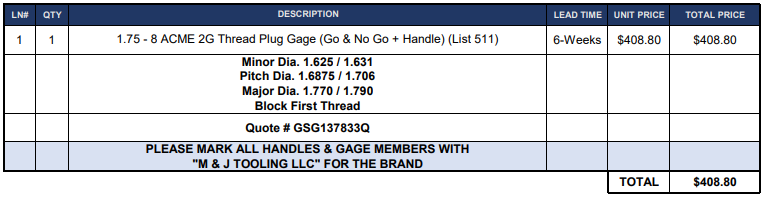
7. Email the PO to the manufacturer we are distributing from, which can be found in the corresponding sections here
a. The subject line should simply be our PO number (ex. PO#MJ0123MS)
b. Message:
"(Good Morning / Good Afternoon),
Please see the attached PO. Let us know if you have any questions!
Thank you,"
c. Attach PO PDF file and send.
8. Final steps after sending PO:
a. Upload the order excel file to the Entered Orders Google Drive in the "This Week Orders" folder
b. Upload the PO PDF file to the Entered Orders Google Drive in the "Placed POs" folder
c. Bring CC receipt / PayPal packing slip to the primary sales person
d. Email the Order Acknowledgement to the customer
e. Add the order to the Distributing Orders spreadsheet. Click the "Add New Row" button in the top-right to create a new row at the top of the list, then enter the corresponding information:
i. The Acknowledged Due Date will be the date given on the order acknowledgement that we will receive from the manufacturer once they have processed our PO, and therefore will be left blank at this time.
ii. Customer Expects By is the date that our customer expects the order to be finished based on the lead time we quoted them (since we often inflate the lead time given by manufacturers to account for possible delays). This can be found by referencing the quote we gave to our customer.
iii. Our Ack. # refers to the order acknowledgement we sent to our customer. It can be found in the top-right corner of the acknowledgement as "Order #" and will also be in the filename of the acknowledgement pdf if there is no customer PO#.
iv. Customer PO# : Leave blank if N/A, but always be sure to include the customer's PO# if there is one since this will help make it easier to find the order in the future if the customer contacts us for a status update.
v. The remaining columns after Customer PO# should be left blank at this time.
f. Watch for an order acknowledgement email in the sales inbox. If we do not receive an acknowledgement within 24 hours, reach out to the manufacturer to verify that they received the order
- When we receive the acknowledgement, verify that the information on the acknowledgement (gage size, price, lead time, shipping address & method) matches what we were expecting on our PO. If there are any discrepancies, contact the manufacturer ASAP so we can get it fixed
Distributing Follow-Up Procedure
The Distributing Orders spreadsheet should be checked daily. Orders that are due to be completed in one week or less will be highlighted in green. Orders that are due to ship today will be highlighted in yellow. Orders that are past the acknowledged due date will be highlighted in red.
For any order which has the Acknowledged Due Date highlighted, and the corresponding "Followup Sent" column is blank:
1. Search our PO# in Outlook's "Distributing Paperwork" folder
2. Reply to the acknowledgement email (the one which has an attached acknowledgement from the manufacturer, NOT the "we will acknowledge soon" email that PMC & other manufacturers send) with the corresponding message below, edited as needed:
1-Week:
"[Good Morning / Good Afternoon],
I wanted to check the status on this order to make sure we are on track to ship by the acknowledged due date of [DATE]. If there have been any delays in production of this order please let us know as soon as possible so we can keep our customer updated.
Thank you,
[...]"
Day Of:
"[Good Morning / Good Afternoon],
I wanted to check the status on this order to make sure we are on track to ship today. If there have been any delays in production of this order please let us know as soon as possible so we can keep our customer updated.
Thank you,
[...]"
Late:
"[Good Morning / Good Afternoon],
I wanted to check the status on this order which was due to ship on [DATE]. Please advise status or provide tracking information if available.
Thank you,
[...]"
3. Enter today's date in the corresponding "Followup Sent" column.
4. Once we receive a reply:
a. If the manufacturer says that the order is on track / has not been delayed:
i. Enter today's date in the corresponding "Reply Received" column.
ii. Move the manufacturer's reply to the "Distributing Order Updates" Outlook folder. No further action is needed at this time.
b. If the manufacturer tells us that the order has been delayed and provides an updated due date:
i. Enter the new due date in the "Updated Due Date" column. Enter the most recent "Followup Sent" date in the "LATE Followup Sent" column, and then delete any entries in the "1-Week" or "Day-Of" columns for this order.
ii. Copy the number in the "Our Ack. #" column for this order and search it in Outlook's "Sent" folder.
iii. "Reply All" to the acknowledgement email we sent our customer with the following message:
"[Good Morning / Good Afternoon],
I wanted to reach out and provide an update on this order. We have been informed by the manufacturer that there has been a production delay, and that this order is now expected to ship by [DATE]. The production team apologizes for the delay, and we will provide further updates as soon as we receive them. Please let us know if you have any questions.
Regards,
[...]"
iv. Move the manufacturer's reply to the "Distributing Order Updates" Outlook folder. No further action is needed at this time.
For any order which has the Updated Due Date highlighted, and the corresponding "Followup Sent" column is blank:
***If the updated due date is within one week of the "LATE Followup Sent" date, skip the 1-Week followup.
1. Follow the same procedure as described above, but this time search our PO# in the "Distributing Order Updates" Outlook folder and find the most recent update from the manufacturer. We will reply to this message in order to keep all updates in the same email chain.
2. The same email messages as above can be used, but change the second sentence to say "If there have been any further delays" instead of just "If there have been any delays".
3. If the order has been delayed again, we will reach out to our customer again with the following message, which is slightly modified from the first delay message:
"[Good Morning / Good Afternoon],
I wanted to reach out and provide another update on this order. Upon following up with the manufacturer we have been informed that there has been another production delay, and that this order is now expected to ship by [DATE]. The production team apologizes for this further delay. We will continue to check in on this order and will provide all further updates as soon as possible. Please do not hesitate to reach out with any questions you may have.
Regards,
[...]"
4. Update the corresponding "Followup Sent" / "Reply Received" columns just like you would for non-late orders, and move all manufacturer responses to the "Distributing Order Updates" Outlook folder.
Gages receive engraving for the following reasons:
- "J-Mods"
- Dial-in rings
- Gages with very worn / difficult to read labeling
Follow the corresponding procedure for either "Normal" orders or Receiving Calibration (True Line / Other), with the following additions:
1. Any gages that are being engraved will have the "Needs Laser Engraving" box checked (see below)
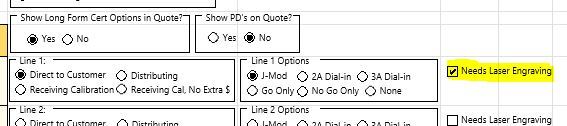
2. The due date will default to today's date. If the gage will be receiving calibration, the due date should be the date that the calibration is due to be finished.
3. Any specific notes / instructions for the engraving should be entered in the Calibration / Engraving Request section. If left blank, it will default to "PLEASE ENGRAVE TO THE LABELING NOTED IN 'DESCRIPTION'."
4. Click the "Engrave Paperwork PDF" button on the left side of the order sheet to create the engrave request paperwork. Verify that all information is correct, make any necessary changes (click the button again to re-write the PDF after editing), and print a copy of the engraving paperwork. ***Engraving requests must list the full callout including size, class, and pitch diameter(s). Also be sure the paperwork correctly indicates whether the order needs to ship afterwards or if it is receiving calibration first.
After the order is uploaded and all other steps completed, the person in charge of assembling items for engraving will do the following:
1. Pick the gage(s) from the location listed on SureDone or from Backup Inventory.
2. If it is a plug gage that needs a new handle (which will be the case for most plug gages being engraved):
a. Open the Backup Inventory sheet
b. In the "New Handles" section at the top, find the corresponding handle size by checking the size ranges listed in column H. Be sure that the style (taperlock or trilock) matches the gage members.
c. Test that the gage members correctly fit in the chosen handle size.
***Do NOT fully press the members into the handle yet, just confirm that they fit properly and then remove***
d. Lower the quantity on the backup sheet for any handles taken from BIR.
e. How to remove members from an old handle:
i. Taperlock Gages:
1. Retrieve a hammer and set of pin punches from the tool rack in the backup inventory room (on the end of the shelves immediately to your right when entering the room). The punches will be in a red pouch sitting at the bottom of the rack.
2. Find a size that will fit in the small hole / slot towards the end with the go member. You want the largest pin that will fit all the way through the hole, as the tapered section near the base will be what causes the member to be pushed out of the handle.
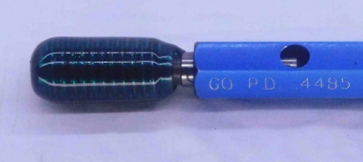
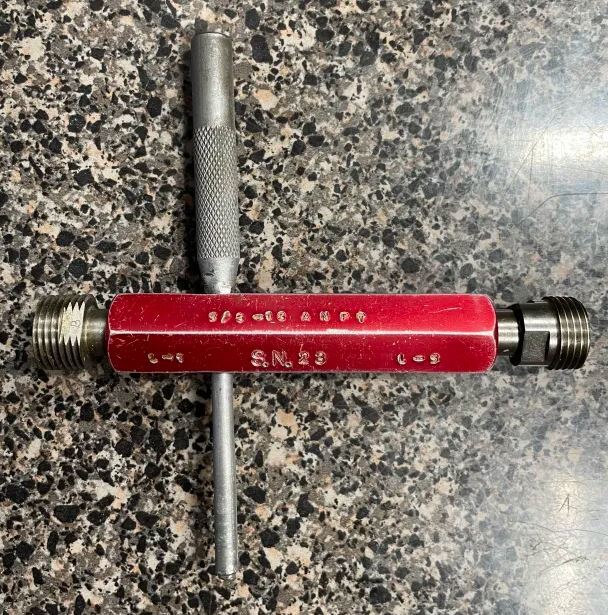
3. Tap the end of the punch pin with a hammer until the gage member comes loose. In some cases where the member is pushed very far into the handle, you may need to replace the pin with a larger size once the member is partway removed in order to finish tapping it out.
4. After removing the go member, the no go member can be removed by running a pin through the open go end and tapping it with a hammer until the no go member pops out.
ii. Trilock Gages:
1. Find an Allen wrench that fits the bolts in the ends of the members from the set in the tool rack in the backup inventory room (on the end of the shelves immediately to your right when entering the room).
2. If the bolt is too tight be loosened by hand, you can tap the wrench with a hammer until it comes loose.
3. Once the bolt is fully removed, remove the member from the handle.
3. Once you have gathered all the gage members and handles (if needed), place them in one of the plastic bins that can be found on the shevles at the top of the West Bay ramp, along with the engraving paperwork, and place the bin on the shelf next to the engraver. ***Do NOT insert plug gage members into handles, as they will be double-checked for size / PD accuracy by the person doing the engraving***
4. Message the “Engraving/Calibration Orders” channel on discord to let them know the order was dropped off to the engraver.
For orders containing "South Location" items which are bought from another seller on eBay:
1. Follow all of the steps for completing a "normal" order. ***Be sure to change the url in the "SKU" to "South Location" so that the eBay url does not show up on the packing slip the customer will receive
Then:
a. Send Chandler a Discord message with the eBay link asking him to order the item. Include the amount that we sold it to the customer for.
b. Send a Discord message in the PDS server under the "Awaiting Inventory" channel containing the item(s) being ordered and the name of the company it's going to.
i. Include any engraving or calibration request PDFs if applicable.
ii. In order to keep the channel organized, do not include any other information.
c. Once the order has been uploaded and appears in ShipStation, put it on hold immediately so that it does not show up on the shipping department's pick list.
2. As the items arrive, they will go to Liz. The message in the "Awaiting Inventory" channel will then be matched with the held ShipStation order and the original message in Discord will be deleted to keep the list up to date.
3. Once all eBay items on the order have arrived, Liz will bring the order to the engraver or calibration lab with the appropriate request forms (if applicable), OR directly to the shipping area with the packing slip if neither service is needed.
For orders containing items shipping to us from a manufacturer (mainly for international customers):
1. Follow all of the normal steps for completing a distributing order. Then:
a. Send a Discord message in the PDS server under the "Awaiting Inventory" channel containing the item(s) being ordered and the name of the company it's going to.
b. After generating the M&J purchase order, change the line items from "Distributing" to "Direct to Customer", save the .csv, and upload the entire order to ShipStation.
i. Once the order appears in ShipStation, put it on hold immediately so that it does not show up on the shipping department's pick list.
c. Add all items to the Receiving Inventory spreadsheet as described here.
2. As the items arrive, they will go to Liz. The message in the "Awaiting Inventory" channel will then be matched with the held ShipStation order and the original message in Discord will be deleted to keep the list up to date.
3. Once all eBay items on the order have arrived, Liz will take the order off hold and bring the order to the shipping area with the packing slip.
Click Here for Detailed Net-30 Customer Info
The companies listed in the link above are on Net-30 terms, meaning that they pay us within 30 days of receiving an order, rather than being charged at the time the order is placed. Before entering the order, check the customer info in the link above to make sure they have enough open credit remaining for the order. If this order would put them over their credit limit:
Send a Discord message to the sales team discord channel with the following information:
1. The name of the company in question
2. The total amount of open orders they currently have, and how far over the limit they will be if we process the order on credit
3. A snip of the PO they want to place, showing the total amount and description of item(s)
4. A snip of the customer's tab on the Net-30 spreadsheet - make sure to include all of the info in the table header along with payment activity for the last 2-3 months (example below)
In many cases, the management team will approve processing the order on credit despite it going over the customer's limit. If we choose not to extend credit for the order, you will need to reach out to the customer about paying for the outstanding balance using a credit card. Example message below:
"(Good Morning / Good Afternoon),
Thank you for the order! It looks like this PO will put you over your credit limit, as we currently have [$XX.XX] in open orders. We can apply [$YY.YY] of credit toward this order, but the remaining [$ZZ.ZZ] will need to be billed to a credit card. You can give us a call at 937-951-3527 to provide payment information, or if you have any questions.
Regards,"
We will also follow up with a phone call if we have not heard back from the customer within one hour. Once we have secured payment for the outstanding balance, you can continue with entering the order as outlined below, with one change: You will add an additional line to the order for the credit card payment, which will be entered as a negative amount and should be marked as "Invoicing/Quoting Only" (see example below):

If the customer is already at their maximum credit limit, ($0.00 remaining to be used), send this message instead:
"(Good Morning / Good Afternoon),
Thank you for the order! You are currently at your credit limit, so we will need to bill this order in full via credit card or PayPal. Please give us a call at 937-951-3527 at your earliest convenience to provide payment info, or if you have any questions.
Regards,"
We will also follow up with a phone call if we have not heard back from the customer within one hour. Once we have secured payment, you can continue with entering the order as though it were a standard, non-Net-30 order. We will not be sending an invoice for the order, and you will not upload the acknowledgement to the Google drive or print a copy for the filing cabinet.
If the customer has enough open credit, the order will be entered and uploaded as normal, with the exception that you will not bill the customer. Once the order is entered, the following additional steps must be taken:
- Net-30 orders must always be acknowledged. Once all of the order information is entered, click the "Acknowledgement PDF" button on the left-hand side of the order sheet to generate an acknowledgement PDF.
- Verify that all information on the acknowledgement is correct, make changes if necessary, and email the acknowledgement PDF to the customer. This can be a very simple message, i.e. "Good Morning/Afternoon, Please see the attached order acknowledgement. Thank you, ..." NOTE: The acknowledgement should be sent to the customer who sent the PO, which will often be different from the customer who requested the quote. If working from a quote, do not assume that the email address on the quote is correct for the acknowledgement.
- Print a copy of the acknowledgement PDF, staple it to the customer PO and bring to Liz to file away
- Upload the acknowledgement PDF to the Entered Orders Google drive in the "Net-30 Acknowledgements" folder
We will sometimes get orders from other distributors who ask us to ship blind, meaning we do not include our usual paperwork so that their customer doesn't see information such as how much was paid for it. The only differences when it comes to entering the order are:
- Check the "Billing Different" and "BLIND Order" boxes to the right of the Shipping Account # cell
- Enter the billing address in the cells below as prompted
Local customers will sometimes pick up an order instead of having it shipped.
When a pickup order is placed, always get an approximate pickup time from the customer. This can be scheduled any time Monday - Friday from 8 am - 4:30 pm.
- For large items such as cabinets we require at least 24 hours notice so we can prep the item for pickup.
- We may make exceptions for some local customers, but this is on a case-by-case basis and will need to be approved by the shipping department (Chandler)
- For smaller items, if the customer wants to pick up ASAP, make sure to allow for at least 20-30 minutes to get the order processed and ready.
Pickup orders can be either paid ahead of time like a normal order, or sometimes the customer will pay when they arrive to pick up the item. The ONLY accepted payment methods are cash, credit card, or cashier's check. Personal checks are NOT accepted!
If the order has been pre-paid:
1. Bill the order and upload through SureDone as usual. The only difference will be that the shipping method should be entered as "CUSTOMER PICKUP".
2. Alert the person in charge of assembling the order (currently Liz) via Discord. Give them the customer/company name, the approximate time we expect them to arrive, and the SKUs and locations for all items on the order. This person will then:
a. Pull the items and neatly prepare in a new plastic bag the following: Ordered Items, Customer Copy of Receipt (if it has been paid for already), Brochure, Business Card, Pen, Keychain.
***For large items or orders containing multiple items, you may use a box instead of a bag. The shipping department can help you to find an appropriately sized box for the item(s).
b. The bag will be placed on a clipboard with a working pen and will be paired with the packing slip once it is available in ShipStation (open the order in SS then click Print -> Packing Slip in the top right corner). This packing slip will need to have the "Customer Pickup Bottom" printed on it.
3. When the customer arrives:
If the order has been paid for already:
The person who has the order will be notified to bring the order to the customer. The packing slip will need to be signed by the customer.
If the order has not been paid for yet:
A salesperson will be notified to bring the order to the customer. They must receive payment from the customer before handing over the items. The packing slip will need to be signed by the customer. If the customer is paying via credit card, have the customer wait in the lobby while you bill the card in your office. Be sure to print a customer receipt which you will hand them along with the card.
4. The signed packing slip will be brought to the salesperson in charge of order entry, to be attached to the credit card receipt for the order.
5. To complete the order, it must be marked as shipped in ShipStation. This is done by selecting the checkbox on the left, selecting "Other Actions" near the top, and entering "Pickup" as the tracking # and "Other" as the carrier. Notify Marketplace checkbox should be checked (but not Notify Customer).
Entering Orders Directly to ShipStation
When an order is uploaded to SureDone, there can be a delay of up to 10 minutes before the order gets forwarded to ShipStation. This can be a problem later in the day when an order needs to ship ASAP, so after 4PM, any orders that must ship today should be entered directly into ShipStation instead.
To create an order in ShipStation:
1. Click "New Order" in the toolbar toward the top of the page.

2. Enter all required order information:
IMPORTANT: ShipStation may try to auto-fill this information from a previously shipped order. If it does, always double-check that the information is correct - it's entirely possible that something has changed since the last time we shipped to this customer.
a. Name: If there is an ATTN: PO# / Customer Name, enter that here. Otherwise, enter the company name.
b. Company Name: If you entered the company name as "Name", leave this blank. Otherwise, enter the company name.
c. Country, Address, City, State, Zip Code: Enter the full address as provided by the customer.
d. Phone & Email: Enter this information if it is available, otherwise these can be left blank.
e. Order #: To match the format used when an order is uploaded via SureDone, enter "mj--" followed by the company name and today's date.
f. Order Date & Paid Date should be today's date.
g. Shipping Paid: If the customer did not pay any shipping charge, enter 0
h. Tax Paid: This will always be 0
i. Total Paid: The total amount the customer paid us for the order, including any shipping fees
3. Click "Add a Line Item" at the bottom and enter the SKU, Name, Quantity, and Price. Add more lines add needed for additional items.
IMPORTANT: ShipStation may try to auto-fill this information. If it does, always double-check that the information is correct.
4. Once all of the information above has been entered, click "Save Order" in the bottom-right corner and the newly-generated order will appear.
a. The shipping method will default to either USPS First Class or USPS Priority Mail. If the order is shipping by any other method, change the Service (on the right side under Configure Shipment) to the appropriate shipping method from the drop-down list.
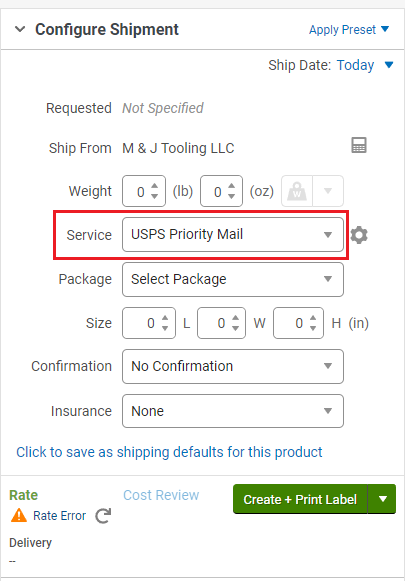
b. If shipping on a customer UPS account: Click "Other Shipping Options" (below the "Configure Shipment" box) to expand the options. Change "Shipping Account" from "UPS Account (Primary)" to "Recipient" and enter the customer's UPS account number in the Account # box.
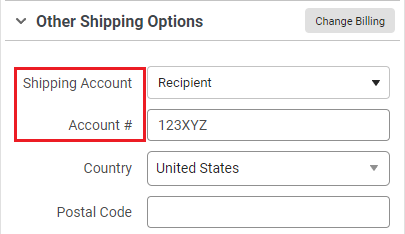
5. Finally, once all information has been entered and double-checked for accuracy, you will need to pull the items for the order (make sure to lower quantities!) and bring them to the shipping area and place them in a plastic bin along with the packing slip (which can be printed from the order summary in ShipStation).
After entering an order that includes gages from Backup Inventory:
1. Find the location for the gage(s) you are pulling
a. Locations beginning BIR# are the metal shelving units, which are labeled by number
b. Locations beginning BIR-UT are the drawers under the table in the center of the room
c. Locations beginning CR# are in various bins / cabinets on and above the back counter
d. Locations beginning BW are in the metal pans on the counter along the back wall
e. Locations that say CABINET # are in one of the cabinets below the counter along the back wall. They are numbered from left to right with the left most cabinet being Cabinet 1
2. If the customer paid the standard list price, we want to give them gages that are in pretty good condition - think a 7 or 8 out of 10 (with 10 being "Like New"). If they paid more (or less), adjust your standards accordingly.
a. Things to look for in a "good" gage:
i. No thread damage
ii. Minimal rust / discoloration / scribing
iii. For plug gages, the handle condition is less important than the members themselves
iv. Avoid Chinese-made gages (typically have black handles and tapers and shorter members than usual)
b. Clean the gages using WD40 / Scotch-Brite / Wire Brush / Rag in the red bin on the center table. Use the wire brush for thread cleaning.
c. If there are no good backup options, pull a listed gage instead (make sure to lower the quantity and notify the person in charge of Thread Gage RSL)
3. All pulled gages should be brought to a supervisor for approval. Once approved, bring the gage(s) to the shipping area and place in a plastic bin along with the packing slip for the order (which can be printed from ShipStation)
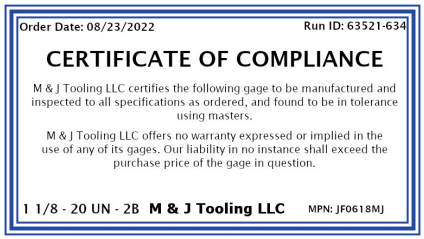
Also called: Manufacturer's Cert, Certificate of Compliance. Confirms that the gage has been made according to ordered specifications, and found to be in tolerance.
- New gages from one of our manufacturers (PMC, GSG, VTG) will automatically include a short form cert
- New gages from our private label brand (SKU ends in "MJ") can include a short form cert for no extra cost
Generating SF Certs for MJ Gages
- Open "Cert File.xcf" in GIMP (can be downloaded here)
- Edit the Order Date, MPN, and Size (lower left corner) to match the ordered item
- The Run ID doesn't really matter - just increase the number by a random amount
- Save the file and then go to File -> Print
- If we are sending the cert to the customer via email / eBay message, select "Microsoft Print to PDF". Otherwise, make sure your normal printer is selected
- On the "Image Settings" tab, change the Width to 4.500. Then, click in any of the other boxes and the rest of the dimensions will resize automatically. After that, click Print to print the cert
- Write the order name in the blank space below the cert so the shipper will know which order it goes with, then bring out to the shipping area
Order acknowledgements should be sent whenever possible so that the customer has a documented record of their order. Creating an order acknowledgement is very simple - once you have finished entering the order, simply click the "Save Acknowledgement PDF" button to generate the acknowledgement. Verify that all information on the acknowledgement is correct, make any necessary changes, and then email the acknowledgement PDF to the customer along with the following message:
"(Good Morning / Good Afternoon),
Thank you for the order! Please see the attached acknowledgement. Let us know if you have any questions, and we appreciate your business!"
Regards,"
For orders placed through our website:
1. Log in to BigCommerce
2. Click on Orders in the sidebar on the left.
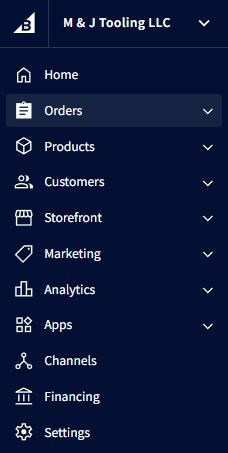
3. In the "Filter by keyword" box, type in the order # and press enter.
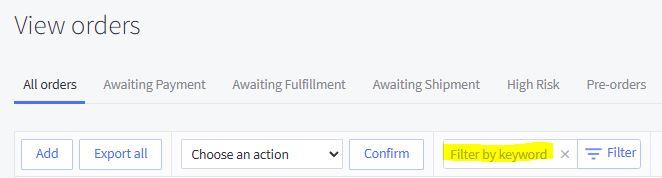
4. Find the order in the results, click on the three dots under "Action" on the right-hand side of the page, and then click Print Invoice.
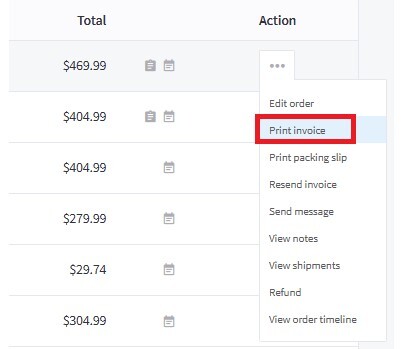
5. From here, you can download the invoice as a pdf and send it to the customer via email.
For direct orders:
***Customers may occasionally request an invoice prior to paying for an order by CC / Wire Transfer. For these, you will follow the steps below after entering all of the order information, with the following exceptions:
1. Leave the Tracking #('s) cell blank
2. Instead of entering ship dates, leave the lead times in this column
3. After entering all info, navigate to the "Invoice" tab at the bottom of the Excel sheet and change the following:
a. "Shipped Via:" (right above the first line item description) should be changed to "Ship Via:"
b. The "SHIPPED" column header should be changed to "LEAD TIME"
4. Then use the "Save Invoice PDF" button to generate the file as normal.
To Create an Invoice:
1. Find the order Excel sheet in the Orders Google drive if you do not already have it on your computer. If the customer has a PO#, searching this will be the easiest way to find the order.
2. Download and open the file and click the blue "Invoice" button at the top of the page. This will add a field for Tracking #('s) (Between "Notes" and "Our PO# If Distributing") and will also change the "Lead Time" column to "Shipped".


3. If this will be a partial invoice (meaning not all lines have shipped), select the checkboxes to the left of each line you are invoicing and then click "Finished Selecting Lines" at the bottom to remove the lines that are not being invoiced.
4. Enter the tracking number(s).
a. For orders shipped directly from us, you can get the tracking # from ShipStation. Find the order by searching the company name / address / PO#, then click on the Order # and you will see the tracking number in the upper-right corner directly below the shipping method:
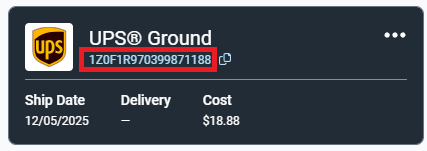
b. For distributing orders, you can get the tracking # from the invoice we receive from the manufacturer.
5. Enter the ship date(s) in the Shipped column (which was previously the lead time), which you will also find in ShipStation or the manufacturer's invoice
6. If the order has already been paid for, click the "Customer Paid" box to the right of the "Tracking #('s)" cell. If there is an error popup saying "Cannot run the macro...", you can ignore this and just click OK.
7. Click the "Save Invoice PDF" button on the left-hand side of the order sheet to generate the invoice PDF.
8. Verify that all information on the invoice is correct, make changes if necessary, and email the invoice to the customer. This can be a very simple message, i.e. "Good Morning/Afternoon, Please see the attached invoice for your recent order, PO#[customer PO]. Thank you, ..."
Credit Card Receipts for Past Orders
Customers will occasionally ask for a copy of the CC receipt for an order. To get a receipt, follow these steps:
If the order was billed today:
1. Log in to the Chase Merchant Services website and click "Open Batch" from the toolbar at the top of the page. This will take you to a search page - do not enter / change any information here; simply click "Search" at the bottom of the page.
2. This will bring up all charges that have been billed today. Find the order, click the circle on the left-hand side of the row, and then "View Order" at the bottom of the page.
3. From here, click on the "Response Data" tab. Click "Customer Copy" and set the printer destination to "Save as PDF". This will create a pdf copy of the customer receipt which can now be emailed to the customer.
If the order was billed before today:
1. Log in to the Chase Merchant Services website and select Review -> Transaction Search from the toolbar at the top of the page.
2. This will take you to a search page. There are several search options, but usually the easiest method is to use the Date Range selection at the bottom. If you know the approximate date of the order (either from the customer or by searching for the order in the Entered Orders Google drive), enter a small date range (30 days or less) and click "Search" at the bottom of the page.
***Note that credit card billing can take up to 24 hours to fully process, so if a customer tells you they received the charge on a specific date, it may have actually been charged the day before. This is why it's usually best to search for a range of a few days rather than one specific date.
3. From the results page, find the order, click the circle on the left-hand side of the row, and then "View Order" at the bottom of the page.
4. From here, click on the "Response Data" tab. Click "Customer Copy" and set the printer destination to "Save as PDF". This will create a pdf copy of the customer receipt which can now be emailed to the customer.
True Line Calibration Certs for Past Orders
If a customer requests a copy of a True Line cert:
1. If possible, obtain the TLC Control #, which can be found near the top of the cert on the right side (see below)
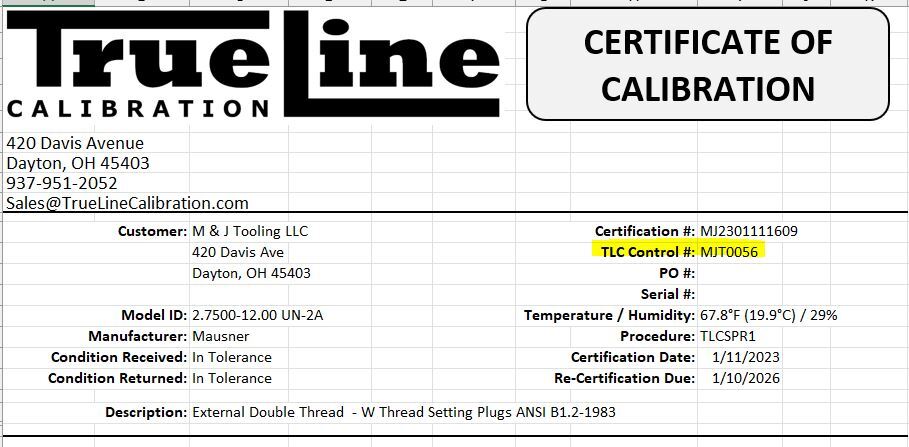
2. If you do not know the control # (which will frequently be the case, since usually the customer is reaching out because they lost their copy), you will need the customer (company) name and date of the order
3. Go to the True Line Certs Google Drive
4. Search the control #, OR:
a. Enter the company name in the search bar and then click on the Advanced Search icon to the right:

b. For Location, click on the dropdown arrow and select "More locations..."
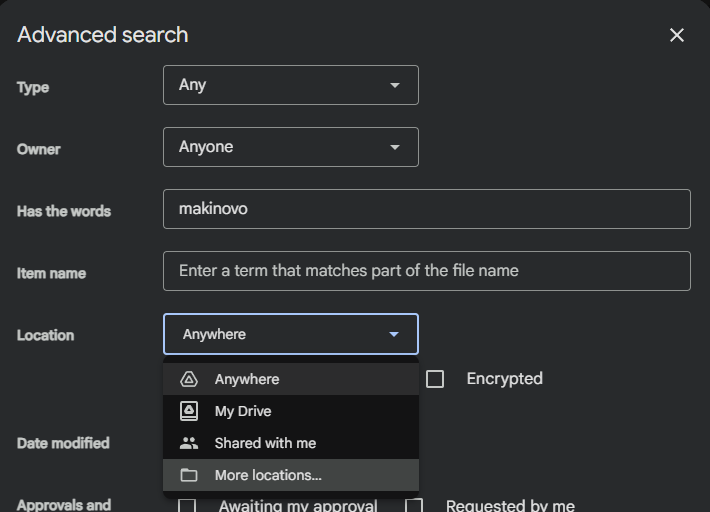
c. Navigate to the True Line Certs folder, which you should find in "All Locations" -> "Shared with me"
d. Click Search.
5. Find the cert(s) in question in the search results, and download the file(s). If there are several results, use the file upload date to help narrow it down.
6. Open the file. There may be a pop-up message when it opens - if so, select "Develop / Revise Template"
7. Double check the "Certification Date", as this will sometimes incorrectly show today's date instead of the date it was actually calibrated. It should always be the same month and day (but NOT year) as the "Re-Certification Date" listed directly below it. The example below would need to have the Certification Date edited to read 3/19/2025:
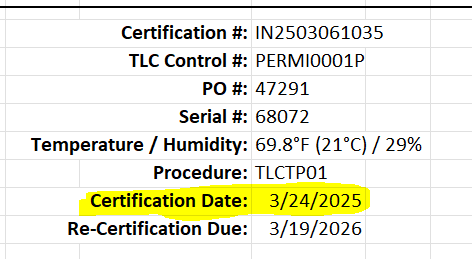
8. Print the cert as a PDF (File -> Print -> Change Printer to "Microsoft Print to PDF"), saving the filename as the control #. The PDF can then be attached to an email and sent to the customer.
Cabinets / Large Items Purchased on eBay
Whenever a cabinet or other large freight item is purchased on eBay, we always want to complete the order directly and NOT through eBay. This is mainly to give us additional protection against returns on items that are very costly to ship.
As soon as a cabinet has been purchased, the following steps MUST be taken:
1. Get a quote on the shipping cost via Central Transport if we have not already done so
2. Call the customer using the phone number provided on the eBay "Order Details" page. Let them know the shipping cost and ask for payment information (credit card or PayPal). Let them know that we will be cancelling the eBay order since we are taking care of things directly, and be sure to get an email address so that we can send them the receipt / tracking info.
3. Once the order has been billed and uploaded, cancel and archive the order in eBay
4. Notify the shipping manager about the order via Discord. They will take care of arranging the freight pickup and prepping the item for shipment.
Awaiting Payment Follow-Up (eBay)
If an eBay order has been in the "Awaiting Payment" status for a while (more than 1-2 days), we will want to reach out to the customer to try to get the order moving.
1. From eBay, click "My eBay" in the top-right corner of the page
2. Mouse over Orders in the toolbar at the top of the page and click Awaiting Payment
3. In a second tab, open eBay messages and go to the "Sent" folder. For each order currently in Awaiting Payment, search the customer's eBay username in the Sent folder to see if we have previously followed up on the order.
4. Starting with the oldest order that has not already been followed up on, click on the arrow under "Awaiting Payment" on the left-most end of the row, then click "Contact Buyer" from the drop-down menu that appears.
Send the following message:
"Hello,
We see that this item is still awaiting payment. Is there anything we can help you with to complete this order? Please let us know if you have any questions.
Regards,
M & J Tooling LLC"
If there is an issue with an order that requires contacting the customer (such as the item not matching the listing, or damage not shown/described in the listing):
1. First, check our store for any potential replacements that we could offer the customer in case the item they ordered will not work for them
- If we offer the customer a replacement that is more expensive than the item they bought, we will need to get additional payment via credit card or PayPal (we cannot do this through eBay/Amazon/BigCommerce as the price cannot be adjusted once the order is placed). Be sure to also get an email address so we can send the receipt.
2. Call the customer using the phone number attached to the order (this can be found in ShipStation or on the packing list)
- If we are unable to get ahold of the customer by phone, reach out via email or a direct message through eBay / Amazon / our website
3. If the customer says that the item is okay to ship as-is:
- Let the shipping group know that the order is clear to ship - include a snip of the order details from ShipStation so they'll know which order you're referring to
4. If we're sending a replacement:
- Let the shipping group know about the replacement - include a snip of the order details from ShipStation so they'll know which order you're referring to
- Pull the replacement, lower the quantity in SureDone / Backup Inventory, and put it with the packing slip in the shipping area
- Re-stock the item being replaced, increase the quantity in SureDone / Backup Inventory, and make any necessary changes to the listing if it was inaccurate (see your supervisor if you do not know how to do this)
5. If we have no replacement option and the customer asks to cancel the order:
a. Cancel the order in ShipStation
b. Cancel the order in whichever store it was purchased from
i. eBay:
1. Click "My eBay" in the top-right corner
2. Mouse over Orders in the toolbar at the top of the page and click Awaiting Shipment
3. Find the order you're looking for and click on the arrow next to "Purchase Shipping Label" on the left-most end of the row, then click "Cancel Order" from the drop-down menu that appears.
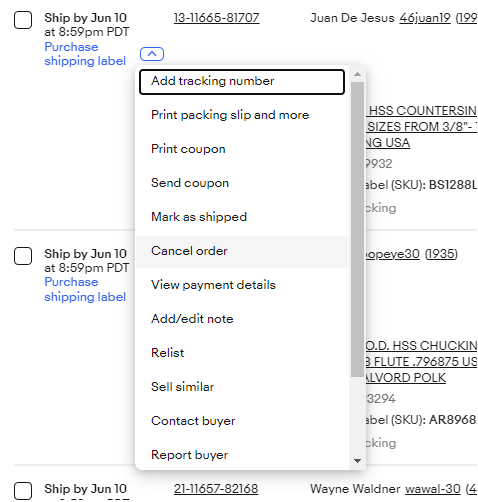
a. You will be prompted to choose a reason for cancellation - select "Buyer asked to cancel" and confirm the cancellation
b. This will take you to a cancellation summary page. From here, click on the order number under "Summary" on the right side of the page to go to the order details page
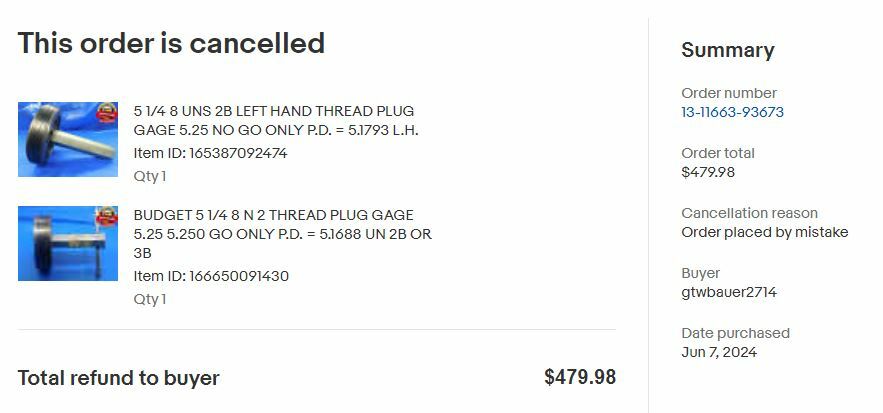
c. From here click "More actions" and then "Archive". All cancelled eBay orders MUST be archived! This helps to keep our sales numbers accurate.
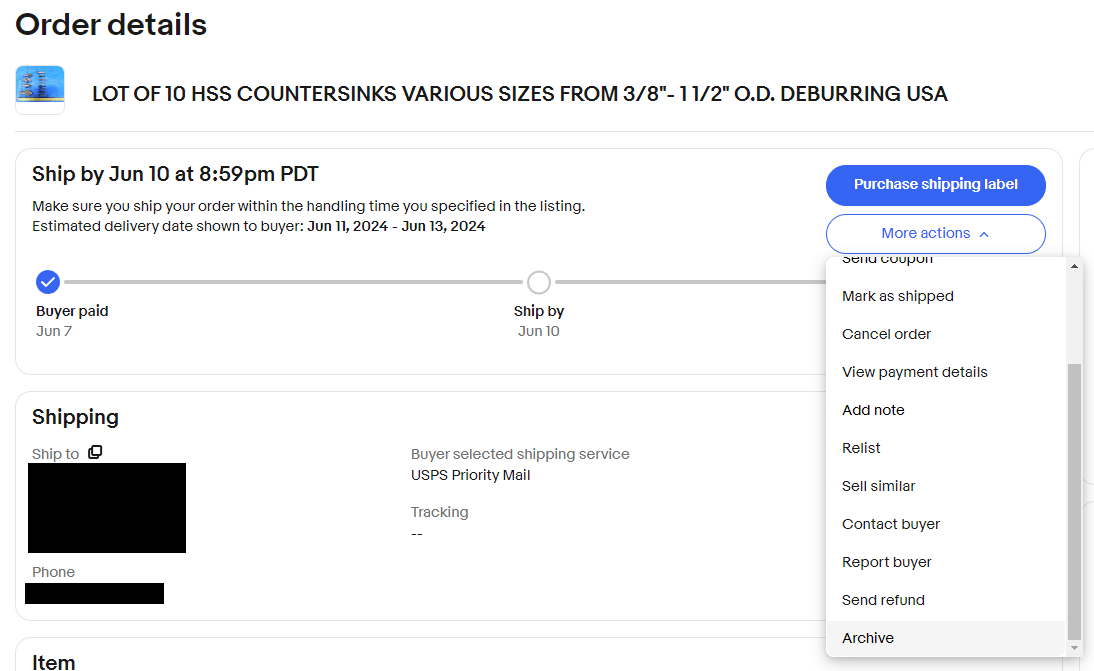
d. Add the order to the Money Credited spreadsheet
ii. Amazon:
1. From the Seller Central homepage, select Orders -> Manage Orders from the toolbar at the top of the page
2. Find the order and click "Cancel Order" under "Actions" on the right-hand side
3. Add the order to the Money Credited spreadsheet
iii. Our Website:
1. Log in to BigCommerce and click "Orders" from the menu on the left side of the page
2. Find the order, change the status to "Cancelled"; click the three dots under "Action" and choose refund to refund the order
3. Add the order to the Money Credited spreadsheet
Customer Requests Cancellation
ALWAYS do the following IMMEDIATELY:
1. Take a snip of the order and post it in the Shipping Group discord channel along with a message that it is being held for possible cancellation
2. Tag the item in ShipStation with "HOLD/DNS", "POSSIBLE CANCELLATION", & "HOLD FOR CUSTOMER APPROVAL" by clicking the checkbox next to the order name and then selecting the "Tag" dropdown
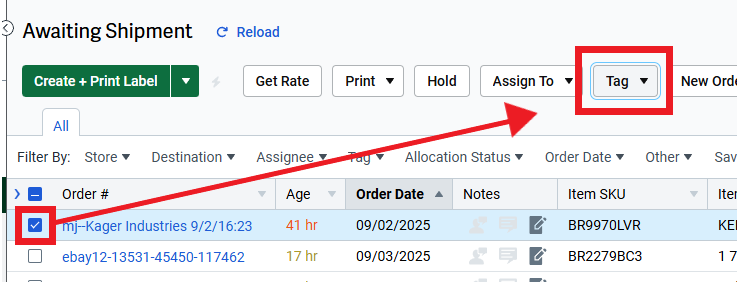
3. Put the order on hold in ShipStation by clicking the "Hold" button to the left of the Tag dropdown. Set the "Hold Until" date for one week from today, in case we need to continue holding the order for a day or two while we wait for a resolution with the customer.
4. If the item has been picked already (which will be denoted by the blue "Picked" tag):
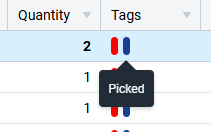
a. Place a physical "Possible Cancellation" tag on the bin (hanging on Shipping Station 1 shelf with other tags)
b. Bring the bin with all items to the sales supervisor's office.
Once the steps above have been completed:
1. We will want to determine why the customer is looking to cancel the order, if they have not already given us that information. This can be done via phone, email, or eBay / Amazon message, depending on the source of the order and what contact info we have for the customer. If we have not gotten a response via email / eBay message / Amazon message by 3PM, follow up with a phone call. If there is no answer, alert your supervisor so that a final decision can be made at this time.
2. If they need a different item / size that we have available, we can typically make a direct substitution as long as there is no significant price difference. Confirm the substitution with your supervisor before proceeding with making the swap.
a. If we are making a substitution, be sure to adjust the stock accordingly on both the replacement item and the originally purchased item which will now be restocked
3. If we are not able to provide a substitution (or if they are not interested in one), we will cancel the order. For direct / website orders, we may have to apply a restocking fee, typically 8-12% depending on how much labor has gone into the order already (eBay / Amazon orders do not involve credit card fees or as much labor so we will always give a full refund). Confirm this with your supervisor before proceeding.
IF A CUSTOMER WANTS TO CANCEL A DISTRIBUTING ORDER:
a. Immediately contact the manufacturer by email, referencing our PO#. Let them know that the customer has asked about possibly canceling the order, and ask if it is possible to cancel the order at this point, and if so, if there will be any cancellation fee required. Try to be as clear as possible that we are NOT asking for the order to be cancelled at this time, we just want to know if cancellation is possible.
b. In some cases, the manufacturer may refuse a cancellation because the gage is too far along in the manufacturing process. In this case, we will simply pass this information on to the customer and let them know that the order cannot be cancelled at this point.
c. If the order can be cancelled: We will always charge our customer a cancellation fee, even if the manufacturer does not require one. This is to cover our labor + CC processing fees. Similarly, if there is a cancellation fee from the manufacturer we will increase this fee to our customer to ensure these costs are covered. You supervisor will help you determine how much we will charge for this fee, as it may vary depending on the size of the order and the amount of work that went into quoting it / landing the order. Let the customer know the amount of the cancellation fee and confirm that they would like to cancel before proceeding. If they say yes:
i. Let the manufacturer know that we would like to proceed with canceling the order. If they do not respond within 24hrs acknowledging the cancellation, follow up to ensure that the cancellation has been processed.
ii. Process the refund, with the cancellation fee subtracted from the refund amount. If there were multiple items on the order and only some are being cancelled, make sure to ONLY refund the cancelled item(s)! Send the customer an email letting them know the order has been cancelled, and attach a copy of the refund receipt.
iii. Remove the order from the Distributing Orders spreadsheet.
iv. Update the Money Credited spreadsheet with the information about this refund.
4. If the order is cancelled:
a. It must be cancelled on both the platform it was ordered on (eBay, Amazon, BigCommerce) and ShipStation (or if it was a direct order, only ShipStation).
eBay:
If we received a formal cancellation request ("A buyer wants to cancel an order" message), click on "See cancel details" in the message and follow the prompts. Once the cancellation has been submitted, click on the order number to go to the order details page, and then select Archive from the "More actions" dropdown menu (this must always be done on eBay cancellations!)
Note: If the cancel details say "cancellation rejected" (usually only the case if it has already been shipped / we took more than 24hrs to respond) but we are cancelling the order, you will have to go to the order details page and simply submit a full refund instead. The order must still be archived like if it had been officially cancelled.
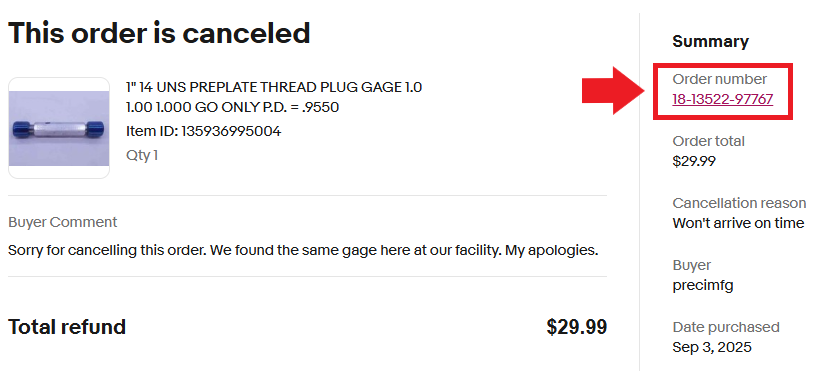
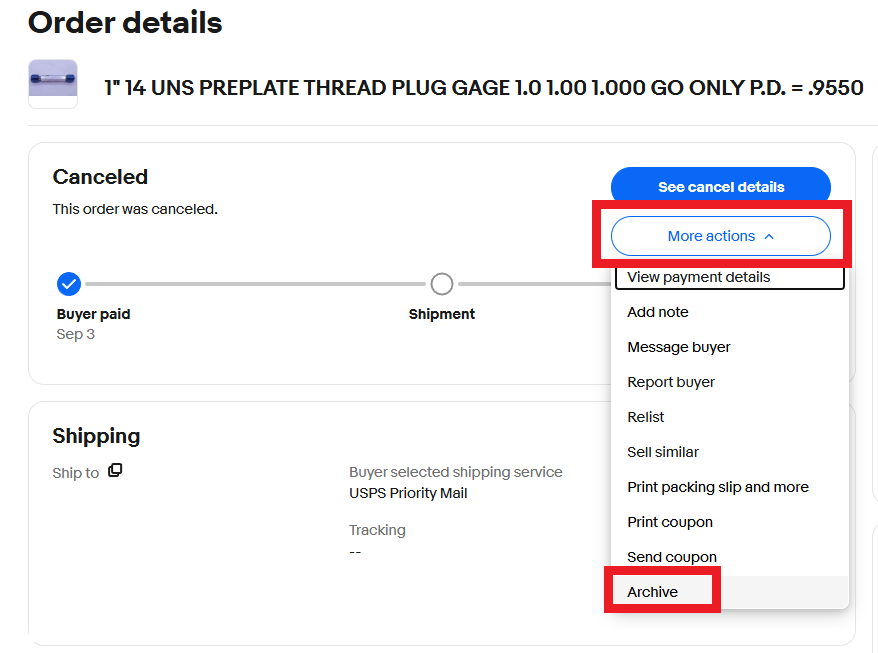
Otherwise:
1. Go to My eBay -> Orders -> Awaiting Shipment
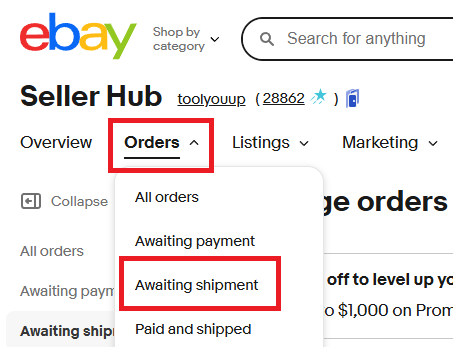
2. Find the order in the list, then click on the order number to go to the order details page.
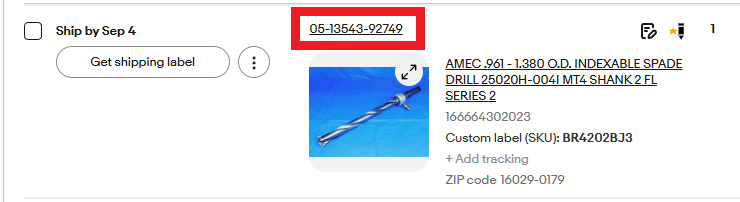
3. Select Cancel Order from the "More actions" dropdown menu. Follow the prompts to confirm the cancellation (reason will be "Buyer Cancelled")
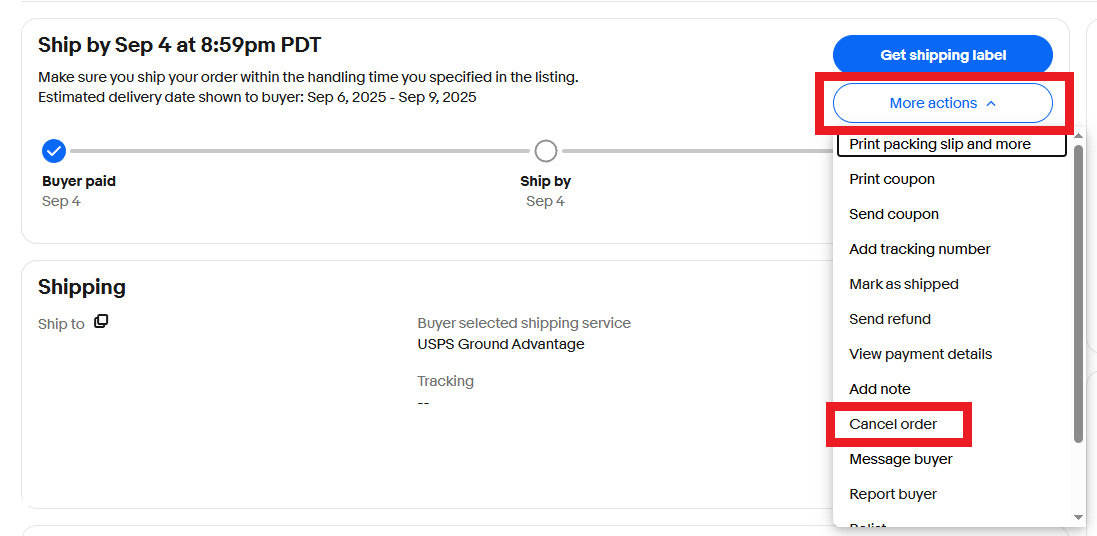
4. Once the cancellation has been submitted, click on the order number to go to the order details page, and then select Archive from the "More actions" dropdown menu (this must always be done on eBay cancellations!)
Amazon:
If we have received a formal cancellation request (email from Amazon Seller Central Notifications with the subject "Order cancellation request for Order ID: XXX-XXXXXXX-XXXXXXX"), use the link in the email to go to the cancellation details page and follow the prompts to accept the cancellation.
Otherwise:
1. Log into seller central and click on Ship Orders in the menu on the left side of the page.
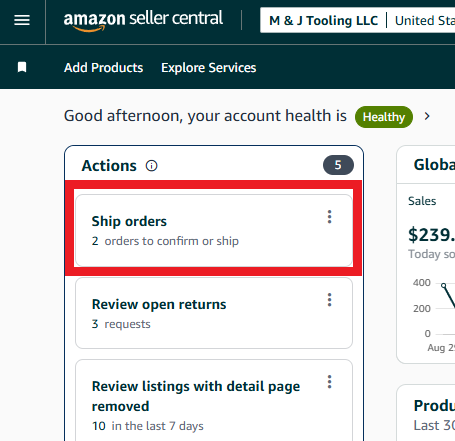
2. Find the order in the list and click on the order number to go to the order details page.
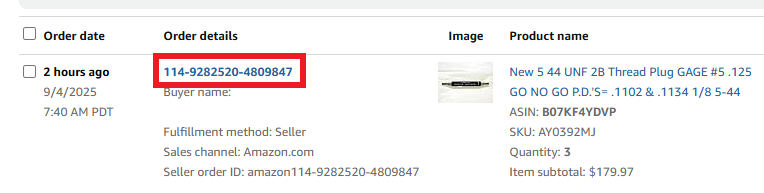
3. Click Cancel Order in the top right corner (right above the Ship To details) and follow the prompts to confirm the cancellation. Select "Buyer Cancelled" for the cancellation reason.
BigCommerce:
1. Log into BigCommerce and click Orders in the sidebar menu
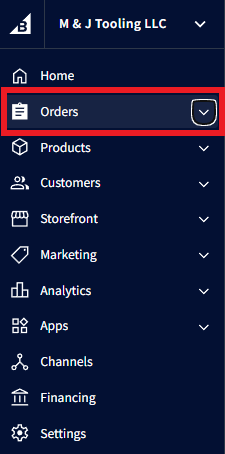
2. Find the order in the list via the Order ID or Customer Name. Change the Status to Cancelled.
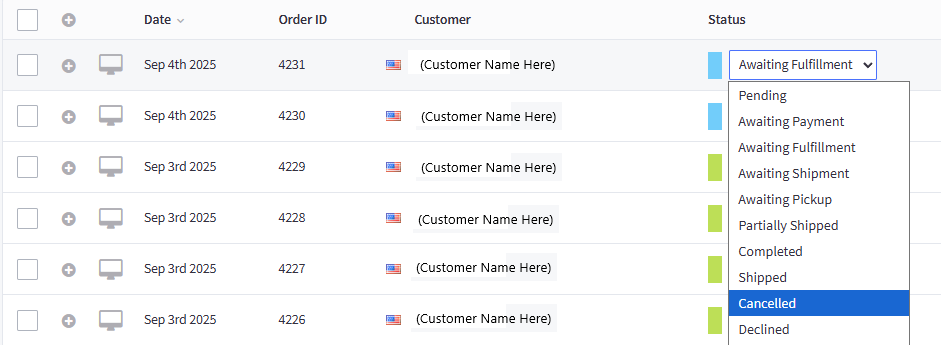
3. Click on the three dots at the end of the row under "Action" and select Refund.
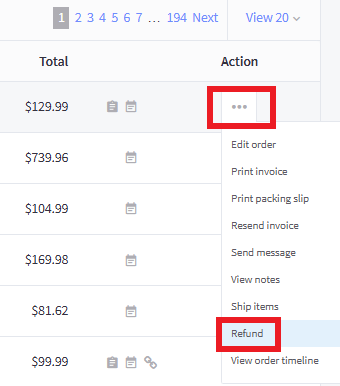
4. Under "Refundable Items", select Refund entire order and then click "Continue" at the bottom of the page.
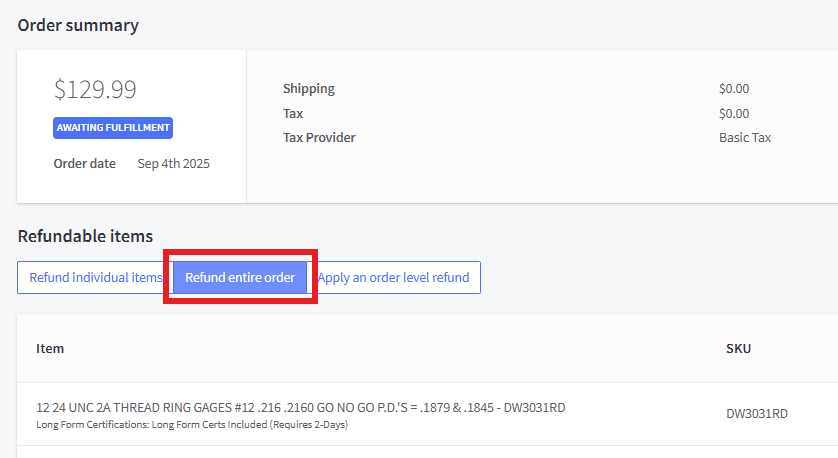
5. On the next page, under "Refund method" select the first option, which will be either Credit Card or Braintree (PayPal). Do not chek the box for "Refund transaction prcessed external to BigCommerce".
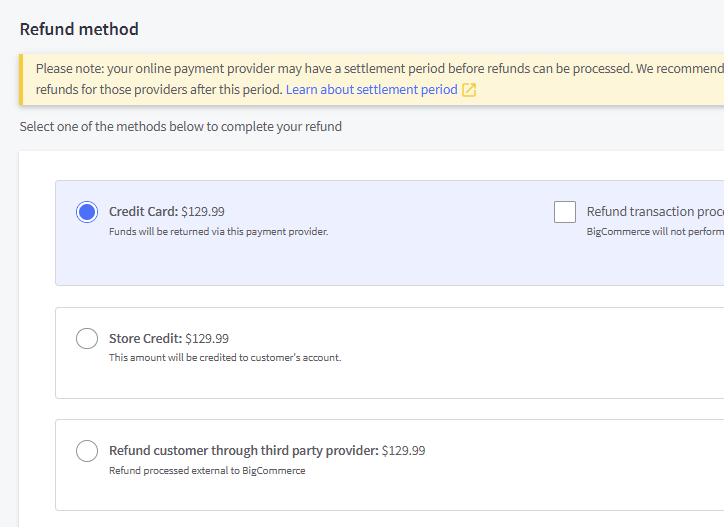
6. Click Confirm Refund at the bottom of the page to complete the refund.
Direct Orders
To Void or Refund a Credit Card Payment:
1. Log in to Chase Merchant Services.
2. If the order was billed today:
a. Click "Open Batch" in the menu bar at the top of the screen
b. Click "Search" at the bottom of this page without entering or changing any information
c. Find the order, then click the bubble in the leftmost column and click "Void" from the options below the results list
d. Next, click "View Order" and then "Response Data" to print a void receipt and send a copy to the customer. Our copy should be stapled to the receipt for the original billing in the CC filing cabinet.
3. If the order was billed on a previous day:
a. Click "Review" -> "Transaction Search" in the menu bar at the top of the screen
b. Set the date range to be the date that the order was billed and click search. (Do not enter any additional information on this screen)
c. Find the order, then click the bubble in the leftmost column and click "View Order" from the options below the results list
d. Click "Credit" at the bottom of this page
e. Enter the amount being refunded into the "Amount" cell (if it is not the total amount, which it will default to)
f. Double check that the refund amount is correct, and then click "Credit" at the bottom of this page
g. Print a copy of the refund receipt and send a copy to the customer. Our copy should be stapled to the receipt for the original billing in the CC filing cabinet.
PayPal / Wire Transfers:
Contact your supervisor for more information.
Net-30 Orders:
Notify the person who handles AP/AR that the order has been cancelled (include all relevent information such as company name, PO#, and date the order was placed) so that they can remove it from the list of upcoming invoices.
ShipStation:
Find the order in ShipStation, which should now be in the "On Hold" category. Click the checkbox next to the order name and then select Other Actions -> Cancel.
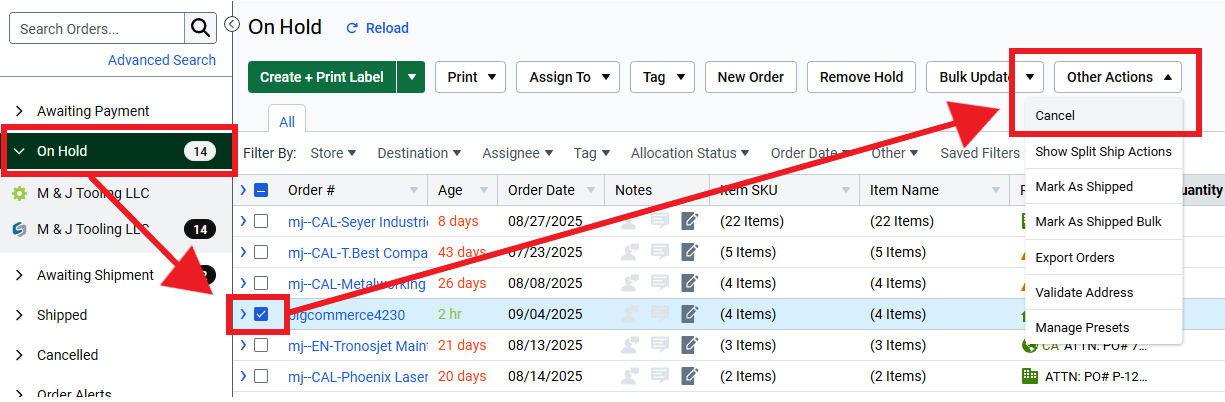
c. The item(s) on the order must have their quantities increased in SureDone and, if they had been picked already, be stocked back in their locations.
1. Search the SKU in SureDone, then click on the triangle that appears when you hover over the SKU and select Edit Inline.
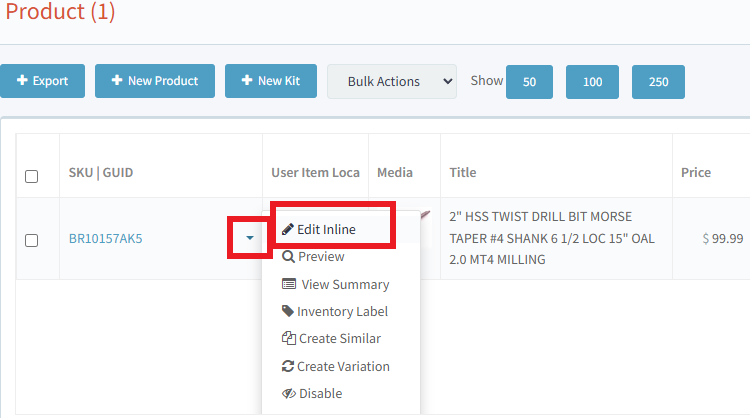
2. Increase the stock number by the appropriate amount and then click the checkmark to save the changes.

3. After changing the stock, always check the eBay listing by clicking the link under eBay Item ID to confirm that it shows the correct stock. You should see the "Buy It Now" option, and if the available stock is more than 1, it will be shown directly above and should match the stock in SureDone. If there are any discrepancies between SureDone and eBay, contact your supervisor for guidance on further steps that will need to be taken.
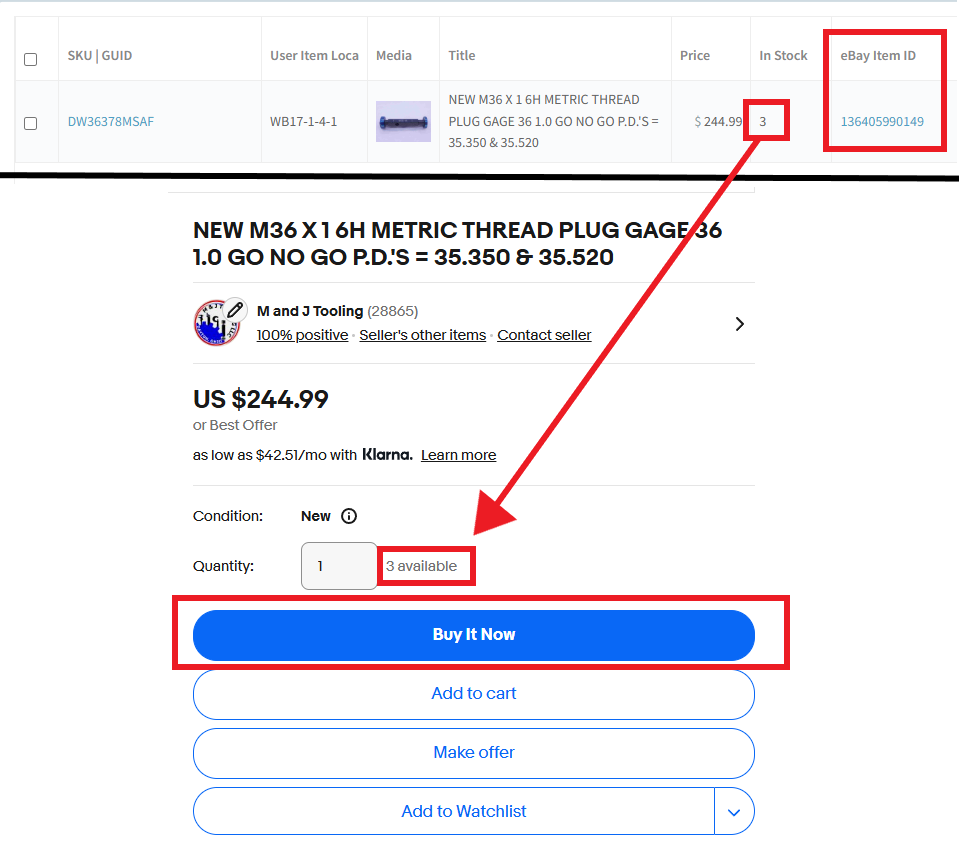
d. All refunded orders must be added to the Money Credited spreadsheet. Click the "Jump to End" button in the top-left and then add the corresponding information to each column.
Click Here for Open Distributing Orders
If a distributing order (from PMC, GSG, etc.) is past the acknowledged due date and we have not received an invoice or shipping confirmation, we need to follow up with the manufacturer to get an updated estimated ship date.
1. Search our PO# in the sales inbox. If there is any prior conversation regarding this order (such as if we have already followed up on it once), you will reply to that email chain; if not, find the order acknowledgement email and reply to that message instead.
2. Message:
"[Good Morning / Good Afternoon],
We are following up on this order as it is past the acknowledged due date of [DATE]. Please advise as to the status of the order or provide tracking information if available.
Thank you,"
3. If we do not receive a reply within 4 hours, follow up with a phone call to the vendor. They will likely not be able to give you an immediate answer on the phone, but this usually helps to get things moving on the email response.
4. Once we have been updated, notify the customer of the new estimated ship date and update the Open Orders sheet with the new ship date and follow-up date. If the new date passes without us receiving an invoice / shipping confirmation, we will need to repeat this process and follow-up again.
If a order's tracking is stuck (no updates for several days), we can open a Missing Mail Claim to try to find the package and get it moving again.
1. From USPS.com, choose Help -> Finding Missing Mail from the toolbar at the top of the page
2. Scroll down to "3. Submit a Missing Mail Search Request" and click on "Start Your Missing Mail Search"
3. You will then be prompted to log in. If you do not have an account, create one using your MJTooling gmail address
4. From here, enter all required information (you should be able to get all of the needed details from ShipStation)
a. For "Where to Send It" select "Addressee"
b. For "Contents of Your Mailpiece": Category is "Automotive, Tools and Hardware", sub-category "Other Automotive, Tools and Hardware"
5. Once all information is entered, click Verify Address and submit the search request. Look out for email updates regarding the search.
If a missing mail search fails to find the package, our next step is to file an insurance claim to be reimbursed for the lost package.
Note: First Class packages are not insured and therefore cannot be claimed.
1. From USPS.com, choose Help -> Filing a Claim from the toolbar at the top of the page
2. Scroll down to the bottom of the page and click Claim History under "First Appeal"
3. You will then be prompted to log in. If you do not have an account, create one using your MJTooling gmail address
4. From here, click "Current Claim" near the top to begin a new claim
a. Enter all required information. You will be asked to upload proof of value, which can be a credit card receipt / PayPal invoice (if direct order) or an eBay/Amazon/BigCommerce invoice
i. Make sure it says "Invoice" - even if this means editing the receipt with GIMP
b. Once submitted, USPS will make a determination and, if approved, mail us a check for the refunded amount
If a package shipped via Priority Mail Express is not delivered within the timeframe promised on the label (typically 1-day), we can request a refund for failed delivery.
1. From USPS.com, choose Help -> Requesting a Refund from the toolbar at the top of the page
2. Scroll down to "Priority Mail Express", click "Show More" and then "Request a PME Refund"
3. You will then be prompted to log in. If you do not have an account, create one using your MJTooling gmail address
4. Enter the required information and the claim should be immediately approved or denied. If approved, USPS will mail us a check for the refunded amount
If an order is returned to us marked "Return to Sender" (typically with a description saying something like "Insufficient Address" or "No Mail Receptacle"):
1. Verify if the address we tried to send it to is correct.
For direct orders: Check if it matches the information we have on file - you can also try Googling the company and see if their address is listed online for us to check against.
If we entered the address incorrectly, contact the customer and let them know that there was an error with the shipment (we can blame it on USPS / UPS messing up the address - don't necessarily admit to us having made the mistake) and we will be re-shipping it today for them. In this case we will be covering the shipping cost.
Otherwise: (Or for any non-direct order):
2. Contact the customer to verify if the address we tried to send it to is correct. If it is:
a. Does the customer have another address or PO Box that they receive mail at that we can ship to instead?
b. If not - do they typically receive mail from USPS? If they have had issues with USPS in the past, we will try shipping via UPS instead.
c. We want to try to have the customer pay for the shipping, either by providing a UPS account or paying directly via credit card or PayPal, rather than us eating the shipping cost a second time, since it was not our fault that the package failed to be delivered.
If the customer refuses to pay for shipping:
If the shipping cost is less than 5% of the total order price, we will cover the shipping as a courtesy - ONCE! (If it is returned to sender a second time, we will NOT cover shipping again)
Otherwise, bring this to your supervisor.
3. Once we have the updated address / shipping method, create a new order in ShipStation (see here for more info on how to do this), place the item and packing list in a plastic bin, and bring it to the shipping area.
To create a return label:
1. Find the original shipment in ShipStation by searching the SKU, customer name, order #, or part of the address
2. Click the box with an arrow on the left-hand side, and then the '+' sign next to "RETURNS" in the top-left corner of the order details page
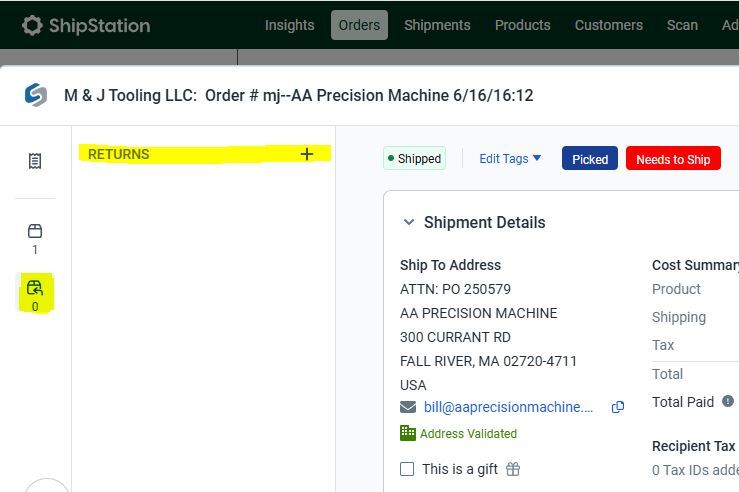
3. Select the item(s) being returned and adjust quantities as needed, then click Continue. The Return Reason is not required, and can be left on the default "Select Reason"
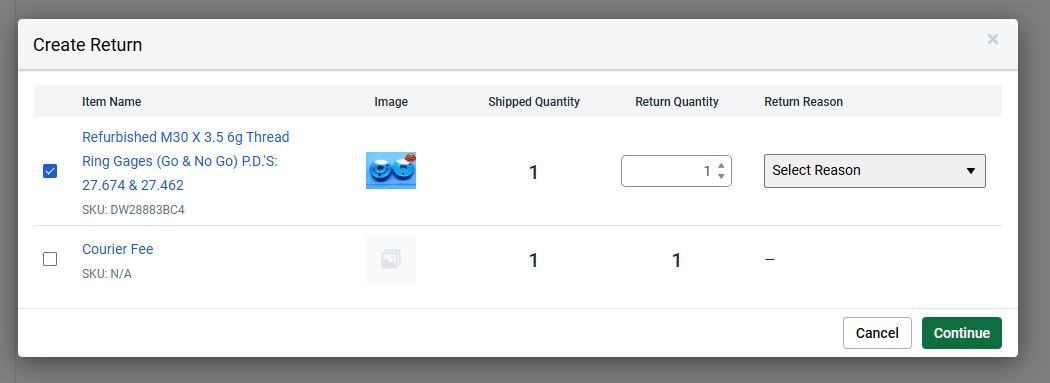
4. In the Configure Shipment box:
a. Set the Return To location to "RETURNS"
b. Enter the Weight and Size dimensions (if they are not automatically carried over from the original shipment)
c. Select the appropriate shipping Service (typically USPS Ground Advantage or UPS Ground - ask your supervisor if you are not sure which one to use)
d. Set the Package to "Package" (if it is not already)
e. Uncheck the Auto Assign RMA# box
f. Select Download Label Now (rather than "Email label")
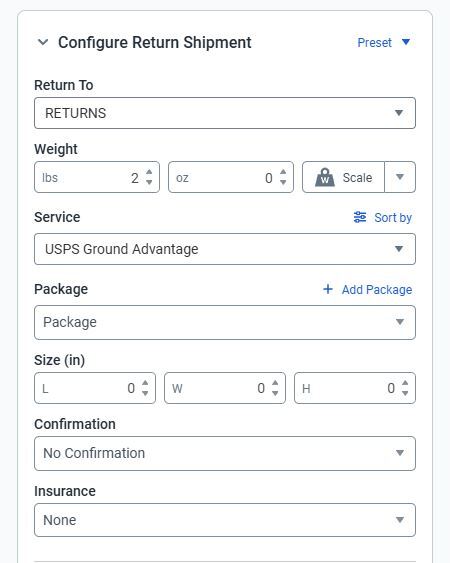
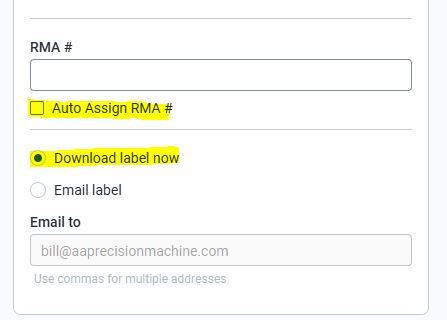
5. Once all information is entered click the green "Download PDF" button in the lower-right corner of the page. This will generate the shipping label which will then be downloaded as a .PDF file which can be emailed to the customer.
- If sending a return label via an eBay message, it will have to be converted to a .JPEG file using an image editing software such as GIMP. Contact your trainer if you need help with this.
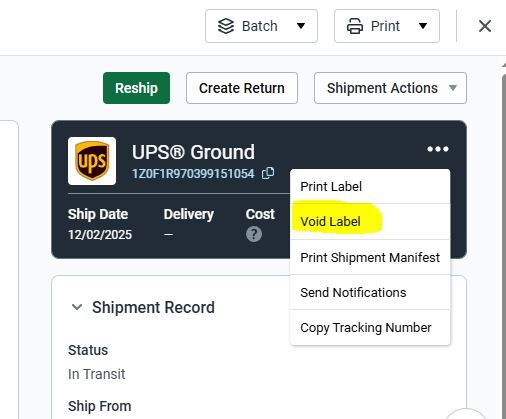
Only approved employees may respond to purchasing inquiries!!
If a customer has reached out asking if we would be interested in purchasing their inventory:
• Provide a response asking for any pictures that may be available, ex:
Good Morning,
Would you be able to provide some pictures of the inventory? They do not need to be too detailed, just an overview. Also, if you had an asking price in mind, please let us know and we will consider it.
• If they refuse to provide an asking price, we will offer.
"We completely understand if you would like to explore other avenues of selling first, but this would be what we can offer at this time."
• If terms & pricing are agreed upon, use a variation of the following message to ensure the inventory arrives safely:
Please wrap the gages individually so that the threads cannot damage each other in transit. Also, make sure the box is completely covered in tape and packed tight. Sorry if this sounds silly to need to clarify, however we like to request this whenever we purchase gages as sometimes items get lost or damaged along the way.
1. Search the SKU in SureDone.
2. Click on the SKU (under SKU | OID on the left side)
3. Make any necessary changes, then click Update in the bottom-right corner of the page when you're finished.
a. If altering the title or price, you will need to do so in three different places - the General, Amazon, and BigCommerce sections. The title and price for the eBay section should update automatically when you edit the "General" section, but always double check this to make sure.
b. To edit the description (in the "General" section), click the "Text Editor" toggle button on the left side directly above the description to change the html code into editable text.
c. If a location needs to be changed, it must be changed in two places: At the very bottom of the description, and in the "Custom Fields" section under "Item Location"
d. Pictures can be added / removed in the Media section. New pictures can be uploaded directly by simply dragging the file from your desktop to the browser window (you should see "Drop Your Images Here" when doing so)
1. Log in to Amazon Seller Central
2. Find the order ID by going to Orders -> Manage Returns
3. Copy the Order ID
4. Go to Orders -> Manage SAFE-T Claims -> File New SAFE-T Claim (yellow button in top-right corner)
5. Check eligibility by pasting the Order ID
6. Select the claim reason (which will typically be given to you by the person who asked you to open the claim)
7. Follow the prompts given by Amazon. Be sure to ask your supervisor(s) for any materials that are needed that you don't have.
8. An update will be sent to the sales@ email when the status changes. Check when that is seen or once a day for a result. There is a chance that you will need to appeal if they deny the claim, which should be done as soon as we are notified of the denial.
Any time we are made aware of an item being shipped to us, it will need to be added to the Receiving Inventory spreadsheet. This can be for any number of reasons including:
- Customer Returns
- Customers sending us their gages for calibration
- Product coming from a manufacturer
- Items purchased from other eBay sellers
- Auctions
All incoming product must be added to the sheet before the shipping department can accept it.
Returns should be added to the "Returns" tab, and all other items should be added to the "Receiving Inventory" tab.
Make sure all relevant information is added to the sheet including:
- Date Ordered
- Platform (eBay / Manufacturer / Direct / etc)
- Ship From Location (Include full address if known, along with seller name / company name)
- Product Description (Can be generalized if many items, i.e. "30 Thread Gages", "Misc. Indexable Tooling", etc)
- Shipping Method (UPS or USPS; put "Not sure" if unknown. Include tracking # if known)
- Status (Will be "On the Way" for most items)
- Auction Code (Only applies to auctions / stocking orders; leave blank for anything else)
- Bring To (Person / location that the receiver will bring it to)
Add any additional information in the "Notes" section - PO#, end customer name, refund guidelines for returns, etc.
Once the shipping department receives the inventory, they will mark it as received and it will be moved to the "Archived" tab, where it can then be referenced for any notes / other info needed by the person handling it.
If you are waiting for a supervisor to check your work in a Discord message and do not receive a response:
After 2 minutes from when the message was sent, if you do not see someone typing: Move on to either the next step in what you're working on or begin looking into / working on the next task.
After 5 minutes from the original message: Reply to your message that you need an answer on with "Bump" like in the image below:

After sending this message, continue working on the next task. You will want to bump every 5 minutes from there. If you feel that you need a message responded to more quickly, for example a time sensitive customer or something preventing you from moving on to other tasks, you may use the radio to bring your supervisor's attention to Discord.
Tool Sharpening
G & F Tool Co
1728 McLain St
Dayton, OH 45403
(937) 254-0945
gandftool@gmail.com
Computer Repair
Kyle Perkins
1023 Phillips Ave
Dayton OH 45410
937-736-0518
Lorem ipsum dolor sit amet, consectetur adipiscing elit. Nam sit amet pellentesque odio. Proin blandit faucibus massa. Vivamus et mauris sit amet erat lobortis placerat et at magna. Quisque sed mi massa. Sed cursus orci in nisl feugiat, id dignissim dolor bibendum. Orci varius natoque penatibus et magnis dis parturient montes, nascetur ridiculus mus. Nulla eu neque condimentum dolor suscipit eleifend.
Sed scelerisque venenatis justo, id dignissim risus blandit ac. Integer ac ligula condimentum, sodales enim et, facilisis eros. Nulla sed erat id velit tempus tempus sit amet vel massa. Integer eu mi felis. Proin eu nunc sem. Pellentesque in dolor hendrerit, facilisis dolor a, imperdiet dui. Donec elementum nisi id nulla congue ullamcorper. Vivamus interdum mi at laoreet condimentum. Suspendisse euismod metus tempor mauris pretium sollicitudin. Aliquam tempor ultrices sapien, in viverra ante feugiat vitae. Ut metus nunc, tristique vel faucibus eu, laoreet nec velit. Praesent posuere non dui et dapibus. Donec venenatis aliquet ex, in dictum turpis cursus a. Vivamus mollis aliquet nibh, quis porta ipsum lobortis eu.
Quisque ultrices dictum tincidunt. Suspendisse nulla risus, commodo sit amet volutpat eu, rutrum suscipit ipsum. Mauris et laoreet nibh. Suspendisse ac lorem placerat, euismod nisl at, efficitur orci. Morbi tristique rhoncus urna. Nam laoreet arcu ac dictum sollicitudin. Sed non convallis metus. Donec feugiat tempus dignissim. Maecenas sit amet dui justo. In sed blandit elit. Proin ultrices dui nec tempor posuere. Sed et ultrices mi, vitae viverra massa. Duis auctor turpis nec vestibulum vestibulum.
Maecenas vitae massa eros. Aenean gravida elit vel nunc dictum, at accumsan justo placerat. Phasellus mollis massa a sem eleifend, vitae convallis felis efficitur. Duis lectus enim, bibendum vitae purus et, dictum commodo nisl. Nunc laoreet consequat urna. Sed nec lectus mauris. Praesent viverra fringilla lorem et dapibus.
Duis dui dolor, facilisis ut vehicula ut, placerat eget metus. Suspendisse ac volutpat nisl. Nullam facilisis quam leo, et iaculis augue ornare ut. Proin pellentesque velit ut nibh porttitor sagittis. Donec dapibus congue ligula at dapibus. Nullam sed est urna. Fusce ut pharetra nunc. Aliquam quis nisl tellus. Maecenas id ornare dolor. Nunc quis interdum velit. Nam tristique elit elit, a luctus mi rutrum at. Maecenas sed enim auctor, tempor nisi ut, dignissim libero. Vestibulum ante ipsum primis in faucibus orci luctus et ultrices posuere cubilia curae;
- All email communication relating to NDA materials MUST be checked by a supervisor before being sent. If an email is being sent by a supervisor, it must be checked by another supervisor.
- If we need to send a print or any other documents to a manfacturer for a quote or order, we will need to have them also sign an NDA for the customer before we can proceed
Lorem ipsum dolor sit amet, consectetur adipiscing elit. Nam sit amet pellentesque odio. Proin blandit faucibus massa. Vivamus et mauris sit amet erat lobortis placerat et at magna. Quisque sed mi massa. Sed cursus orci in nisl feugiat, id dignissim dolor bibendum. Orci varius natoque penatibus et magnis dis parturient montes, nascetur ridiculus mus. Nulla eu neque condimentum dolor suscipit eleifend.
Sed scelerisque venenatis justo, id dignissim risus blandit ac. Integer ac ligula condimentum, sodales enim et, facilisis eros. Nulla sed erat id velit tempus tempus sit amet vel massa. Integer eu mi felis. Proin eu nunc sem. Pellentesque in dolor hendrerit, facilisis dolor a, imperdiet dui. Donec elementum nisi id nulla congue ullamcorper. Vivamus interdum mi at laoreet condimentum. Suspendisse euismod metus tempor mauris pretium sollicitudin. Aliquam tempor ultrices sapien, in viverra ante feugiat vitae. Ut metus nunc, tristique vel faucibus eu, laoreet nec velit. Praesent posuere non dui et dapibus. Donec venenatis aliquet ex, in dictum turpis cursus a. Vivamus mollis aliquet nibh, quis porta ipsum lobortis eu.
Quisque ultrices dictum tincidunt. Suspendisse nulla risus, commodo sit amet volutpat eu, rutrum suscipit ipsum. Mauris et laoreet nibh. Suspendisse ac lorem placerat, euismod nisl at, efficitur orci. Morbi tristique rhoncus urna. Nam laoreet arcu ac dictum sollicitudin. Sed non convallis metus. Donec feugiat tempus dignissim. Maecenas sit amet dui justo. In sed blandit elit. Proin ultrices dui nec tempor posuere. Sed et ultrices mi, vitae viverra massa. Duis auctor turpis nec vestibulum vestibulum.
Maecenas vitae massa eros. Aenean gravida elit vel nunc dictum, at accumsan justo placerat. Phasellus mollis massa a sem eleifend, vitae convallis felis efficitur. Duis lectus enim, bibendum vitae purus et, dictum commodo nisl. Nunc laoreet consequat urna. Sed nec lectus mauris. Praesent viverra fringilla lorem et dapibus.
Duis dui dolor, facilisis ut vehicula ut, placerat eget metus. Suspendisse ac volutpat nisl. Nullam facilisis quam leo, et iaculis augue ornare ut. Proin pellentesque velit ut nibh porttitor sagittis. Donec dapibus congue ligula at dapibus. Nullam sed est urna. Fusce ut pharetra nunc. Aliquam quis nisl tellus. Maecenas id ornare dolor. Nunc quis interdum velit. Nam tristique elit elit, a luctus mi rutrum at. Maecenas sed enim auctor, tempor nisi ut, dignissim libero. Vestibulum ante ipsum primis in faucibus orci luctus et ultrices posuere cubilia curae;